Lesson 1 of 28
A tour of the AML/CFT hub
What you will be able to do
This lesson is for the AML officer and the compliance officer. You will walk through every tab of the AML/CFT hub on a company that has no records yet, so you know what each tab is for, what an empty tab looks like, and where the report and the year filter are, before you start entering anything.
Before you start
- You are signed in with a role that includes the AML module for the entity. In the demo company that is the AML officer, Hamad Ali, or the compliance officer, Mariam Aziz.
- Nothing needs to be set up first. The company in this example starts with no AML records at all.
Steps
- 1
Open AML/CFT from the left menu
In the left menu, under Financial Crime, select AML/CFT. AML means anti money laundering and CFT means countering the financing of terrorism. Only people whose role includes this module see the menu item.
- Select AML/CFT
- 2
Read the five counters
The strip at the top counts the work in hand. CDD Records are your customer due diligence files, with the number rated high risk underneath. PEP Screenings counts every check for politically exposed persons, with how many are confirmed and how many are still to review underneath. Active Alerts are flagged transactions waiting for a decision. SAR Reports are suspicious activity reports that are not yet filed. Risk Level is the result of your latest business risk assessment; it says N/A until you record one.
- 3
Find the eight tabs
Below the counters is a row of eight tabs: Dashboard, CDD Records, Monitoring, SARs, Adverse Media, Network, Screening and Audit Trail. The tab you are on is kept in the page address, so you can bookmark a tab or send a colleague a link to it.
- 4
Read Risk Overview and Compliance Status
The Dashboard tab opens first. Risk Overview shows the overall risk level and the latest score from your business risk assessment. Compliance Status shows how much of your customer due diligence is complete and how many alerts are open.
- 5
Read Screening Coverage
Screening Coverage lists the official sanctions lists every name is checked against, each with the number of entries loaded, and the database of politically exposed persons. Under Optional are commercial sources that are not connected, and CBUAE goAML, marked Manual: the app does not file reports with the regulator for you.
- 6
Find Risk Assessments
At the bottom of the Dashboard tab is Risk Assessments, with the New Assessment button. It is empty until the first assessment is recorded. A later lesson fills it in.
- 7
Open CDD Records
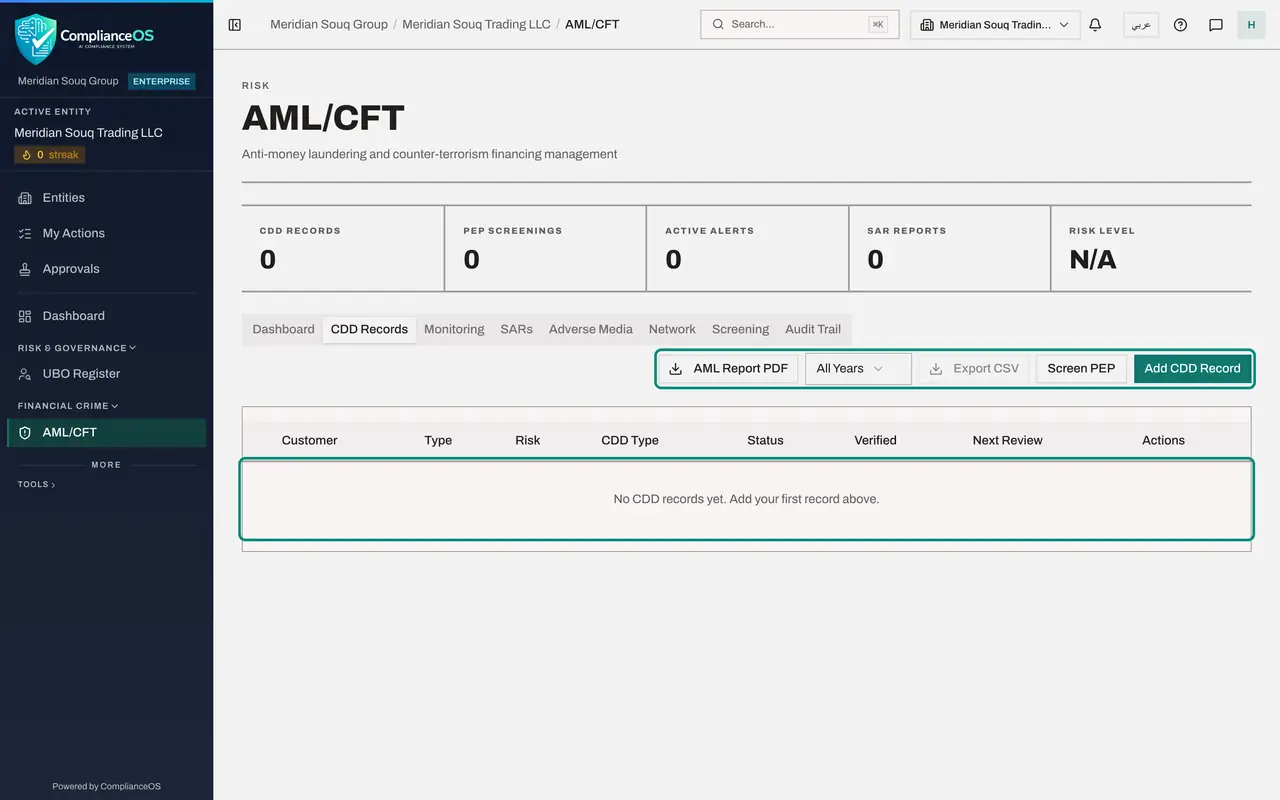
Select CDD Records. CDD means customer due diligence: one record for each customer you have identified and risk rated. Three buttons appear at the top right for this tab: Export CSV, Screen PEP and Add CDD Record. Export CSV stays grey while the list is empty.
- Select CDD Records
- 8
Open Monitoring
Select Monitoring. Transaction Alerts lists transactions the app has flagged, and Monitoring Rules lists the tests that do the flagging. Both are empty until the first transaction is recorded for the company. Run Monitoring Scan, at the top right, checks recent transactions on demand.
- Select Monitoring
- 9
Open SARs
Select SARs. SAR means suspicious activity report. Each report is created from an alert and is listed here with its status, amount, deadline, approval, filing date and reference.
- Select SARs
- 10
Open Adverse Media
Select Adverse Media. Adverse media means bad news about a customer, such as reports of fraud or corruption. The first card holds two settings for this entity: whether adverse media checks run at all, and how long identity documents are kept. Below it you run a check on a name and read the results.
- Select Adverse Media
- 11
Open Network
Select Network. Here you record how parties are connected, for example that a person is a director of a customer, and run an analysis that looks for risky patterns in those connections.
- Select Network
- 12
Open Screening
Select Screening. This is sanctions screening: the Screen Counterparty form checks one name by hand, and All Screening Checks lists every check, including the ones the app runs by itself when a name is added elsewhere. The list on the left filters the checks by status.
- Select Screening
- 13
Open Audit Trail
Select Audit Trail. Every action in this hub is recorded here with the time, the action, the record and the person. It is empty now because nothing has been done yet.
- Select Audit Trail
- 14
Find the report and the year filter
Two controls stay at the top right on every tab. AML Report PDF downloads a summary report for the regulator or an auditor. The filter beside it starts on All Years; open it to limit every tab and the report to one financial year.
- Select Year
How to check it worked
You can name the eight tabs of the hub in order, and say which one you would open to screen a name, to record customer due diligence, and to see who changed what.
Common mistakes
- Looking for sanctions screening in a separate menu. It is the Screening tab of this hub.
- Reading an empty tab as a problem. On a new company every list is empty until the first record is added or the first transaction arrives.
- Forgetting the year filter. A list that looks empty may be showing one financial year only; choose All Years to see everything.
Check your understanding
1. Where do you screen a customer or supplier name against the sanctions lists?
- A.On the Monitoring tab
- B.On the Screening tab of AML/CFT
- C.In the UBO Register
- D.On the Audit Trail tab
Show answer
Answer: B. On the Screening tab of AML/CFT
Screening is a tab of the AML/CFT hub. Monitoring is about transactions, and the UBO Register is about the company's own owners.
2. The box called CBUAE goAML on the Dashboard tab says Manual. What does that tell you?
- A.The app files reports with the regulator by itself
- B.The connection to the regulator is broken
- C.Reports to the regulator are filed by a person in the goAML portal, not by the app
- D.Screening is switched off
Show answer
Answer: C. Reports to the regulator are filed by a person in the goAML portal, not by the app
ComplianceOS keeps the internal record and prepares a file. Filing in the regulator's goAML portal is done by you.