Lesson 27 of 28
What an auditor sees: read-only access
What you will be able to do
This lesson is for auditors and for anyone who needs to know what a person without the right permission sees. The auditor role can read AML/CFT and the beneficial owner register and download from them, but cannot change anything. You will go through the hub with this role and see which buttons are grey, what they say when you point at them, and what still works.
Before you start
- You are signed in as the auditor, Daniel Brooks, whose role is read-only.
- The records of the earlier lessons exist.
Steps
- 1
Open AML/CFT
In the left menu select AML/CFT. With read-only access the hub opens normally: the counters, the eight tabs, the report button and the year filter are all there.
- Select AML/CFT
- 2
Look at the buttons on CDD Records
Select CDD Records. The list can be read and a row can be opened. Add CDD Record and Screen PEP are grey. Hold the pointer over one: the tip says You need permission to create AML records to do this. At the end of each row, where the AML officer has Verify / Edit, you have View.
- Select CDD Records3
- 3
Select View on a customer's row
Select View on the corporate customer's row. The window Customer due diligence record opens read-only: the name, type, status, risk level, CDD type and dates are greyed out. Under KYC documents the trade licence is listed with Open and Download, and every opening and download is logged. Adding a document is not offered: the line says You need permission to create AML records to do this. The only button at the bottom is Close.
- Select View
- 4
Export still works
Close the record. Export CSV is not grey. Select it: the list of customers downloads. Reading and exporting are part of read-only access.
- Select Export CSV
- 5
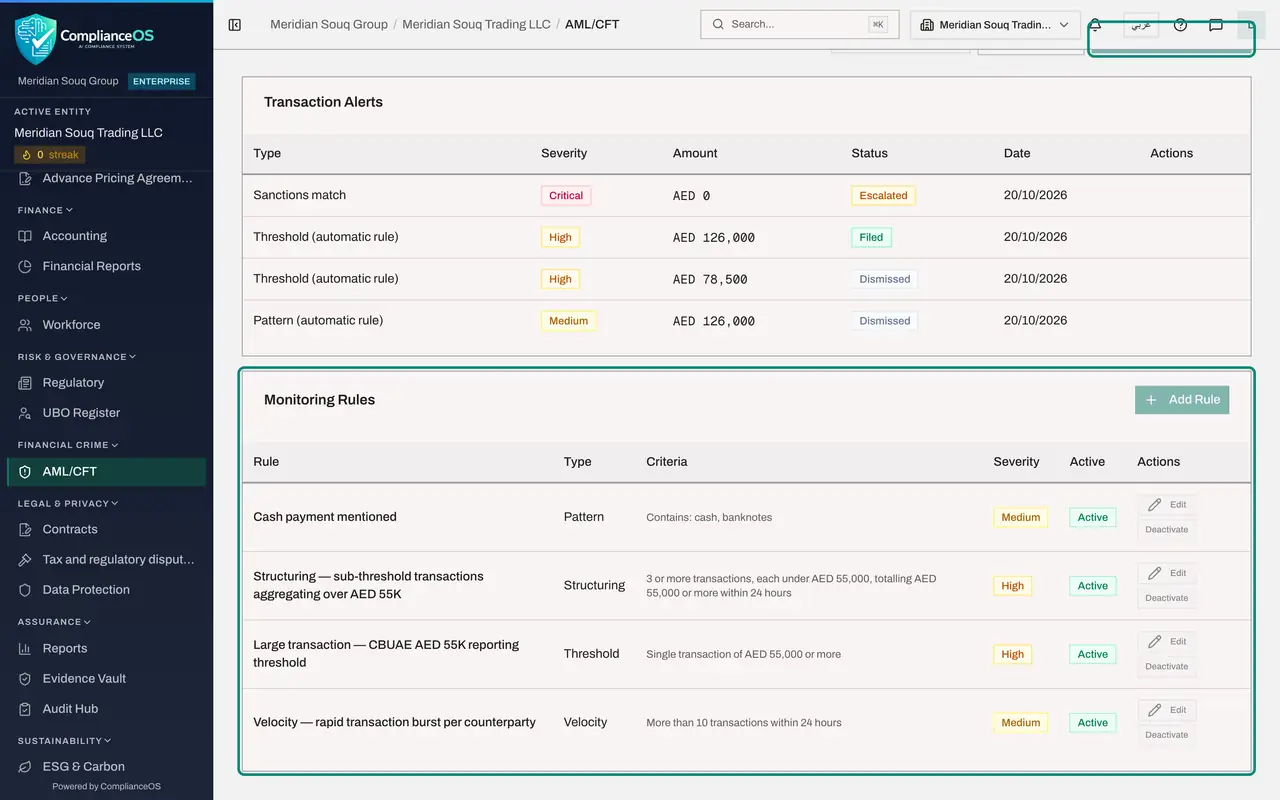
Look at Monitoring
Select Monitoring. The alerts and their decisions can be read. Run Monitoring Scan and Add Rule are grey, and so are Edit and Deactivate on every rule.
- Select Monitoring
- 6
Look at Adverse Media
Select Adverse Media. The switch cannot be moved, and a line under it says only users who can edit AML records can change this setting. Run Screen is grey. Earlier results can be read.
- Select Adverse Media
- 7
Look at Screening
Select Screening. Every check and its review note can be read, and the Insights panel opens. The Screen button is grey; its tip says You do not have permission to run screening.
- Select Screening
- 8
Read the Audit Trail and download the report
Select Audit Trail: every entry can be read. AML Report PDF at the top right works as well, so an auditor can take the report away without anyone preparing it for them.
- Select Audit Trail
- Select AML Report PDF
- 9
Open the UBO Register
In the left menu select UBO Register. The owners, the change log, the filing status and the ownership chain can all be read. There is no Add UBO, no Edit, no Re-screen and no red bin.
- Select UBO Register
- 10
Download the declaration
Export PDF Declaration works for this role. Select it to download the declaration of beneficial owners.
- Select Export PDF Declaration
How to check it worked
You can open every tab of the hub and the register of owners, open a customer's record with View to read it and open its KYC documents, download the report, the customer export and the declaration of owners, and you find that the buttons that add or change records are grey.
Common mistakes
- Reporting a grey button as a fault. Point at it: the tip says which permission is needed. Ask an access administrator if your job needs it.
- Forgetting that reading identity documents is recorded. With read-only access, View lets you open and download a customer's KYC documents, and every opening and download is written to the document's access log.
- Assuming everyone has the AML/CFT menu. A role without the module, such as the accountant, has no Financial Crime group in the menu at all.
Check your understanding
1. A button you need is grey. How do you find out why?
- A.Reload the page until it works
- B.Hold the pointer over it: a tip names the permission you need
- C.Sign in as a colleague
- D.It cannot be found out
Show answer
Answer: B. Hold the pointer over it: a tip names the permission you need
Grey buttons in this hub carry a tip such as You need permission to create AML records to do this.
2. Which of these can a read-only auditor do in AML/CFT?
- A.Dismiss alerts
- B.Download the AML report and export the CDD records
- C.Screen a new customer
- D.Switch adverse media checks off
Show answer
Answer: B. Download the AML report and export the CDD records
Reading and downloading are allowed. Screening, adding, editing and changing settings need create or edit permission.