Lesson 7 of 28
Find a review assigned to you and escalate it
What you will be able to do
This lesson is for the person a sanctions review is assigned to, here the compliance officer. You will find the review in My Actions, open it, use the Assigned to me filter, and escalate the check with a note because it cannot be decided today. You will also see where an escalated check goes and how it is concluded later.
Before you start
- The AML officer has assigned the review of the new trade customer to you, as in the previous lesson.
- You are signed in as the compliance officer, Mariam Aziz.
Steps
- 1
Open My Actions
In the left menu select My Actions. It lists open work assigned to you across every module and entity you can see. The boxes show one open item, and it is high priority.
- Select My Actions
- 2
Read the row
The row has the type Sanctions and the title Sanctions Review, followed by the customer's name. Under the title are the match score and the words Assigned to you. The row also shows the entity, the status Pending and the priority High.
- 3
Select Open
Select Open at the end of the row. The app takes you to the Screening tab of AML/CFT for that entity.
- Select Open
- 4
Select Assigned to me
In the Review Queue select Assigned to me. Only your reviews stay in the list. With one review it looks the same; on a busy day this filter is how you find your own work.
- Select Assigned to me
- 5
Select Escalate
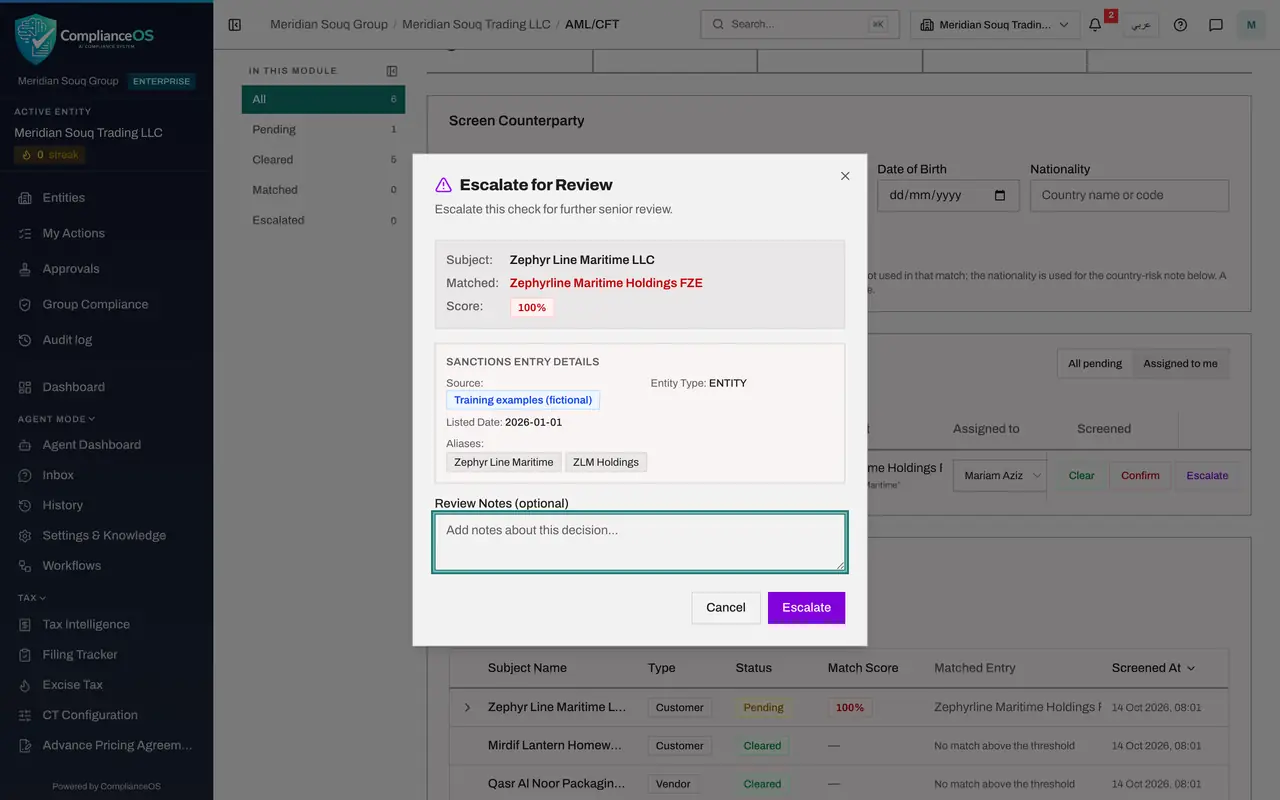
You cannot decide this one today: the customer has not yet sent its trade licence, so there is nothing to compare with the list entry. Select Escalate on the row. The window is titled Escalate for Review and shows the customer, the list entry, its aliases and the score. The source, Training examples, fictional, tells you this entry was made up for training.
- Select Escalate
- 6
Write what is being waited for
In Review Notes write why the check is escalated, what has been asked for, and what is on hold in the meantime.
- Type Review Notes (optional):
Not decided yet. The customer has been asked for its trade licence and…
- Type Review Notes (optional):
- 7
Select Escalate to save
Select the purple Escalate button. A message says Check updated successfully. The Escalated box now shows 1. The check stays in the Review Queue, moved to the top and marked Escalated, with your note under the name.
- Select Escalate
- 8
Select Escalated on the left
On the left select Escalated. All Screening Checks now shows only the escalated check. Select its row to open it: your note is under Review Disposition with the date and time.
- Select Escalated1
- 9
Know how an escalated check is concluded
Scroll back up to the Review Queue. The escalated check has two buttons left, Clear and Confirm. Whoever takes the final decision, once the trade licence has been seen, selects one of them here, and for an escalated check the app then requires a written reason. The closing lesson of this course does exactly that.
- 10
Return to My Actions
Select My Actions in the left menu again. The review is still listed, because an escalated check is not finished work. The list can lag for a minute: once it refreshes, the status reads Escalated and the priority Critical.
- Select My Actions
How to check it worked
The Escalated count on the Screening tab shows 1, and the check sits first in the Review Queue, marked Escalated, with your note.
Common mistakes
- Escalating to get a check off your list. An escalated check stays in the Review Queue and in My Actions until someone clears or confirms it with a reason.
- Escalating without a note. The note is the only place that says what is being waited for and what has been put on hold.
- Looking only at Assigned to me. Reviews that nobody has assigned yet appear under All I can see in My Actions and under All pending in the Review Queue.
Check your understanding
1. Where does a sanctions review assigned to you appear?
- A.Only in an email
- B.In My Actions, and in the Review Queue under Assigned to me
- C.In the Audit Trail tab only
- D.Nowhere until it is overdue
Show answer
Answer: B. In My Actions, and in the Review Queue under Assigned to me
My Actions gathers the work assigned to you from every module. Open takes you to the Screening tab, where Assigned to me narrows the queue to your reviews.
2. After you escalate a check, where is it?
- A.Removed from every list
- B.Deleted
- C.First in the Review Queue, marked Escalated with your note, and listed under Escalated on the left
- D.Cleared
Show answer
Answer: C. First in the Review Queue, marked Escalated with your note, and listed under Escalated on the left
Escalating marks the check and moves it to the top of the queue with the note. It stays there until someone records the final decision.