Lesson 9 of 28
Record the business risk assessment
What you will be able to do
This lesson is for the AML officer. You will record the company's own money laundering risk assessment: a score from 0 to 100 for each of five areas, the risk factors behind the scores, and the controls that reduce them. The app works out the overall score and level, which then show on the dashboard and in the AML report.
Before you start
- You are signed in as the AML officer for the entity.
- You have agreed the scores with management. The app records the assessment; it does not decide the scores for you.
Steps
- 1
Select New Assessment
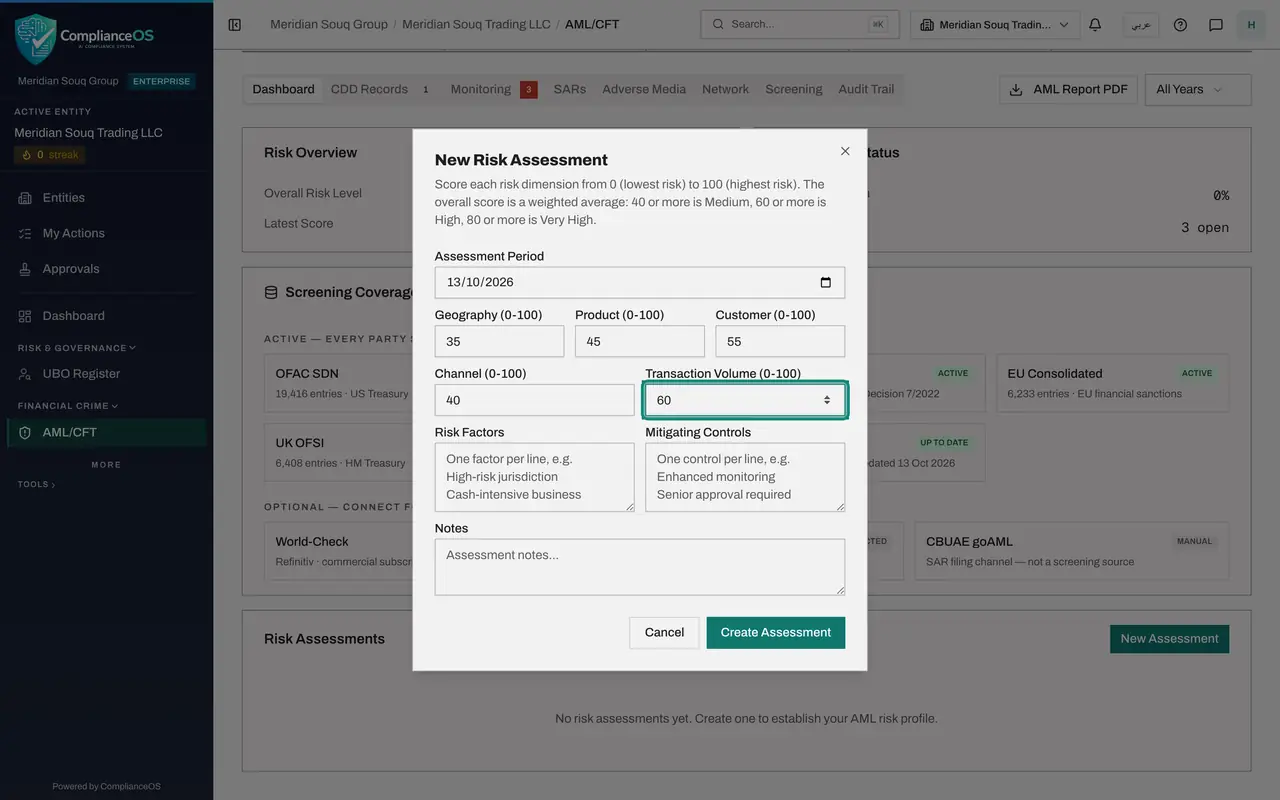
On the Dashboard tab of AML/CFT, scroll to Risk Assessments and select New Assessment. The form explains the scale: each area is scored from 0, the lowest risk, to 100, the highest. The overall score is a weighted average: 40 or more is Medium, 60 or more is High and 80 or more is Very High.
- Select New Assessment
- 2
Check the assessment date
Assessment Period is the date the assessment applies from. It starts as today; change it if the assessment was agreed on another day. Here it stays at 13 October 2026.
- Type Assessment Period:
2026-10-13
- Type Assessment Period:
- 3
Score geography and product
Every box starts at 50. Geography is about where your customers and suppliers are: type 35, because almost all trade is inside the United Arab Emirates. Product is about what you sell: type 45, because homeware and furniture are ordinary goods but some items are high in value.
- Type Geography (0-100):
35 - Type Product (0-100):
45
- Type Geography (0-100):
- 4
Score customer and channel
Customer is about who buys from you: type 55, because some customers are walk-in buyers you know little about. Channel is about how you sell: type 40, for shops and an online store with card payments.
- Type Customer (0-100):
55 - Type Channel (0-100):
40
- Type Customer (0-100):
- 5
See what a wrong score does
Transaction Volume is about the size and number of payments, especially cash. Type 160 by mistake. A red message at the bottom says each score must be a number from 0 to 100, and Create Assessment turns grey.
- Type Transaction Volume (0-100):
160
- Type Transaction Volume (0-100):
- 6
Correct the score
Change Transaction Volume to 60, because large cash sales do happen. The message goes away.
- Type Transaction Volume (0-100):
60
- Type Transaction Volume (0-100):
- 7
List the risk factors
In Risk Factors write the reasons behind the scores, one on each line.
- Type One factor per line, e.g. High-risk jurisdiction Cash-intensive busine:
Cash sales above 55,000 dirhams at the counter Walk-in customers witho…
- Type One factor per line, e.g. High-risk jurisdiction Cash-intensive busine:
- 8
List the mitigating controls
In Mitigating Controls write what the company does about those risks, again one on each line.
- Type One control per line, e.g. Enhanced monitoring Senior approval require:
Identity card recorded for cash sales above 55,000 dirhams Every custo…
- Type One control per line, e.g. Enhanced monitoring Senior approval require:
- 9
Add a note
Notes is for anything else, such as who approved the assessment and when it will be reviewed.
- Type Assessment notes...:
Approved by the management committee on 12 October 2026. Next review O…
- Type Assessment notes...:
- 10
Select Create Assessment
Select Create Assessment. A message says Risk assessment created, and the assessment appears in the table with its overall score and the five scores you entered.
- Select Create Assessment
- 11
Read the result at the top
Scroll to the top. The Risk Level counter now shows the level with the overall score under it, and Risk Overview shows the same. The transaction volume score is entered in the form but is not a column of the table.
How to check it worked
Risk Assessments on the Dashboard tab lists the new assessment with its overall score, and the Risk Level counter at the top shows a level and a score instead of N/A.
Common mistakes
- Typing scores on a scale of 1 to 10. Each score is from 0, the lowest risk, to 100, the highest.
- Leaving Risk Factors and Mitigating Controls empty. The scores mean little to an inspector without the reasons.
- Editing an old assessment in your head. Assessments cannot be changed after saving; record a new one when the business changes, and at least once a year.
Check your understanding
1. The overall score comes out at 47. Which level is that?
- A.Low
- B.Medium
- C.High
- D.Very High
Show answer
Answer: B. Medium
The form says it: 40 or more is Medium, 60 or more is High, 80 or more is Very High. Below 40 is Low.
2. You type 160 in one of the score boxes. What happens?
- A.The score is saved as 100
- B.A message says each score must be a number from 0 to 100, and Create Assessment stays grey until you correct it
- C.The assessment is saved as Very High
- D.The app closes the form
Show answer
Answer: B. A message says each score must be a number from 0 to 100, and Create Assessment stays grey until you correct it
The form refuses values outside 0 to 100 rather than guessing what you meant.