Lesson 28 of 28
How this connects to the rest of ComplianceOS
What you will be able to do
This closing lesson is for everyone who took the course. Signed in as the compliance officer, who can see every module, you will follow one sale from the accountant's screen through sanctions screening, the alert, the due diligence record, My Actions and the risk register, conclude the escalated check by confirming the match and watch its risk change, look at the evidence vault, and see where the owners in the UBO Register and the customers' documents fit in.
Before you start
- The earlier lessons of this course have been done in order.
- You are signed in as the compliance officer, Mariam Aziz, whose role covers tax, AML, risk and evidence for the entity.
Steps
- 1
Start where the name was entered: Tax Intelligence
In the left menu select Tax Intelligence. This is the accountant's list. The sale with the invoice number MST-INV-8002 carries the customer's name, Zephyr Line Maritime LLC. Typing that name here is the only thing a person did.
- Select Tax Intelligence
- 2
The name was screened: AML/CFT, Screening
Select AML/CFT in the left menu, then the Screening tab. All Screening Checks holds a check for every name on the accountant's transactions, next to the names screened by hand and the company's beneficial owners, whose type is UBO. The list is long by now, so select Escalated on the left to find this customer's check. The entry it matched comes from the list called Training examples, fictional.
- Select AML/CFT
- Select Screening
- Select Escalated1
- 3
The amounts were tested: Monitoring
Select the Monitoring tab. The two large transactions raised alerts when they were saved, the cash rule raised another at the scan, and the possible sanctions match raised the critical alert. One alert became the report on the SARs tab.
- Select Monitoring
- 4
A due diligence record was opened: CDD Records
Select CDD Records. The record for this customer was opened by the app because of the match. Records for the other customers were added by the AML officer, and their identity documents are stored inside them with a date until which they are kept.
- Select CDD Records3
- 5
The review reached a person: My Actions
Select My Actions in the left menu. The review the AML officer assigned to you is listed here, with the customer's name, the match score, the words Assigned to you and the status Escalated. My Actions gathers assigned work from every module in the same list.
- Select My Actions
- 6
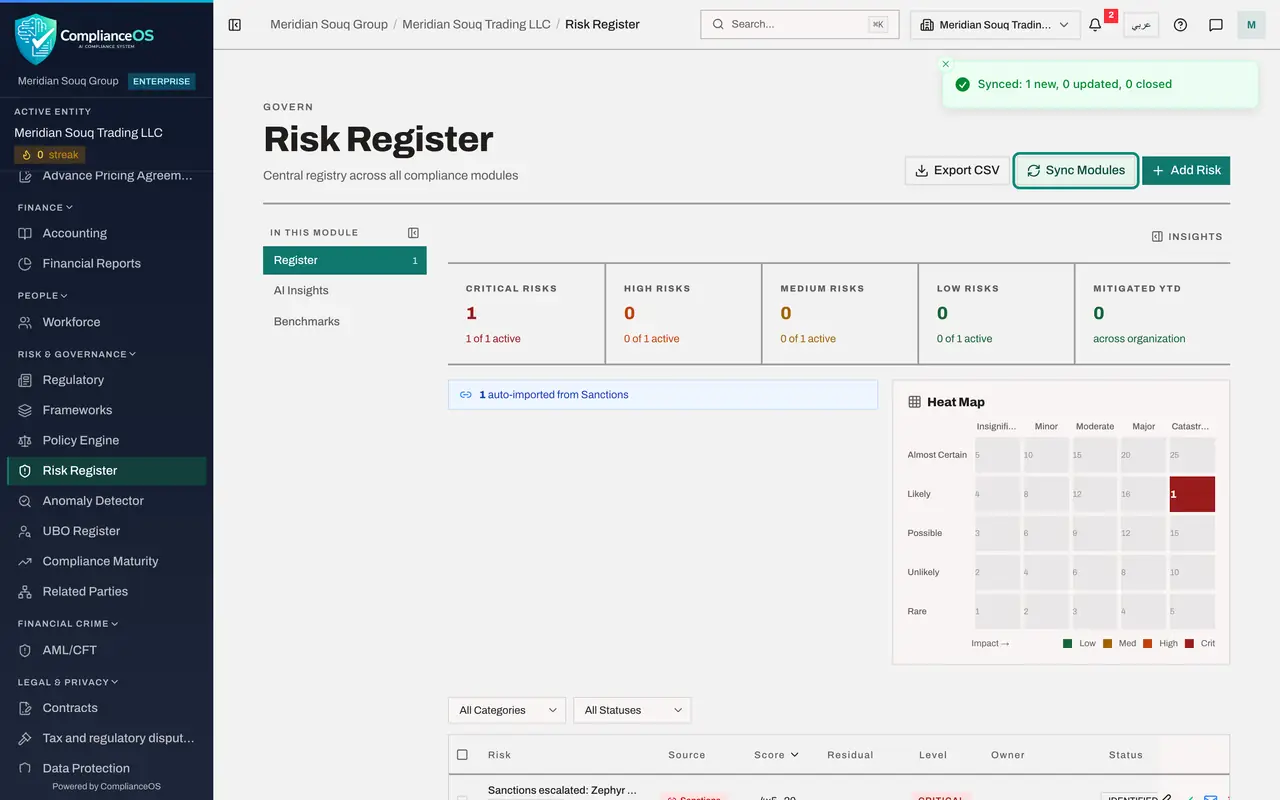
Open the Risk Register and select Sync Modules
Select Risk Register in the left menu, under Risk and Governance. Select Sync Modules at the top right. A message reports how many risks were created, updated and closed. The same sync runs by itself overnight.
- Select Risk Register
- Select Sync Modules
- 7
Find the sanctions risk
Scroll to the list. A risk has been imported with the title Sanctions escalated, the customer's name and the match score, the source Sanctions and the level Critical. It has no owner yet; give it one as you would any other risk. A later sync brings the risk up to date when the check is decided in AML/CFT.
- 8
Conclude the escalated check
Now close the loop. The customer has sent its trade licence, and the licence number and registered address are those of the listed company. Select AML/CFT, the Screening tab, and in the Review Queue select Confirm on the escalated check. The window is titled Confirm Sanctions Match. It shows the list entry, the escalation note, and asks for a reason, which is required for an escalated check. Remember that this entry is a training example; with a real entry this decision would mean stopping the business and reporting it.
- Select AML/CFT
- Select Screening
- Select Confirm
- 9
Type the reason and confirm the match
Type what was checked and select the red button, Confirm Match. A message says Check updated successfully. The Matched box now shows 1, nothing is escalated any more, and a red line at the top says a confirmed sanctions match requires immediate attention.
- Type Reason (required):
Trade licence received on 14 October: licence number and registered ad… - Select Confirm Match
- Type Reason (required):
- 10
Sync again and read the risk
Go back to Risk Register and select Sync Modules again. The risk for this customer now reads Sanctions matched instead of Sanctions escalated, and its score has risen to the highest on the scale. You did not edit it by hand: confirming the match in AML/CFT changed the risk it had raised. It stays open until someone owns it and records the treatment.
- Select Risk Register
- Select Sync Modules
- 11
Open the Evidence Vault
Select Evidence Vault in the left menu, under Assurance. AML work is stored here automatically as evidence, sealed against change: each review decision on a screening check, and each change to a due diligence record or a report. On the left these snapshots are counted under 5Y AML, the retention policy that keeps AML evidence for five years.
- Select Evidence Vault
- Select 5Y AML23
- 12
Remember the owners: UBO Register
Select UBO Register in the left menu. The company's own beneficial owners are screened against the same sanctions lists when they are added and whenever the AML officer selects Re-screen. The Screening column and Last Screened show the result, and each screen is a check on the Screening tab.
- Select UBO Register
How to check it worked
You can point to the same customer in five places: the transaction in Tax Intelligence, the check on the Screening tab, the alert on the Monitoring tab, the review in My Actions and the risk in the Risk Register.
Common mistakes
- Working each module as if it stood alone. A name typed by the accountant becomes a screening check, and an undecided check becomes a risk.
- Expecting a risk to go away when the match is confirmed. A confirmed match stays in the register as a critical risk until someone owns and treats it.
- Forgetting that the risk register is brought up to date by Sync Modules or overnight, not at the instant a check changes.
Check your understanding
1. The accountant records a sale to a new customer. Which of these happens without anyone in the AML team doing anything?
- A.Nothing
- B.The customer's name is screened, and a possible match opens a review, a critical alert and a due diligence record
- C.The customer is blocked from buying
- D.A report is sent to the regulator
Show answer
Answer: B. The customer's name is screened, and a possible match opens a review, a critical alert and a due diligence record
Screening runs when the transaction is saved. A possible match is put in the Review Queue, raises a critical alert on the Monitoring tab and opens an enhanced due diligence record.
2. How does an undecided sanctions check reach the Risk Register?
- A.Someone must retype it
- B.Sync Modules, or the overnight sync, imports pending, escalated and confirmed checks as risks with the source Sanctions
- C.It never does
- D.Only by email
Show answer
Answer: B. Sync Modules, or the overnight sync, imports pending, escalated and confirmed checks as risks with the source Sanctions
The register imports risks from other modules. A sanctions risk carries the customer's name and the match score, and a later sync brings it up to date when the check is decided.