Lesson 15 of 28
Monitoring rules and the monitoring scan
What you will be able to do
This lesson is for the AML officer. Transaction monitoring tests every recorded transaction against rules and raises an alert when one is met. You will read the three rules every company starts with, open one to see its settings, add a rule of your own that looks for the word cash, run a scan, and switch a rule off and on again.
Before you start
- The accountant has recorded transactions, as in the earlier lesson. The three starting rules are created when the first transaction arrives.
- You are signed in as the AML officer for the entity.
Steps
- 1
Open Monitoring and find Monitoring Rules
In AML/CFT select the Monitoring tab and scroll to Monitoring Rules. Three rules are already there. The Criteria column says in words what each one tests. Large transaction flags a single transaction of 55,000 dirhams or more. Structuring flags three or more smaller transactions with one party that add up to that amount within 24 hours. Velocity flags more than 10 transactions with one party within 24 hours.
- Select Monitoring3
- 2
Select Edit on a rule
Select Edit on the large transaction rule. You can change its name, its severity, and under Rule settings the amount in dirhams. The Active box switches the rule on or off. The rule type cannot be changed after a rule is created.
- Select Edit
- 3
Select Cancel
The threshold of 55,000 dirhams is the one the regulator uses, so select Cancel and leave the rule as it is.
- Select Cancel
- 4
Select Add Rule and name the rule
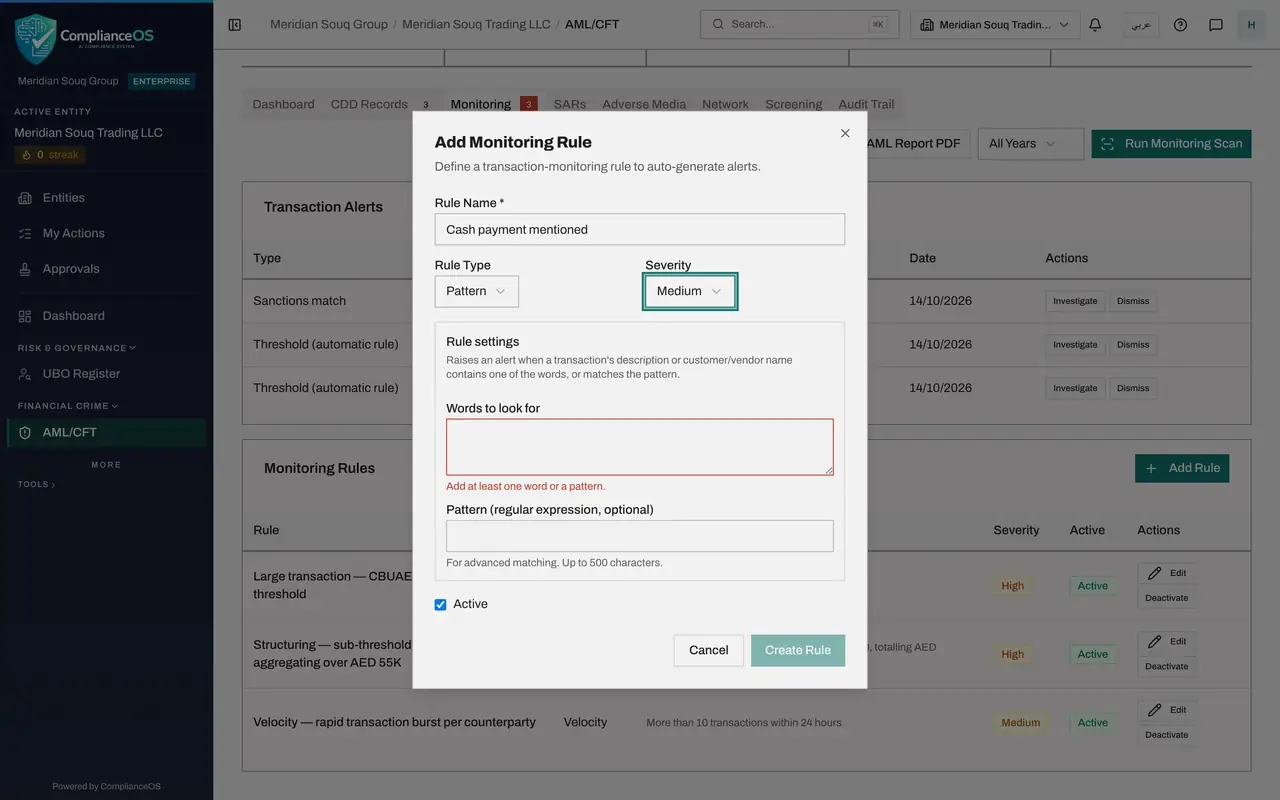
Select Add Rule at the top right of Monitoring Rules. In Rule Name type a name that says what the rule looks for, here Cash payment mentioned.
- Select Add Rule
- Type Rule Name *:
Cash payment mentioned
- 5
Choose the rule type
Open Rule Type. Threshold tests one amount. Pattern looks for words in a transaction's description or in the customer or supplier name. Velocity counts transactions in a time window. Structuring adds up smaller transactions. Choose Pattern. The Rule settings below change to match the type.
- Select Threshold
- Choose Pattern
- 6
Choose the severity
Open Severity and choose how serious an alert from this rule is: Low, Medium, High or Critical. Choose Medium. The severity is shown on every alert the rule raises.
- Select Medium
- Choose Medium
- 7
Type the words to look for
In Words to look for type cash, and on a second line banknotes. Capital and small letters are treated the same. The box under it takes a pattern for advanced matching and can stay empty. Leave Active ticked.
- Type Words to look for:
cash banknotes
- Type Words to look for:
- 8
Select Create Rule
Select Create Rule. A message says Monitoring rule created, and the rule joins the list with its criteria: Contains cash, banknotes.
- Select Create Rule
- 9
Select Run Monitoring Scan
Scroll to the top and select Run Monitoring Scan at the right. It tests recent transactions against every active rule. A message reports the result, here Monitoring scan complete: 1 alert created.
- Select Run Monitoring Scan
- 10
Read the new alert
Transaction Alerts has a new line with the type Pattern, automatic rule, the severity Medium and the amount 126,000 dirhams. Select the line to open it. The description says which rule and which word were met: it is the cash sale the accountant recorded, which already has an alert for its size.
- 11
Deactivate a rule
Scroll to Monitoring Rules and select Deactivate on the velocity rule. A message says Rule status updated and the Active column changes to Inactive. An inactive rule stays in the list but raises no alerts.
- Select Deactivate
- 12
Activate it again
The button on that rule now says Activate. Select it to switch the rule back on. Every change to a rule is recorded in the Audit Trail tab.
- Select Activate
How to check it worked
Monitoring Rules lists four rules including Cash payment mentioned, and Transaction Alerts shows a new alert of the type Pattern, automatic rule, for 126,000 dirhams.
Common mistakes
- Deleting the thinking behind a rule by switching it off. A deactivated rule raises no alerts at all; lower the severity instead if it is only noisy.
- Adding a pattern rule with no words. The form will not save it: add at least one word or a pattern.
- Expecting old transactions to be tested the moment you add a rule. Select Run Monitoring Scan to test recent transactions against the new rule.
Check your understanding
1. Which rule type flags several smaller payments from one customer that together reach 55,000 dirhams within 24 hours?
- A.Threshold
- B.Velocity
- C.Structuring
- D.Pattern
Show answer
Answer: C. Structuring
Structuring looks for amounts split up to stay under the threshold. Threshold tests one transaction, Velocity counts transactions, and Pattern looks for words.
2. You add a new rule. How do you test last week's transactions against it?
- A.They are never tested
- B.Select Run Monitoring Scan on the Monitoring tab
- C.Ask the accountant to enter them again
- D.Delete and re-create the rule
Show answer
Answer: B. Select Run Monitoring Scan on the Monitoring tab
New transactions are tested as they are saved. The scan tests recent transactions on demand and tells you how many alerts it created.