Lesson 25 of 28
Record the filing, the annual confirmation, and download the declaration
What you will be able to do
This lesson is for the compliance officer. Changes to the register must be filed with the registrar, and the register must be confirmed once a year. ComplianceOS does not submit anything to the registrar: you file outside the app and then record the reference here. You will record a filing, record the annual confirmation, and download the PDF declaration of beneficial owners.
Before you start
- The owners and the changes of the earlier lessons are on the register, so there are pending filings.
- You have filed the changes with your registrar, the Ministry of Economy or your free zone authority, and have the reference they gave you. The reference in this example is invented.
- You are signed in as the compliance officer.
Steps
- 1
Open Filing
In the UBO Register, select Filing on the left. Filing Status shows the register's status, whether it has been filed with the registrar, the filing reference and the deadline. At the moment it says No: nothing has been recorded as filed.
- Select Filing6
- 2
Read what recording a filing means
Under the heading Record a filing made with the registrar, the text is plain: ComplianceOS does not submit the register to the authority. File it with your registrar first, then enter the reference they gave you. Doing so marks the pending changes as filed.
- 3
Type the filing reference
In Filing Reference type the reference from the registrar's receipt, here MOE-UBO-2026-TRAINING-0417. The Record filing button stays grey until the box has something in it.
- Type Filing Reference:
MOE-UBO-2026-TRAINING-0417
- Type Filing Reference:
- 4
Select Record filing
Select Record filing. A message says Filing recorded, pending changes are now marked as filed. Filing Status changes to Yes, with the reference and the date under Filed at, and the box for a new reference goes away until there is another change to file.
- Select Record filing
- 5
Check the Change Log and the counter
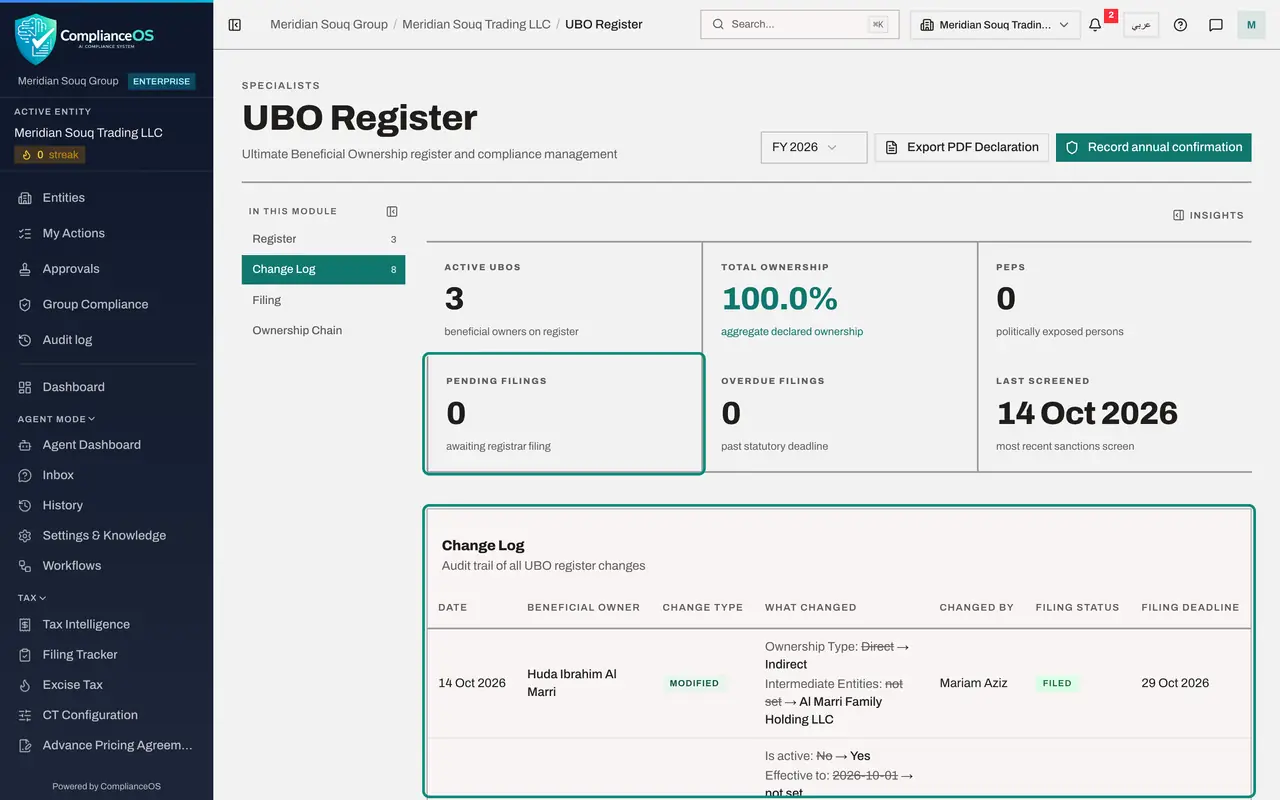
Select Change Log on the left. Every line now has the filing status Filed. At the top, Pending Filings shows 0.
- Select Change Log8
- 6
Select Record annual confirmation
The register must also be confirmed with the registrar once a year. Select Record annual confirmation at the top right. The window shows when the register was Last confirmed, here Never, and when a confirmation is Currently due. It repeats that ComplianceOS does not submit the confirmation for you.
- Select Record annual confirmation
- 7
Type the confirmation reference and record it
Confirmation reference is optional: type the registrar's receipt number if you have one. Select Record confirmation. A message says Annual confirmation recorded, and the next confirmation falls due 12 months from today.
- Type Confirmation reference (Optional):
MOE-AC-2026-TRAINING-0091 - Select Record confirmation
- Type Confirmation reference (Optional):
- 8
Select Export PDF Declaration
Select Export PDF Declaration at the top right. A PDF file downloads: the Ultimate Beneficial Ownership Declaration. It states the entity, the registrar, the filing reference and date, the annual confirmation dates, a summary of the register, and a page of details for each owner.
- Select Export PDF Declaration
- 9
Use the year filter for the history
Beside the export button is a year filter, set to FY 2026. It limits the change log and the counts of filings to one financial year. Open it to choose another year or All Years.
- Select Year
- 10
Read the Insights panel
Close the list and select Insights at the right. Register health repeats the owners and the total ownership. Sanctions screening counts owners that are clear, potential matches, confirmed matches and not screened. Filing status shows the register as filed with no pending or overdue filings, and the AI Note sums it all up in a sentence.
- Select Show insights panel
How to check it worked
Filing Status shows Filed with registrar: Yes with your reference, Pending Filings shows 0, every line of the Change Log says Filed, and the declaration PDF is in your downloads folder.
Common mistakes
- Recording a filing you have not made. The app marks every pending change as filed on your word; file with the registrar first.
- Thinking Record filing sends the register. Nothing is submitted by the app.
- Downloading the declaration before recording the filing. The declaration prints the filing reference and the pending count as they are at that moment.
Check your understanding
1. You select Record filing with a reference. What does the app do?
- A.Submits the register to the Ministry of Economy
- B.Stores the reference and date and marks the pending changes as filed; nothing is sent
- C.Emails the owners
- D.Locks the register for a year
Show answer
Answer: B. Stores the reference and date and marks the pending changes as filed; nothing is sent
The text above the box says it: ComplianceOS does not submit the register to the authority. Recording only updates your own record.
2. Where do you see when the next annual confirmation is due?
- A.Nowhere
- B.In the Record annual confirmation window, under Currently due, and in the PDF declaration
- C.In the AML Audit Trail
- D.On the sanctions Screening tab
Show answer
Answer: B. In the Record annual confirmation window, under Currently due, and in the PDF declaration
The window shows when the register was last confirmed and when the next confirmation falls due. Recording a confirmation moves the due date 12 months on.