Lesson 4 of 28
Review a possible match and clear a false positive
What you will be able to do
This lesson is for the AML officer. You will screen a walk-in customer whose name is almost the same as an entry on a sanctions list, read the possible match, compare it with the customer's identity card, look at the Confirm decision without taking it, and clear the check as a false positive with a written reason. The list entry used here is not a real one: it comes from a list called Training examples, fictional, which exists only in this training environment.
Before you start
- You are signed in as the AML officer for the entity. Reviewing a match needs permission to edit AML records, which this role has.
- You have the customer's identity document, so you can compare the date of birth and nationality with the list entry.
Steps
- 1
Enter the customer's name and type
On the Screening tab of AML/CFT, type the customer's full name in Subject Name, here Tarquin Oleandro Vasquillo, exactly as on the identity card. In Subject Type choose Customer.
- Type Subject Name:
Tarquin Oleandro Vasquillo - Select Select type
- Choose Customer
- Type Subject Name:
- 2
Record the date of birth and nationality
This is a person, so fill in Date of Birth and Nationality from the identity card: here 12 April 1988 and United Arab Emirates. Nationality takes a country name or its two letter code. The match is made on the name; these two details are recorded with the check, for you to compare with the list entry.
- Type Date of Birth:
1988-04-12 - Type Nationality:
United Arab Emirates
- Type Date of Birth:
- 3
Select Screen and read the result
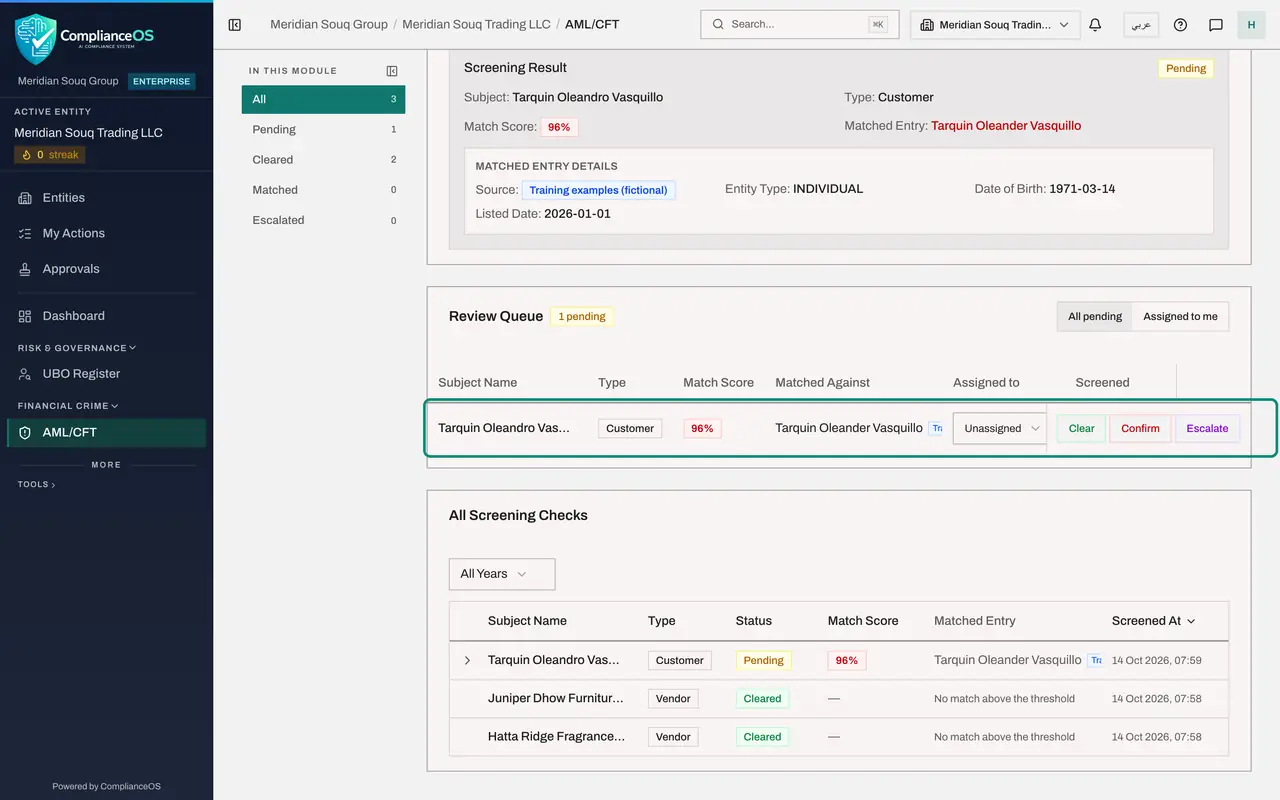
Select Screen. This time the Screening Result says Pending. The Match Score is 96%, and the box names the list entry the customer's name resembles, with its source, its type, its date of birth and the date it was listed. The source reads Training examples, fictional: this entry was made up for training. Pending is not a finding against the customer. It means a person must look.
- Select Screen
- 4
Find the check in the Review Queue
A new card, Review Queue, has appeared under the form. It lists every possible match that is waiting, with the match score, the entry it was matched against, who the review is assigned to, and three decisions: Clear, Confirm and Escalate.
- 5
Select Confirm to see what it asks
Select Confirm on the row, only to look. The window is titled Confirm Sanctions Match. It puts your customer and the list entry side by side with the score and the entry's details. Confirming records that this customer is the listed party, so use it only when the identity details agree.
- Select Confirm
- 6
Select Cancel
The details do not agree here: the entry's date of birth is 14 March 1971 and the customer's identity card says 12 April 1988. Select Cancel. Nothing is recorded.
- Select Cancel
- 7
Select Clear
Select Clear on the row. The window is titled Clear Check and shows the same comparison. Clearing records that this is not the listed party.
- Select Clear
- 8
Write the reason in Review Notes
In Review Notes write what you compared and what you found. The box says optional, but treat it as required: this note is the evidence of your decision.
- Type Review Notes (optional):
False positive. Emirates ID checked at the counter: the customer was b…
- Type Review Notes (optional):
- 9
Select Clear, No Match
Select the green button, Clear, No Match. A message says Check updated successfully. The Review Queue disappears because nothing is pending any more.
- Select Clear — No Match
- 10
Read your decision in the list
On the left select Cleared, then select the customer's row in All Screening Checks. The row now reads No match above the threshold, and the note under it says one listed name was put forward for review and cleared by a reviewer. Under Review Disposition it shows your reason, your name and the date and time of the review.
- Select Cleared3
- 11
Return to the full list
Scroll to the top and select All on the left to see every check again. Three names have now been screened and all three are cleared, two by the app and one by you.
- Select All3
How to check it worked
The Review Queue no longer shows the customer, the check is listed under Cleared with your reason in its Review Disposition, and Pending shows 0.
Common mistakes
- Clearing without a reason. The notes box is marked optional, but an auditor will ask why you decided the customer was a different person. Always write what you compared.
- Confirming on the name alone. Confirm only when the identity details agree with the list entry, not because a name looks similar.
- Serving the customer while the check is Pending. Pending means nobody has decided yet.
- Leaving out the date of birth when you have the identity card. It is the detail that most often settles whether your customer is the listed person.
Check your understanding
1. A screen comes back Pending with a match score of 96%. What does that mean?
- A.The customer is sanctioned
- B.The name is very close to a list entry and a person must decide
- C.The screen is still running
- D.The customer is cleared
Show answer
Answer: B. The name is very close to a list entry and a person must decide
Pending is a possible match. The app never decides a possible match for you: a reviewer clears it, confirms it or escalates it.
2. Which details tell you most reliably whether your customer is the listed person?
- A.The match score
- B.The date of birth and nationality on the identity document compared with the list entry
- C.The customer's phone number
- D.The time of the screen
Show answer
Answer: B. The date of birth and nationality on the identity document compared with the list entry
Many people share parts of a name. Date of birth and nationality are what separate one person from another, so compare them and write down what you found.