Lesson 20 of 28
The audit trail, the AML report and the exports
What you will be able to do
This lesson is for the AML officer and anyone preparing for an inspection. You will read the audit trail of everything done in the hub, open one entry in full, limit the hub to one financial year, download the AML report, and export the customer due diligence records.
Before you start
- The earlier lessons have been done, so there are entries to read.
- You are signed in as the AML officer for the entity.
Steps
- 1
Open the Audit Trail tab
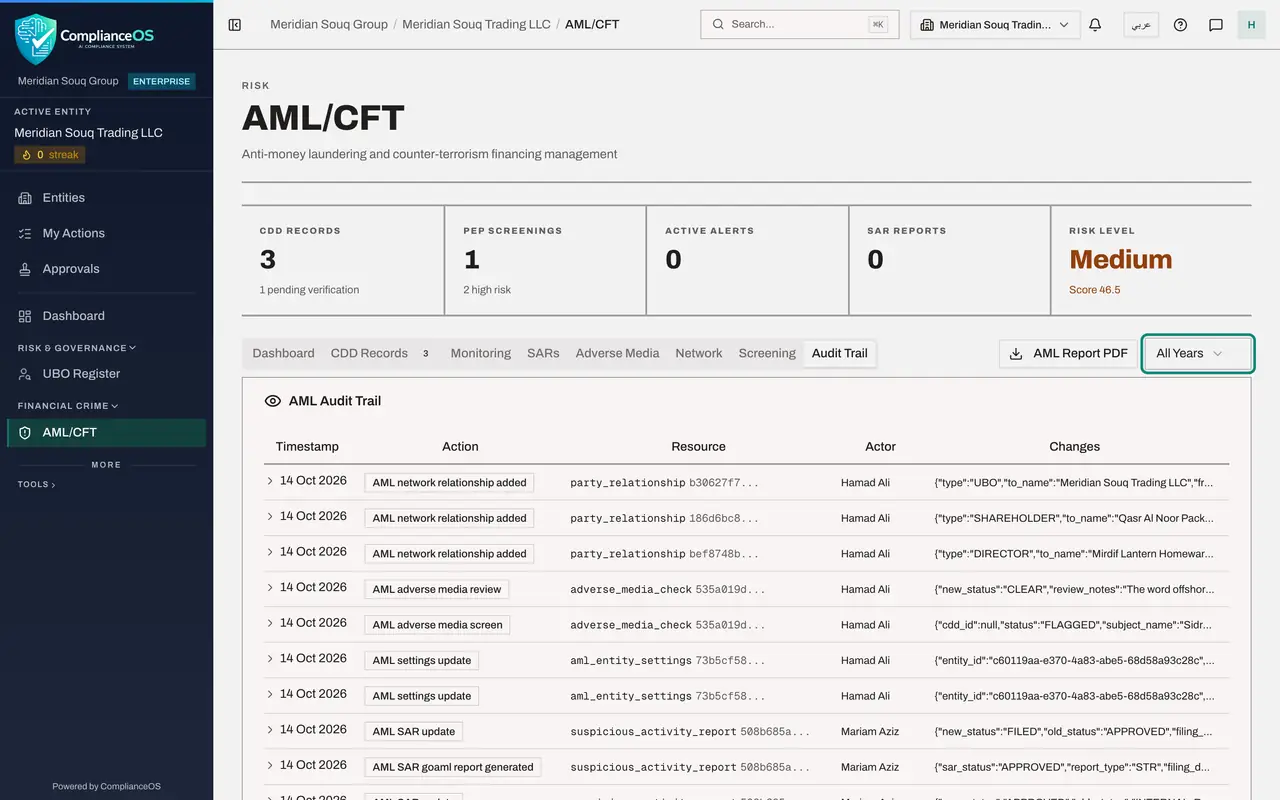
In AML/CFT select the Audit Trail tab. Every action taken in the hub is listed, newest first, with the Timestamp, the Action, the Resource it touched, the Actor and the Changes. Actions by the app itself, such as an alert raised when a transaction was saved, are listed too.
- Select Audit Trail
- 2
Open one entry
Select a line to open it. The full entry shows the record's identifier, the actor and the changes laid out line by line, for example the old and the new status. The Actor is the person who made the change, shown by name.
- 3
Limit the hub to one year
Open the year filter at the top right and choose FY 2025. The audit trail says no entries were found for this period, because everything here happened in 2026. The filter applies to every tab of the hub.
- Select Year
- Choose FY 2025
- 4
Choose All Years again
Open the filter and choose All Years to see the complete history again.
- Select Year
- Choose All Years
- 5
Select AML Report PDF
Select AML Report PDF. The report opens in a new browser tab or downloads, depending on your browser. It has five sections: customer due diligence, PEP screening results, transaction alerts, suspicious activity reports and risk assessments, for the period chosen in the year filter. Customer names are partly masked in the report.
- Select AML Report PDF
- 6
Export the CDD records
Select the CDD Records tab, then Export CSV at the top right. A spreadsheet file downloads with one line for each customer: name, type, risk level, CDD type, verification status and next review date. The SARs tab has the same button for reports.
- Select CDD Records3
- Select Export CSV
- 7
Know what is not exported from here
The Screening tab has no export button: show screening checks on screen, or use the organisation's evidence vault, where each review decision is kept as evidence. The beneficial owner register has its own PDF declaration, covered later in this course.
- Select Screening
How to check it worked
You can show who did what and when on the Audit Trail tab, and you have the AML report as a PDF file and the CDD records as a CSV file in your downloads folder.
Common mistakes
- Reading only the Action column. The Changes column, opened in full, is what shows exactly what was changed from what.
- Forgetting the year filter before downloading the report. The report covers the year chosen in the filter, or the complete history when it says All Years.
- Sending the CSV export outside the company without thought. It lists your customers by name.
Check your understanding
1. Where do you prove that an alert was dismissed, and when?
- A.In the accountant's transaction list
- B.On the Audit Trail tab, where each alert update is recorded with its old and new status
- C.In the UBO Register
- D.It is not recorded
Show answer
Answer: B. On the Audit Trail tab, where each alert update is recorded with its old and new status
Every action in the hub writes an entry: the time, the action, the record, the actor and what changed.
2. The year filter says FY 2025 and you select AML Report PDF. What does the report cover?
- A.All years
- B.Financial year 2025 only
- C.Today only
- D.Nothing
Show answer
Answer: B. Financial year 2025 only
The filter applies to every tab and to the report. Choose All Years for the complete history.