Lesson 1 of 27
Find your way around the Data Protection module
What you will be able to do
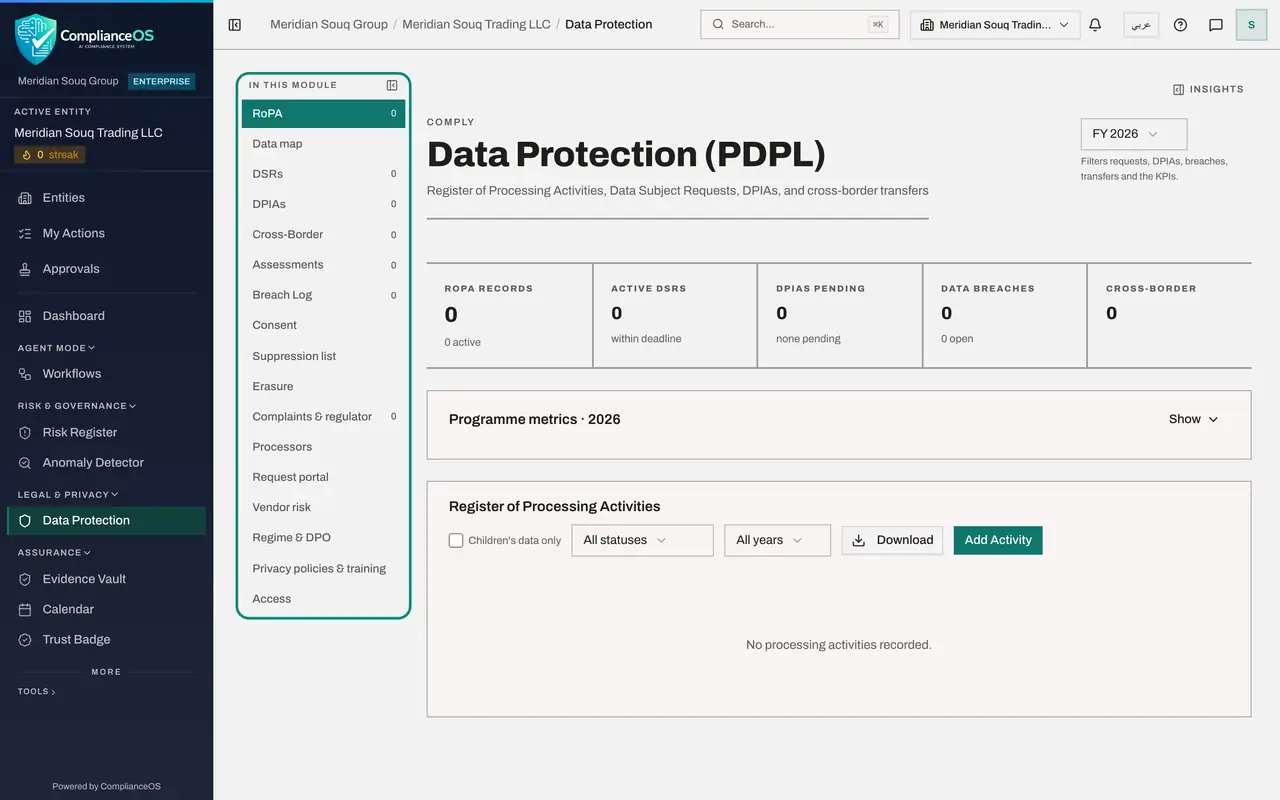
Know where everything in the Data Protection module lives before you record anything: the summary tiles, the programme metrics, the year filter, the Insights panel and the list of sections that leads to every register. In this lesson the module is still empty, so you also see what each empty register looks like.
Before you start
- You are signed in with the Data Protection Officer role for the entity. This lesson is recorded as Sara Ahmed, Data Protection Officer at Meridian Souq Trading.
- PDPL means the United Arab Emirates Personal Data Protection Law, Federal Decree-Law number 45 of 2021. You do not need to know the law to follow this tour.
Steps
- 1
Select Data Protection in the left menu
In the main menu, under Legal and Privacy, select Data Protection. The module opens on RoPA, the record of processing activities: the list of every way your organisation uses personal data.
- Select Data Protection
- 2
Read the five summary tiles
Five tiles sum up the programme. RoPA Records counts processing activities. Active DSRs counts data subject requests, which are people asking to see, correct or delete their data. DPIAs Pending counts impact assessments that are not approved yet. Data Breaches and Cross-Border count incidents and transfers out of the country. All five read zero because nothing has been recorded yet.
- 3
Read Programme metrics, then select Hide
Programme metrics breaks the same figures down: requests, impact assessments by status, breaches, the processing register, transfers by risk, consent records, processors and training. Select Hide to fold the block away when you want more room for the register below.
- Select Hide
- 4
Open the year filter
Select the year at the top right of the page. The filter limits requests, impact assessments, breaches, transfers and the figures on the page to one financial year. All years shows everything.
- Select Year
- 5
Choose All years, then go back to the current year
Choose All years to see every record ever made. Then open the filter again and choose FY 2026, the current year, which is how the module normally opens.
- Choose All years
- Select Year
- Choose FY 2026
- 6
Select Insights
Select Insights on the right edge of the page. A panel lists what needs attention this year, retention figures, the regime, which is the data-protection law that applies to this entity, and a short written note. Pin keeps the panel open while you work.
- Select Show insights panel
- 7
Close the Insights panel
Select Close at the top of the panel to return to the page.
- Select Close
- 8
Look at the In this module list
The list on the left holds every section of the module. This course covers RoPA, Data map, DPIAs, Cross-Border, Assessments, Processors, Regime and DPO, and Access. The other sections, such as DSRs, Breach Log and Consent, have their own courses. A number beside a section is how many records it holds.
- 9
Fold the section list into a row of tabs
Select the small Collapse section list button at the top of the list. The sections move into a row of tabs across the top of the page, which leaves more room for wide tables. Scroll the row sideways to reach the sections at its end.
- Select Collapse section list
- 10
Put the section list back
Select Dock section list, at the end of the row, to put the list back on the left. Use whichever layout suits the screen you are working on.
- Select Dock section list
- 11
Open the section named DPIAs
Select it in the list. A data protection impact assessment, or DPIA, is a written review of the risks of one activity. The empty list says that none were found. The New DPIA button starts one, and Download exports the list.
- Select DPIAs0 (0)
- 12
Open the Cross-Border section
Select Cross-Border. This register lists transfers of personal data out of the country. Below it is a card for your organisation's own adequacy assessments of destination countries. Both are empty for now.
- Select Cross-Border0 (0)
- 13
Open the Data map section
Select Data map. This is where the systems that hold personal data are listed, with the tables inside them. The tiles count systems, tables with personal data and how much of it is linked to the register.
- Select Data map
- 14
Open the Access section
Select Access, at the bottom of the list. As a Data Protection Officer you see a notice: only people who administer access can see who holds which rights. A later lesson shows this section as the security administrator sees it.
- Select Access
- 15
Go back to RoPA
Select RoPA to return to the register. It says No processing activities recorded. Add Activity records a new use of personal data, and Download exports the register. The next lessons fill it in.
- Select RoPA0 (0)
How to check it worked
you can open any section from the In this module list, you can change the year filter and set it back, and you know that the processing register always shows every current record whatever year is chosen.
Common mistakes
- Thinking records have disappeared after changing the year. The year filter hides requests, impact assessments, breaches and transfers from other years. Choose All years to see everything.
- Expecting the RoPA Records tile to follow the year filter. The processing register, transfers and processors always count every current record.
- Looking for the sections as tabs across the top. They are in the In this module list on the left of the page, beside the main menu.
Check your understanding
1. You chose FY 2025 in the year filter and the DPIAs section looks empty. What is the most likely reason?
- A.The assessments were deleted
- B.No assessment was recorded in 2025, and the filter is hiding other years
- C.You do not have access to DPIAs
- D.The page needs to be refreshed
Show answer
Answer: B. No assessment was recorded in 2025, and the filter is hiding other years
The year filter limits requests, impact assessments, breaches and transfers to the chosen year. Choose All years to see every record.
2. Sara, a Data Protection Officer, opens the Access section and sees only a short notice. Why?
- A.The section is broken
- B.Nobody has been given access yet
- C.Only people who administer access can see who holds which rights
- D.She must choose a year first
Show answer
Answer: C. Only people who administer access can see who holds which rights
The Access section lists who can view, create, edit and approve. It is shown to access administrators; everyone else sees a notice telling them to ask the security administrator.