Lesson 10 of 27
Register processors and their contracts
What you will be able to do
Record the suppliers that handle personal data for you, called processors, with what each one does, its contract and whether a data processing agreement is in place, and link each processor to the activities it serves.
Before you start
- You are signed in with the Data Protection Officer role for the entity.
- The activities Loyalty programme membership, Kids Club birthday rewards and Online order fraud screening are in the register.
- You have each supplier's legal name, country, contract reference and contract dates.
Steps
- 1
Open the Processors section
In Data Protection, select Processors. A processor is a supplier that handles personal data on your behalf, such as a hosting, payroll or loyalty provider. The tiles count active processors, those without a data processing agreement, and those whose contract has expired. The register is empty.
- Select Processors
- 2
Select Add processor and enter the name and country
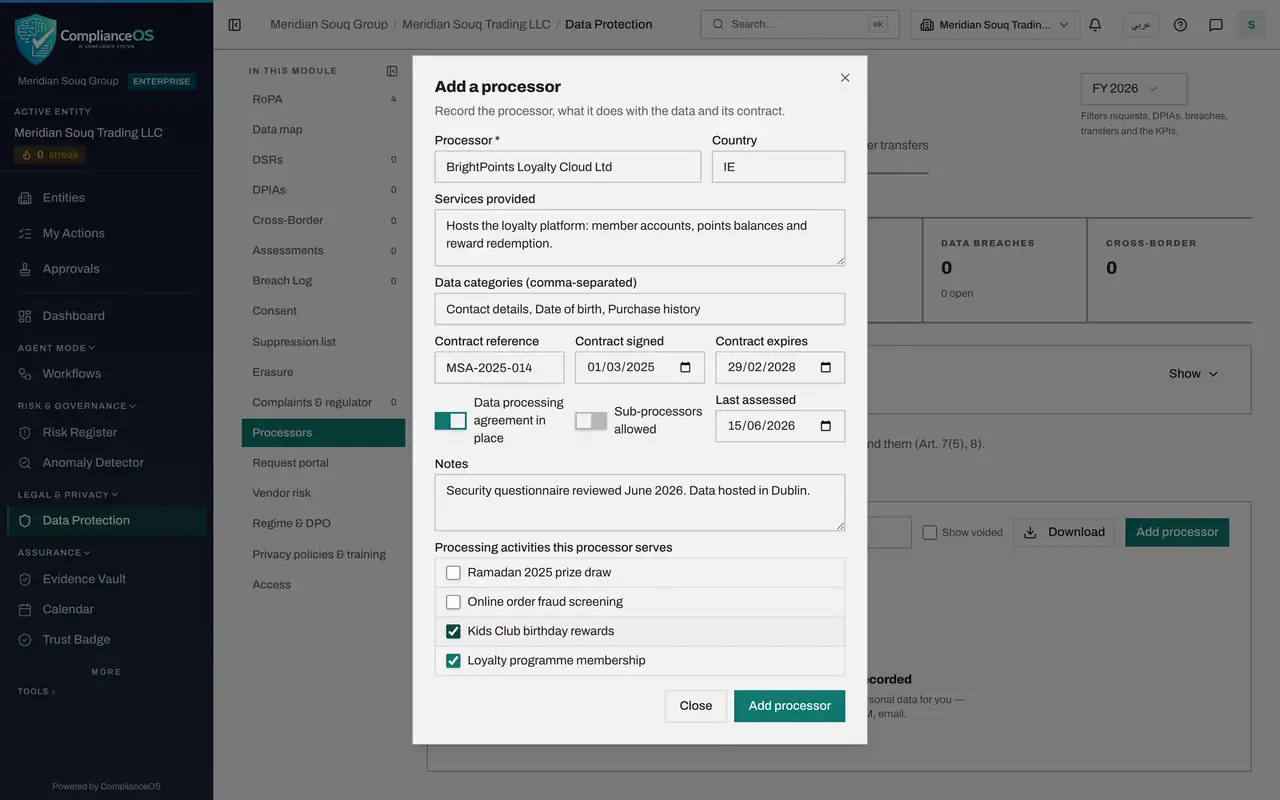
Select Add processor. In Processor, type the supplier's full legal name. It is the only required field. In Country, type the two-letter code of the country where the supplier is based: IE for Ireland.
- Select Add processor
- Type Processor *:
BrightPoints Loyalty Cloud Ltd - Type Country:
IE
- 3
Describe the service and the data it handles
In Services provided, say what the supplier does for you. In Data categories, list the kinds of personal data it handles, separated by commas.
- Type Services provided:
Hosts the loyalty platform: member accounts, points balances and rewar… - Type Data categories (comma-separated):
Contact details, Date of birth, Purchase history
- Type Services provided:
- 4
Record the contract
Type the contract reference, then enter the dates the contract was signed and expires. The expiry date is what moves the processor into the Contract expired tile when it passes.
- Type Contract reference:
MSA-2025-014 - Type Contract signed:
2025-03-01 - Type Contract expires:
2028-02-29
- Type Contract reference:
- 5
Switch on Data processing agreement in place
Two switches follow. Switch on Data processing agreement in place, because the contract includes one. A data processing agreement, or DPA, binds the supplier to your instructions and to protecting the data. Leave Sub-processors allowed off unless the contract lets the supplier pass the work to others.
- Select Data processing agreement in place
- 6
Enter the last assessment date and a note
In Last assessed, enter the date you last checked the supplier's safeguards. In Notes, record anything a colleague should know.
- Type Last assessed:
2026-06-15 - Type Notes:
Security questionnaire reviewed June 2026. Data hosted in Dublin.
- Type Last assessed:
- 7
Tick the activities the processor serves
Under Processing activities this processor serves, tick Loyalty programme membership and Kids Club birthday rewards. The link shows the processor on each activity's page.
- Select Loyalty programme membership
- Select Kids Club birthday rewards
- 8
Select Add processor to save
Select Add processor at the bottom of the form. The processor appears in the register with its country, a Yes under Data processing terms, the contract expiry date and the number of activities it serves.
- Select Add processor
- 9
Add a second processor without an agreement
Select Add processor again for the supplier that scores orders for fraud. Type its name, IN for India as the country, the service and the data categories. Leave the agreement switch off: the agreement has not been signed yet.
- Select Add processor
- Type Processor *:
SafeCart Fraud Analytics Pvt Ltd - Type Country:
IN - Type Services provided:
Scores online orders for fraud before payment is taken. - Type Data categories (comma-separated):
Name, Delivery address, Device identifier, Order history
- 10
Tick its activity and save
Tick Online order fraud screening and select Add processor. The register now lists two processors.
- Select Online order fraud screening
- Select Add processor
- 11
Read the tiles
The tiles now read two active processors and one without a data processing agreement. That one is your to-do list: chase the agreement, then open the processor and switch the agreement on.
- 12
Filter the register by activity
Open the Processing activity filter above the register and choose Loyalty programme membership. Only the processors that serve that activity are listed. Choose All activities to see every processor again.
- Select All activities
- Choose Loyalty programme membership
- Select Loyalty programme membership
- Choose All activities
- 13
Open a processor to review or change it
Select Open on a processor's row. The same form opens with the processor's details, the date it was recorded and its linked activities. Change any field and select Save. Terminate ends the relationship and keeps the record. Void is only for a record entered in error. Select Close to leave without changes.
- Select Close
- 14
Check the processor on the activity
Select RoPA in the section list, then View on Loyalty programme membership, and scroll to Processors. Under From the processor register, the supplier is listed with its country and status.
- Select RoPA4 (4)
- Select View
How to check it worked
the processor register lists two processors, the tiles read two active and one without a data processing agreement, and the Loyalty programme membership activity shows BrightPoints Loyalty Cloud Ltd under From the processor register.
Common mistakes
- Switching on Data processing agreement in place before the agreement is signed. The Without DPA tile exists to show you which suppliers still need one.
- Using Void to end a supplier relationship. Void is only for a record entered in error. Use Terminate when the contract ends, so the history is kept.
- Forgetting to tick the activities the processor serves. Without that link, the activity's page does not show the processor.
Check your understanding
1. A supplier's contract has ended and it has returned your data. What do you do with its processor record?
- A.Void it
- B.Terminate it
- C.Delete it
- D.Leave it active
Show answer
Answer: B. Terminate it
Terminate marks the processor as terminated and keeps the record. Void is only for records entered in error.
2. What does the Without DPA tile count?
- A.Processors whose contract has expired
- B.Active processors with no data processing agreement recorded
- C.Processors outside the United Arab Emirates
- D.Processors not linked to any activity
Show answer
Answer: B. Active processors with no data processing agreement recorded
A processor must act under a contract that binds it to your instructions. The tile counts active processors where the agreement switch is off.