Lesson 12 of 27
Complete the DPIA questionnaire and attach evidence
What you will be able to do
Answer every question of a data protection impact assessment: describe the processing, answer the yes and no checks, record evidence by reference and by uploading a file, list the mitigations and write the conclusion, so that the assessment reads Complete and can be submitted.
Before you start
- You are signed in with the Data Protection Officer role for the entity.
- The draft Loyalty programme profiling DPIA exists, as started in the previous lesson.
- You have the facts from the business: the marketing channels, how consent is recorded, how members opt out, and the retention schedule as a PDF file.
Steps
- 1
Open the DPIA's Questionnaire tab
In Data Protection, select DPIAs, then View Details on Loyalty programme profiling DPIA, then the Questionnaire tab. The questions are grouped in sections. Each section heading counts the required questions answered, and a red star marks a required question.
- Select DPIAs1 (1)
- Select View Details
- Select Questionnaire
- 2
Describe the processing
In the first box, describe the processing: what personal data, from whom, how and why. The label Shown on the DPIA overview means this answer also appears on the Overview tab and in the report.
- Type Describe the processing: what personal data, from whom, how and why *:
Members give their name, contact details and date of birth when they j…
- Type Describe the processing: what personal data, from whom, how and why *:
- 3
Confirm the activity covered and tick whose data it is
Under Record of processing activities covered, Loyalty programme membership is already ticked, because the DPIA is linked to it. Under Whose personal data is processed, tick Customers.
- Select Customers
- 4
Tick the marketing channels
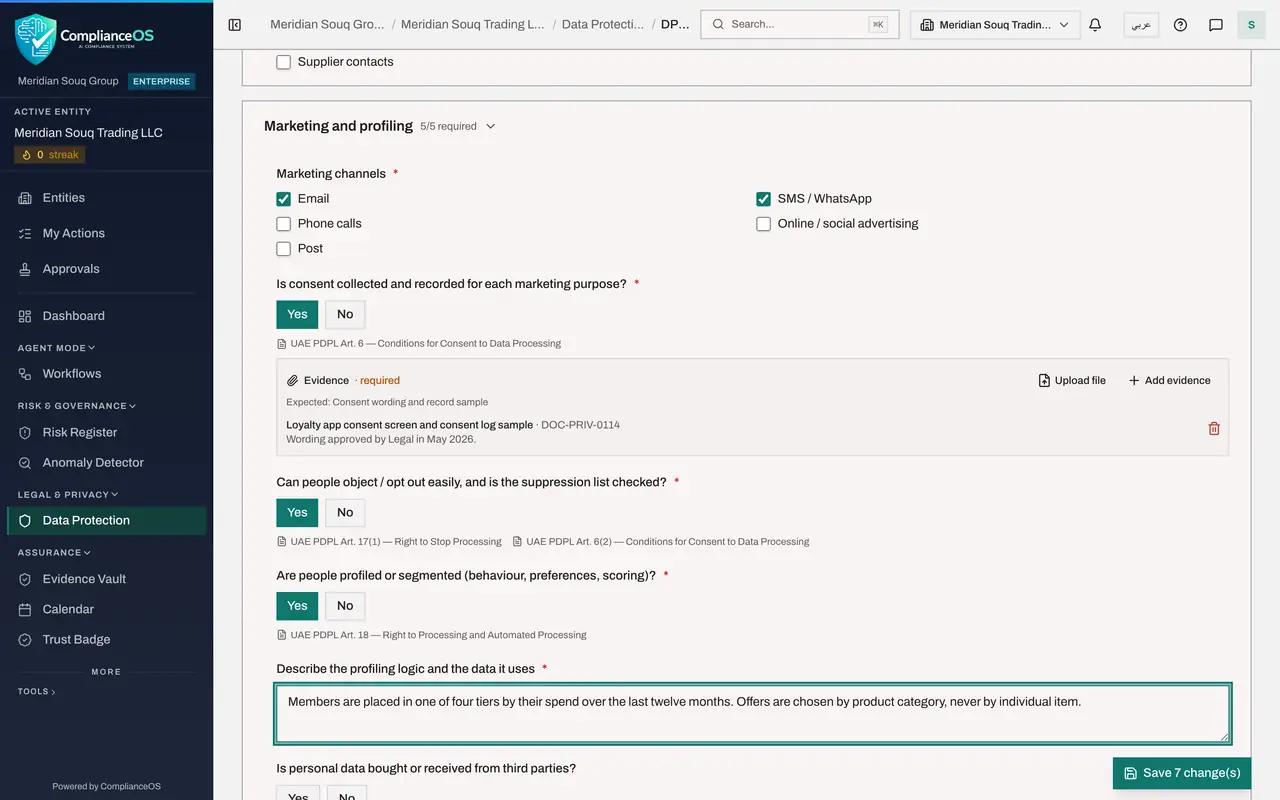
The Marketing and profiling section comes from the template you chose. Under Marketing channels, tick each channel used to send offers: Email, and SMS or WhatsApp.
- Select Email
- 5
Answer the consent question
For Is consent collected and recorded for each marketing purpose, select Yes. The answer stays selected; selecting it a second time does not clear it. Because you answered Yes, the Evidence line under the question now says required, and tells you what is expected: the consent wording and a sample record.
- Select Yes
- Select Yes
- 6
Add evidence by reference
Select Add evidence under the consent question. Type the name of the document, a reference that tells a reader where to find it, and a short note. Select Add. The evidence is listed under the question, and the answers you have typed so far are still on the page, although you have not saved yet.
- Select Add evidence
- Type Document / item *:
Loyalty app consent screen and consent log sample - Type Reference or link:
DOC-PRIV-0114 - Type Note:
Wording approved by Legal in May 2026. - Select Add
- 7
Answer the opt-out and profiling questions
Select Yes for Can people object or opt out easily, and Yes for Are people profiled or segmented. Answering Yes to profiling opens a further required question: Describe the profiling logic and the data it uses. Type the answer.
- Select Yes
- Select Yes
- Type Describe the profiling logic and the data it uses *:
Members are placed in one of four tiers by their spend over the last t…
- 8
Answer the optional question
Is personal data bought or received from third parties has no red star, so it is optional. Select No. An optional yes or no question shows a Clear answer link, which removes your answer if you chose by mistake.
- Select No
- 9
Explain why the processing is necessary
Under Necessity and proportionality, explain why the processing is needed and why it goes no further than its purpose. Then select Yes for the two checks below it: the lawful basis is identified, and only the data needed is collected.
- Type Why is the processing necessary and proportionate to its purpose? *:
Points cannot be awarded or redeemed without recording purchases again… - Select Yes
- Select Yes
- Type Why is the processing necessary and proportionate to its purpose? *:
- 10
Confirm retention and upload the schedule
Select Yes for Is a retention period defined, with deletion at its end. Evidence becomes required here too. This time select Upload file and choose the retention schedule from your computer, here a file named retention-schedule-2026.pdf. Then select Upload. The file is stored in the evidence vault and listed with its size and fingerprint.
- Select Yes
- Upload Choose an evidence file:
retention-schedule-2026.pdf - Select Upload
- 11
Describe the main risk scenarios
Under Risk assessment, the likelihood and severity you scored when you started the DPIA are already set, and you can change them here. Describe the main risk scenarios: what could be lost, misused or unfair.
- Type Describe the main risk scenarios (loss, misuse, unfair outcomes) *:
A member is placed in a tier or sent offers that reveal something priv…
- Type Describe the main risk scenarios (loss, misuse, unfair outcomes) *:
- 12
List the mitigations
Under Mitigations, write the measures that reduce the risks, one on each line. Then select Yes for After these measures, is the residual risk acceptable. Residual risk is the risk that remains once the measures are in place.
- Type Measures to reduce the risks (one per line) *:
Let members switch off personalised offers in the app Limit supplier s… - Select Yes
- Type Measures to reduce the risks (one per line) *:
- 13
Record the consultation and write the conclusion
Select Yes for Was the Data Protection Officer consulted. Then write the conclusion and your recommendation to the approver.
- Select Yes
- Type Conclusion and recommendation to the approver *:
With the opt-out, the access limits and the three-year retention in pl…
- 14
Select the Save button
While you have unsaved answers, a Save button stays at the bottom right of the screen and counts your changes. Select it. A message confirms Answers saved. At the top of the tab, the bar shows every required question answered, the word Complete appears, and Submit for approval is now available.
- Select Save 17 change(s)
How to check it worked
the bar at the top of the Questionnaire tab shows every required question answered and the word Complete, with no evidence items missing, and Submit for approval is no longer greyed out.
Common mistakes
- Answering Yes to a check without the evidence it asks for. Some Yes answers make evidence required, and the assessment is not complete until it is added.
- Writing all the mitigations on one line. Each line becomes a separate risk action when the DPIA is approved, so put one measure on each line.
- Closing the page without selecting Save. Answers you have typed stay on the page while you add evidence, but they are stored only when you select the Save button.
Check your understanding
1. You answer Yes to Are people profiled or segmented. What happens?
- A.Nothing more
- B.A further required question appears, asking you to describe the profiling logic
- C.The DPIA is rejected
- D.The risk level changes to Very high
Show answer
Answer: B. A further required question appears, asking you to describe the profiling logic
Some questions appear only when an earlier answer makes them relevant. The count of required questions goes up by one.
2. What becomes of each line you write under Measures to reduce the risks?
- A.It is printed in the report only
- B.On approval it becomes a tracked risk action
- C.It is sent to the supplier
- D.It is added to the processing register
Show answer
Answer: B. On approval it becomes a tracked risk action
The note under the question says so: on approval each measure becomes a tracked risk action that can be assigned and followed up.