Lesson 18 of 27
Read the transfer register, review a transfer and add one by hand
What you will be able to do
Read a transfer in the Cross-Border register: its adequacy labels, risk level, status and transfer impact assessment. Then open a transfer to link it to its activity, and record a new transfer by hand with every field.
Before you start
- You are signed in with the Data Protection Officer role for the entity.
- The register holds the transfers to Ireland and India recorded from the data map, as in the previous lesson.
- For a new transfer you know the destination country, who receives the data and what the transfer relies on, such as a contract or consent.
Steps
- 1
Open the Cross-Border section
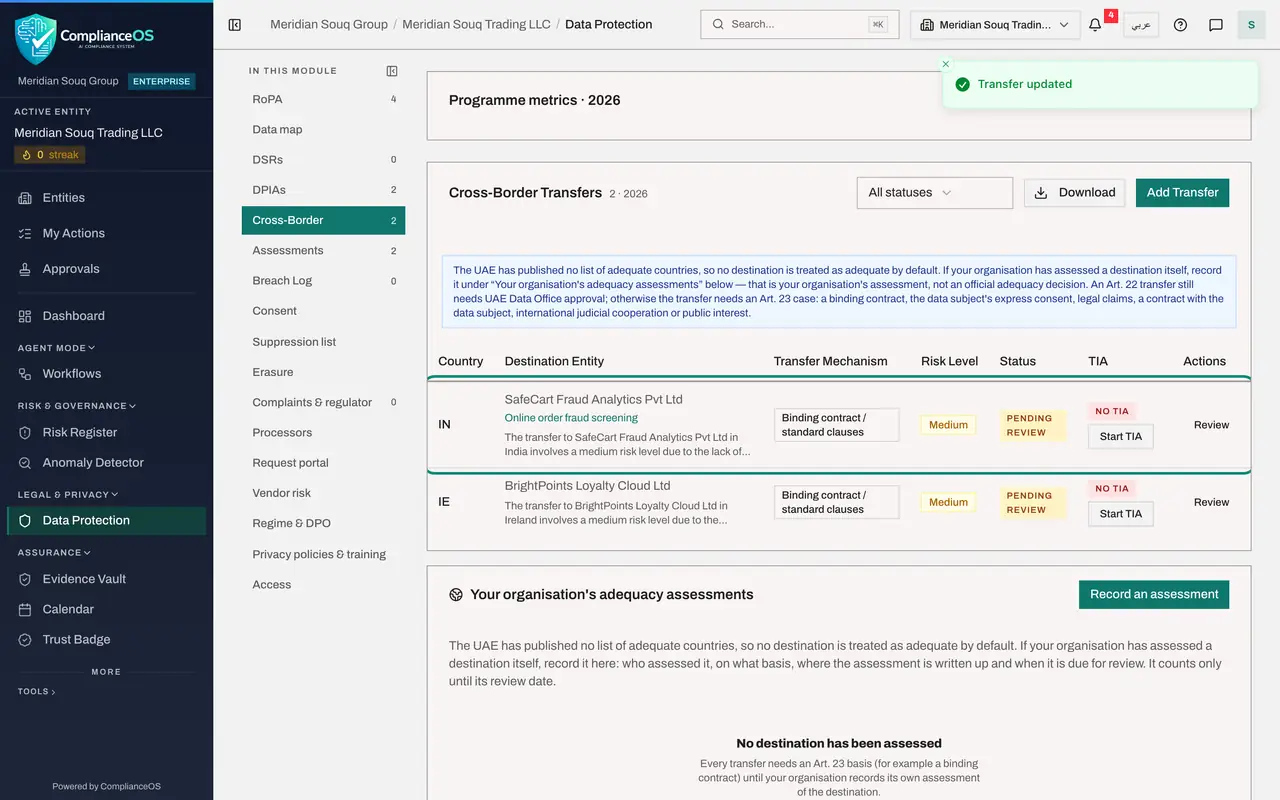
In Data Protection, select Cross-Border. Two transfers are listed: SafeCart Fraud Analytics in India and BrightPoints Loyalty Cloud in Ireland. Under each recipient's name is a short written assessment of the transfer.
- Select Cross-Border2 (2)
- 2
Read the risk level, status and TIA columns
Risk Level is worked out from the destination and the mechanism. Status starts as Pending review: the transfer is recorded but not yet approved. The TIA column says No TIA. A transfer impact assessment, or TIA, is the written check of the destination that a later lesson completes. Review, at the end of the row, opens the transfer.
- 3
Select Review and read the adequacy labels
Select Review on the transfer to SafeCart. The top of the form shows the country, the risk level, the status and two labels under Adequacy and destination law. No adequacy decision, Article 23 basis needed, is the one that matters: the transfer must rest on a contract, consent or another Article 23 case. Has a data-protection law only tells you the destination has a law of its own; it does not make the country adequate.
- Select Review
- 4
Link the activity
Under Transfer review, open Link to processing activity and choose Online order fraud screening, so the register shows which activity sends the data.
- Select Not linked
- Choose Online order fraud screening
- 5
Add a note and select Save Changes
In Notes, record what the transfer rests on. UAE Data Office approval reference is needed only for the Article 22 route. In Status, you can choose Suspended or Revoked when a transfer stops; Approved and Rejected are for the approver. Select Save Changes. The risk level is recalculated on every save.
- Type Notes:
Standard contractual clauses are with SafeCart for signature. No data… - Select Save Changes
- Type Notes:
- 6
Select Add Transfer and try to save it empty
Now record a transfer by hand. Customer support is being outsourced to a company in India, which will look up customers' orders. Select Add Transfer, and select Add Transfer at the bottom of the empty form. A message says destination country and transfer mechanism are required.
- Select Add Transfer
- Select Add Transfer
- 7
Enter the destination country and the recipient
In Destination country, type the two-letter code: IN for India. In Destination Entity, type the name of the organisation that receives the data.
- Type Destination country (2-letter code) *:
IN - Type Destination Entity:
HelloDesk Support Services Pvt Ltd
- Type Destination country (2-letter code) *:
- 8
Open Transfer Mechanism and choose one
Open Transfer Mechanism. There are five choices: Adequate protection under Article 22, which needs UAE Data Office approval; Binding contract or standard clauses; Binding corporate rules, for transfers inside a group; the data subject's express consent; and Other Article 23 case. The business says it will rely on customers' consent, so choose Data subject's express consent.
- Select Select mechanism
- Choose Data subject's express consent
- 9
Select Add Transfer to save
Link to processing activity is optional; leave it empty, because customer support is not in the register yet. Select Add Transfer. Saving takes a few seconds while the risk is assessed. The new transfer appears with its risk level and the status Pending review.
- Select Add Transfer
- 10
Filter and download the register
Above the register, the status filter narrows the list to Pending review, Approved, Rejected, Suspended or Revoked. Select Download and choose CSV to save the register as a spreadsheet.
- Select Download
- Select CSV (Excel, all rows)
How to check it worked
the Cross-Border register lists three transfers with the status Pending review, the Review form of each shows No adequacy decision, Article 23 basis needed, and the transfer to SafeCart Fraud Analytics is linked to Online order fraud screening.
Common mistakes
- Reading Has a data-protection law as meaning the country is adequate. Having a law is not adequacy. No country is treated as adequate by default, so every transfer needs an Article 23 basis unless your organisation has recorded its own assessment.
- Choosing Adequate protection, Article 22, because the destination has a strong law. That route needs the approval of the UAE Data Office, and its reference number.
- Starting to send data once the transfer is recorded. A recorded transfer is Pending review; it should not start until it is approved.
Check your understanding
1. A transfer shows two labels: No adequacy decision, Article 23 basis needed, and Has a data-protection law. What do they tell you?
- A.The transfer is approved
- B.The destination has its own law, but that is not adequacy, so the transfer needs a basis such as a binding contract
- C.The transfer is forbidden
- D.Nothing needs to be done
Show answer
Answer: B. The destination has its own law, but that is not adequacy, so the transfer needs a basis such as a binding contract
The first label is about adequacy under the UAE law, where no list of adequate countries has been published. The second only says the destination has a law of its own.
2. Which two fields must be filled before a transfer can be saved?
- A.Destination country and transfer mechanism
- B.Destination entity and processing activity
- C.Notes and status
- D.Risk level and approval reference
Show answer
Answer: A. Destination country and transfer mechanism
The form refuses to save without a destination country and a transfer mechanism. The recipient and the linked activity are optional, although you should fill them.