Lesson 23 of 27
See who can do what, and how approvals are set up
What you will be able to do
Use the Access section of Data Protection to answer three questions: who can view, create, edit and approve each kind of record, which role gives them that right, and what the approval rule is for DPIAs, transfers and transfer impact assessments.
Before you start
- You are signed in as someone who administers access. This lesson is recorded as Layla Hassan, organisation and security administrator.
- Data Protection Officers and other users see only a notice in this section. They should ask you when they need this information.
Steps
- 1
Open the Access section
In Data Protection, select Access at the bottom of the In this module list. As an access administrator you see the full page: a table of record types, with the number of people who can view, create, edit and approve each one.
- Select Access
- 2
Read the table of record types
Each row is a kind of record in the module, from assessment templates and breaches to processing records, transfer impact assessments and cross-border transfers. The first row, All record types, sums up the module. The counts include people, API keys and auditors with an active grant that covers this entity.
- 3
Select the Approve count for DPIAs
Select the number under Approve on the DPIAs row. The list below the table changes to Who can Approve, Data protection, DPIAs. It names each person, the role that gives them the right, where the role applies and until when.
- Select 5 people can Approve: DPIAs
- 4
Read who can approve
Sara Ahmed and Yusuf Rahman hold the Data protection officer role for this entity, which is why one can prepare a DPIA and the other approve it. Mariam Aziz can approve as Compliance officer, and the two administrators through Full access over the whole organisation.
- 5
Read the role grants covering this entity
Scroll to Role grants covering this entity. It lists every assignment that reaches this entity: who, which role, where it applies, whether it has a time limit, and who granted it. Only roles that include Data protection is ticked, so the list is limited to this module. Daniel Brooks, the auditor, appears here with the read-only Auditor role.
- 6
Select Grant access for this module
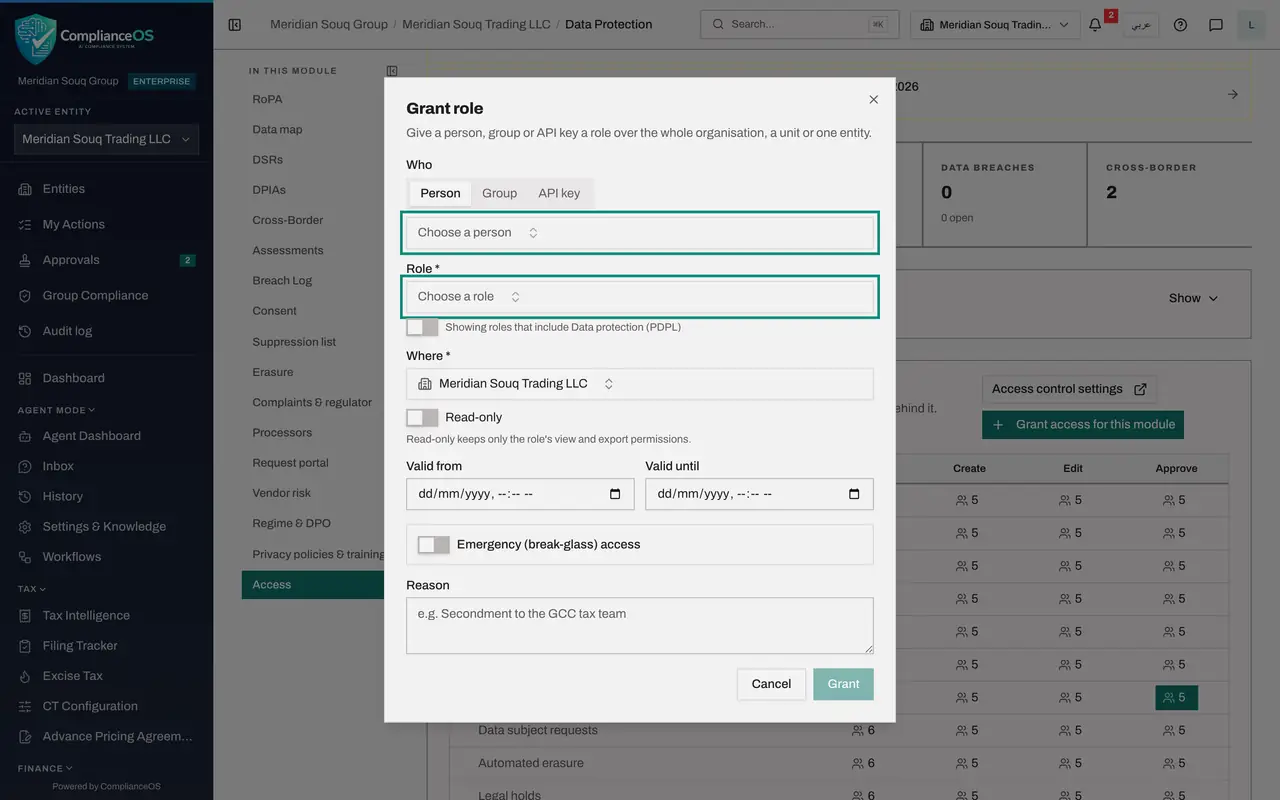
Go back to the top of the section and select Grant access for this module. The Grant role form opens, already limited to roles that include Data protection and to this entity. You choose a person, group or API key, the role, where it applies, whether it is read-only, the dates it is valid, and a reason.
- Select Grant access for this module
- 7
Look at the roles on offer, then cancel
Open Role to see the roles that include Data protection. Press the Escape key to close the list, then select Cancel: nobody needs new access today. Granting and reviewing roles is covered in the administration course.
- Select Choose a role
- Select Cancel
- 8
Scroll to Approval policies
Scroll to the Approval policies card. It lists the approvable actions of this module: approve a DPIA, approve an automated erasure plan, approve a cross-border transfer, approve a transfer impact assessment, approve a vendor risk assessment and publish a privacy policy version. Each reads Default.
- 9
Select Approve a cross-border transfer
Select Approve a cross-border transfer in the list. The panel beside it describes the rule in one sentence: by default, one approver who holds the right to approve cross-border transfers on the same entity, with strict maker and checker.
- 10
Read the maker and checker choices
Under Maker and checker there are three choices. Strict maker and checker: nobody approves a record they created or edited, administrators included. Self-approval with justification, for small teams: the author may approve with a written reason, which is flagged in the audit log. And A different person for each step. The default is strict, which is why the preparer in earlier lessons saw a note instead of Approve and Reject.
- 11
Read the approval steps
Approval steps lists who must approve, in order. Step one needs an approver who holds the right over the same entity, and one approval. Add step adds a second level, and Only when limits a step to certain records, such as high-risk ones. Leave the default as it is: nothing is saved unless you select Save policy.
How to check it worked
you can name the people who may approve a DPIA for this entity and the role that lets them, and you can say what the default approval policy is: one approver, with strict maker and checker.
Common mistakes
- Granting a role from here without a reason or an end date when the need is temporary. Use Valid until for cover during leave, and write the reason; both appear in access reviews.
- Switching the approval policy to self-approval to save time. Strict maker and checker is what stops one person both preparing and approving a DPIA or a transfer.
- Assuming a Data Protection Officer can see this page. Only access administrators can; everyone else sees a notice.
Check your understanding
1. A cell in the table reads 5 under Approve for DPIAs. What happens when you select it?
- A.Nothing
- B.The list below shows the five people, the role that gives each the right, where it applies and until when
- C.Five approval requests are created
- D.The right is removed
Show answer
Answer: B. The list below shows the five people, the role that gives each the right, where it applies and until when
Each count is a button. Selecting it lists who holds that right and through which role.
2. What does Strict maker and checker mean in an approval policy?
- A.Two approvers are always needed
- B.Nobody approves a record they created or edited, administrators included
- C.Only administrators can approve
- D.The preparer approves with a written reason
Show answer
Answer: B. Nobody approves a record they created or edited, administrators included
The policy form states it: nobody approves a record they created or edited, administrators included.