Lesson 5 of 27
Open, review and edit an activity, and flag that it needs a DPIA
What you will be able to do
Read an activity's full record, change it when the business changes, and mark it as needing a data protection impact assessment, or DPIA. You will see the hint that appears when an active activity needs a DPIA and use it to put the activity under review.
Before you start
- You are signed in with the Data Protection Officer role for the entity.
- The activity Loyalty programme membership is in the register, as added earlier in this course.
- The business has told you what is changing: here, the programme will start building a profile of each member's purchases, and data will be kept for three years instead of five.
Steps
- 1
Find the activity and select View
On the RoPA section, find Loyalty programme membership in the register and select View at the end of its row. The activity opens on its own page.
- Select View
- 2
Read the Processing Details card
The heading shows the activity's name, with its status and the Edit button on the right. Processing Details shows the purpose, the lawful basis, the retention period in days and months, whether data crosses borders, whether a DPIA is required, and the date the record was created.
- 3
Read the automated decisions and children's data cards
The next two cards answer two questions for this activity. Automated decision-making reads None, and Children's data reads No children, because neither box was ticked when the activity was added.
- 4
Scroll down to the data, the people and the safeguards
Scroll down. Data Categories and Data Subjects show each item you listed as a tag. Technical Measures and Organizational Measures list the safeguards, and Processors shows the supplier you named.
- 5
Scroll down to the linked records
The last cards show what is linked to this activity from other sections: processors from the processor register, data protection impact assessments, and Linked data, which is the systems and tables that hold the data. All three are empty for now; later lessons fill them.
- 6
Select Edit
Go back to the top of the page and select Edit. The Edit Processing Activity form opens with the current details filled in.
- Select Edit
- 7
Shorten the retention period
The business now keeps membership data for three years after the last purchase. Scroll to Retention Period and change it to 1095 days.
- Type Retention Period (days):
1095
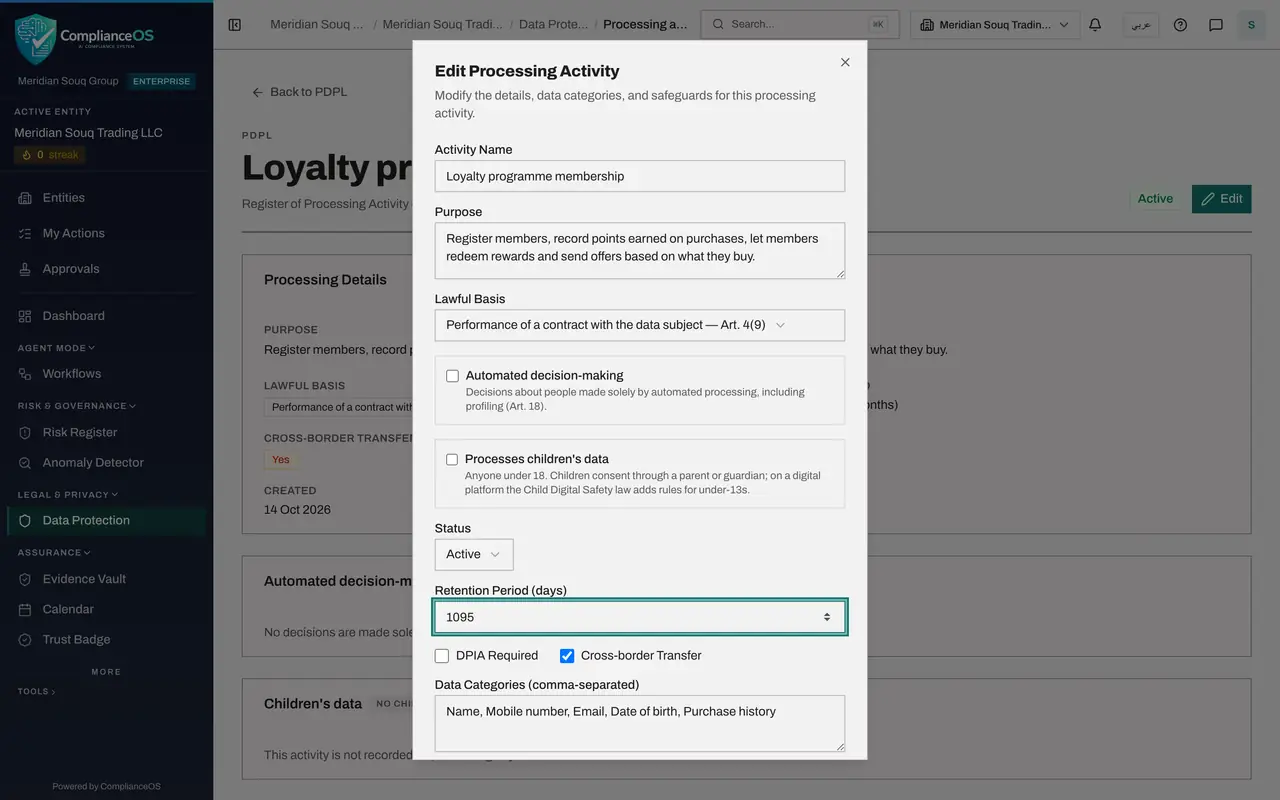
- Type Retention Period (days):
- 8
Add the new data category
The programme will now keep a loyalty tier for each member. In Data Categories, add Loyalty tier to the end of the list, keeping a comma between items.
- Type Data Categories (comma-separated):
Name, Mobile number, Email, Date of birth, Purchase history, Loyalty t…
- Type Data Categories (comma-separated):
- 9
Tick the box DPIA Required
Because the programme will profile purchases, it needs an impact assessment, so tick the box. An amber hint appears above Status: an Active activity that requires an impact assessment needs an approved one linked to it, and none was found.
- Select DPIA Required
- 10
Select Set status to Under review
In the hint, select Set status to Under review. Status changes to Under review and a blue note replaces the hint: the activity stays under review until its DPIA is approved, and approval returns it to Active automatically.
- Select Set status to Under review
- 11
Select Save changes
Select Save changes at the bottom of the form. The form closes and the page shows the new details. The tag beside Edit now reads Under review.
- Select Save changes
- 12
Read the notice on the DPIA card
Scroll down to Data protection impact assessments. An amber notice says a DPIA is required for this activity but none is approved, with a Start a DPIA link. A later lesson starts that assessment.
- 13
Go back to the register
Select Back to PDPL at the top of the page. In the register, the DPIA column now reads Required and the status reads Under review, with the note Waiting for its DPIA to be approved.
- Select Back to PDPL
How to check it worked
the activity's page shows the status Under review, DPIA Required reads Yes, the retention period reads 1,095 days, and the register shows the note Waiting for its DPIA to be approved under the status.
Common mistakes
- Ticking DPIA Required and trying to save while the status is still Active. An active activity that needs a DPIA must have an approved one, so use Set status to Under review first.
- Choosing a status by hand after using Set status to Under review. That removes the hold, and the activity will not return to Active by itself when the DPIA is approved.
- Retyping the whole list of data categories and dropping one by accident. Add to the end of the list and keep the commas.
Check your understanding
1. You tick DPIA Required on an Active activity and an amber hint appears. What does it tell you to do?
- A.Delete the activity and add it again
- B.Set the status to Under review and save, then complete the DPIA and have it approved
- C.Ask an administrator to approve the change
- D.Nothing; the hint is only for information
Show answer
Answer: B. Set the status to Under review and save, then complete the DPIA and have it approved
An Active activity that requires a DPIA needs an approved DPIA linked to it. Until then the activity is held as Under review.
2. What happens to an activity that is under review for its DPIA when the DPIA is approved?
- A.It stays Under review until someone edits it
- B.It is archived
- C.It returns to Active by itself
- D.It is deleted
Show answer
Answer: C. It returns to Active by itself
The blue note on the form says so: approving the linked DPIA returns the activity to Active automatically.