Lesson 26 of 27
How this connects: dashboard, risk register, calendar and vendors
What you will be able to do
See where the work done in Data Protection shows up in the rest of ComplianceOS: the entity dashboard, the risk register, the compliance calendar, the Approvals inbox and the vendor risk register. You will also learn which of these links are automatic and which need a button.
Before you start
- You are signed in as a compliance officer, who can see the risk register and the calendar as well as Data Protection. This lesson is recorded as Mariam Aziz.
- The privacy team has recorded the activities, DPIAs and transfers shown in the earlier lessons, including a DPIA rated High and a transfer rated High.
Steps
- 1
Read the entity dashboard
The dashboard of Meridian Souq Trading opens. Under Compliance health score, Data Protection has its own score, worked out from the records in the module. The task list on the page counts the DPIAs awaiting approval.
- 2
Open the Risk Register
In the main menu, open Risk and Governance and select Risk Register. This is the central list of risks from every module. Nothing from Data Protection is listed yet.
- Select Risk Register
- 3
Select Sync Modules
Select Sync Modules. The register imports risks from the modules. A line above the heat map says how many were auto-imported and from where: DPIA and Cross-Border.
- Select Sync Modules
- 4
Read the imported risks
Scroll to the table. Each DPIA rated High has become a risk titled DPIA high risk with the assessment's name, scored from its likelihood and severity. The transfer rated High is here too, as High-risk cross-border data transfer. The Source column says which module each came from.
- 5
Open the Calendar and select Sync Deadlines
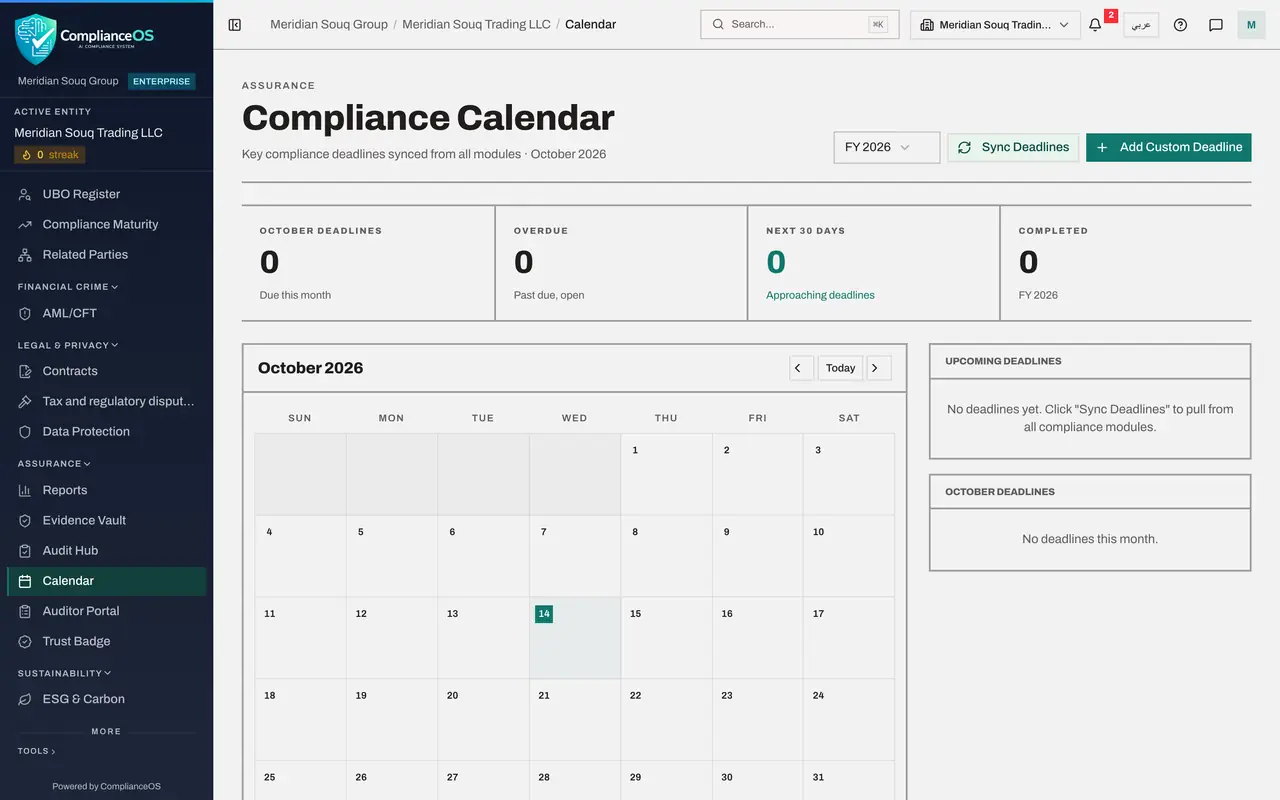
In the main menu, open Assurance and select Calendar, then select Sync Deadlines. The calendar collects deadlines from every module. From Data Protection it brings in the response dates of data subject requests and the review dates of approved DPIAs and transfer impact assessments.
- Select Calendar
- Select Sync Deadlines
- 6
Choose FY 2027 to find the review dates
The assessments approved in this course are due for review in a year. Open the year filter and choose FY 2027. The calendar moves to October 2027: DPIA review and TIA review appear on the date, and under Upcoming deadlines each is listed with the name of the assessment and how many days away it is.
- Select Year
- Choose FY 2027
- 7
Select Approvals
Select Approvals in the main menu. The two DPIAs waiting for approval are in your inbox too. A request goes to everyone who may approve that kind of record for the entity and did not prepare it, so a compliance officer can decide it when the second Data Protection Officer is away. Leave them for the Data Protection Officer, who approves them in the next lesson.
- Select Approvals2
- 8
Open Vendor risk in Data Protection
In the main menu, open Legal and Privacy and select Data Protection, then Vendor risk in the section list. The vendor risk register is where suppliers are assessed with questionnaires. It is empty for now; the next course covers it.
- Select Data Protection
- Select Hide
- Select Vendor risk
- 9
Select Add vendor to see the links
Select Add vendor. The form shows how the registers connect. Vendors are shared with the tax vendor directory, so a supplier's details stay in one place. Under Linked processors and Linked cross-border transfers, the processors and transfers recorded in this course are offered, and the vendor's inherent risk is worked out from them.
- Select Add vendor
- 10
Select Cancel
Select Cancel to close the form without adding a vendor. You have now seen most of the chain: activities in the register, the systems that hold their data, the suppliers that process it, the assessments and transfers that govern it, and the risks, actions and approvals they create elsewhere in ComplianceOS.
- Select Cancel
How to check it worked
the risk register lists risks whose source is DPIA and Cross-Border, the calendar lists the review dates of the approved assessments, and your Approvals inbox and the vendor form show the links to Data Protection.
Common mistakes
- Expecting a high-risk DPIA to appear in the risk register the moment it is saved. Select Sync Modules in the risk register to bring it in; risks from superseded or voided assessments are retired by the same sync.
- Forgetting to sync the calendar after approving an assessment. Select Sync Deadlines, or wait for the daily sync, before relying on the calendar for review dates.
- Adding a supplier to the vendor risk register as a new name when it is already a processor. Link the existing processor and its transfers, so the supplier's details stay in one place.
Check your understanding
1. How does a DPIA rated High reach the risk register?
- A.It never does
- B.Select Sync Modules in the risk register; the risk is imported with the DPIA as its source
- C.The preparer retypes it as a new risk
- D.Only an administrator can copy it
Show answer
Answer: B. Select Sync Modules in the risk register; the risk is imported with the DPIA as its source
Sync Modules imports risks from the modules. DPIAs rated High or Very high and high-risk transfers are brought in, tagged with their source.
2. A DPIA is waiting for approval. Who sees the request in their Approvals inbox?
- A.Only the second Data Protection Officer
- B.Everyone who holds the right to approve DPIAs for the entity and did not prepare it
- C.Only administrators
- D.The preparer
Show answer
Answer: B. Everyone who holds the right to approve DPIAs for the entity and did not prepare it
The request goes to every eligible approver. Here the compliance officer sees it as well as the second Data Protection Officer; the first to decide closes it.