Lesson 13 of 27
Export a DPIA and submit it for approval
What you will be able to do
Check a finished impact assessment, download it as a PDF, submit it for approval, follow the request, and withdraw it to make a correction before submitting it again. You will see why the person who prepared a DPIA cannot approve it, and where to watch its progress.
Before you start
- You are signed in with the Data Protection Officer role for the entity. You are the person who prepared the DPIA.
- The questionnaire of Loyalty programme profiling DPIA reads Complete, as finished in the previous lesson.
- A second person with the right to approve DPIAs exists. In this company that is Yusuf Rahman, the second Data Protection Officer.
Steps
- 1
Open the assessment from the section named DPIAs
In Data Protection, select the section, then View Details on the loyalty programme assessment. It still reads Draft.
- Select DPIAs1 (1)
- Select View Details
- 2
Read the Assessment Report on the Overview tab
The Overview tab now has an Assessment Report card. It shows the conclusion, the description, the mitigations and the necessity assessment you wrote in the questionnaire. This is what the approver reads first.
- 3
Open the Questionnaire tab and select Export
Select the Questionnaire tab and check that the bar reads Complete. Then select Export and choose PDF. The assessment is downloaded as a document you can file or share. JSON is the same content for other systems.
- Select Questionnaire
- Select Export
- Select PDF
- 4
Select Submit for approval
Select Submit for approval, beside Export. A message confirms Submitted for approval, and the status at the top of the page changes from Draft to Pending DPO approval.
- Select Submit for approval
- 5
Select Approvals in the main menu
Select Approvals in the main menu on the left. The page opens on To decide, which is empty for you: nothing is waiting for your decision.
- Select Approvals
- 6
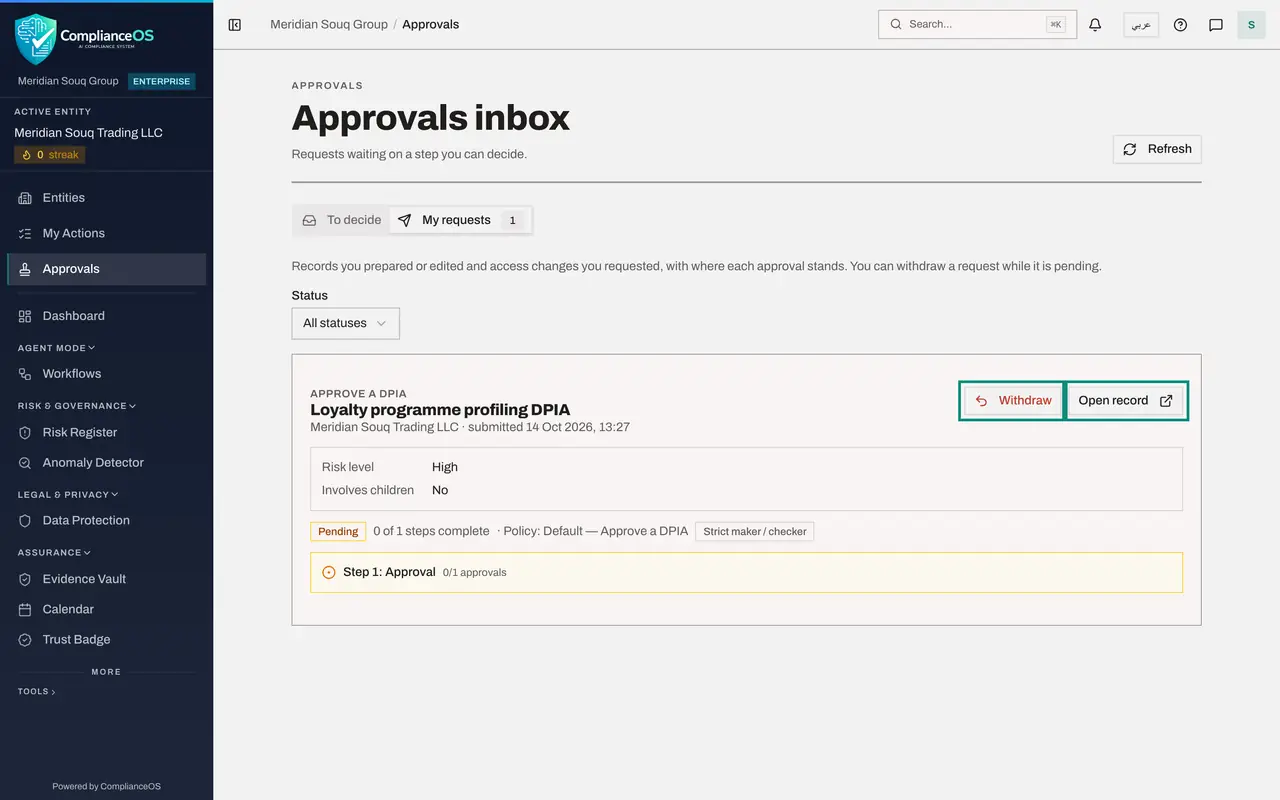
Select My requests
Select My requests. Your DPIA is listed as Approve a DPIA, with its risk level, the step it is waiting on and the policy. It reads Pending, zero of one steps complete. Withdraw takes the request back while it is pending, for example to correct an answer.
- Select My requests
- 7
Withdraw the request
You notice the conclusion should mention the supplier's audit report. Select Withdraw. A box explains that the DPIA stops waiting for approval. Type a reason, which is optional, and select Withdraw request. The request is marked Cancelled, Withdrawn.
- Select Withdraw
- Type Reason (optional):
Adding a reference to the supplier's audit report. - Select Withdraw request
- 8
Open the DPIA and correct the conclusion
Select Open record. The DPIA is back to Draft. On the Questionnaire tab, add a sentence to the conclusion and select the Save button.
- Select Open record
- Select Questionnaire
- Type Conclusion and recommendation to the approver *:
With the opt-out, the access limits and the three-year retention in pl… - Select Save 1 change(s)
- 9
Submit it again
Select Submit for approval once more. The status returns to Pending DPO approval and a new request goes to the approvers.
- Select Submit for approval
- 10
Read the approval notice
Select the Overview tab and scroll down to DPO Approval Required. Approval progress shows the policy: one approver who holds the right to approve DPIAs for this entity, and strict maker and checker. Below it, a note says you created or edited this record, so someone else has to approve it. That is why you have no Approve or Reject button.
- Select Overview
- 11
Go back to the list of assessments
Select Back to PDPL, then the section named DPIAs. The assessment now reads Pending DPO approval. The second Data Protection Officer takes it from here, in the next lesson.
- Select Back to PDPL
- Select DPIAs1 (1)
How to check it worked
the DPIA's status reads Pending DPO approval, your Approvals page lists the request under My requests as Pending, and you see a note instead of Approve and Reject buttons.
Common mistakes
- Looking for an Approve button on a DPIA you prepared. The approval policy is strict maker and checker: whoever created or edited the record cannot approve it.
- Submitting before the questionnaire is complete. Submit for approval stays greyed out until every required question is answered and the required evidence is added.
- Correcting a pending DPIA without withdrawing it first. Withdraw the request, correct the answers in the Draft, then submit it again, so the approver sees the final version.
Check your understanding
1. You submitted a DPIA you prepared. What do you see where the Approve and Reject buttons would be?
- A.Both buttons, greyed out
- B.A note that you created or edited this record, so someone else has to approve it
- C.An error message
- D.Nothing at all
Show answer
Answer: B. A note that you created or edited this record, so someone else has to approve it
Under strict maker and checker, the preparer sees a note explaining that someone else has to approve the record.
2. Where can you follow a request you have submitted?
- A.Only by asking the approver
- B.On the Approvals page, under My requests
- C.In the Access section
- D.In the data map
Show answer
Answer: B. On the Approvals page, under My requests
My requests lists the records you prepared or edited, with where each approval stands.