Lesson 11 of 27
Start a DPIA and find your way around it
What you will be able to do
Start a data protection impact assessment, or DPIA, for an activity that needs one. You will fill in every field of the New DPIA form, choose the right template, decide whether to ask for an AI draft, and learn the three tabs of the assessment's page.
Before you start
- You are signed in with the Data Protection Officer role for the entity.
- The activity Loyalty programme membership is marked DPIA required and is under review, as set earlier in this course.
- You can describe in a sentence or two what could go wrong for the people whose data is used.
Steps
- 1
Open the section named DPIAs and select New DPIA
In Data Protection, select the section, then the New DPIA button. An impact assessment is a written assessment of the risks an activity creates for the people whose data is used, and of the measures that reduce them.
- Select DPIAs0 (0)
- Select New DPIA
- 2
Type the title and describe the risk
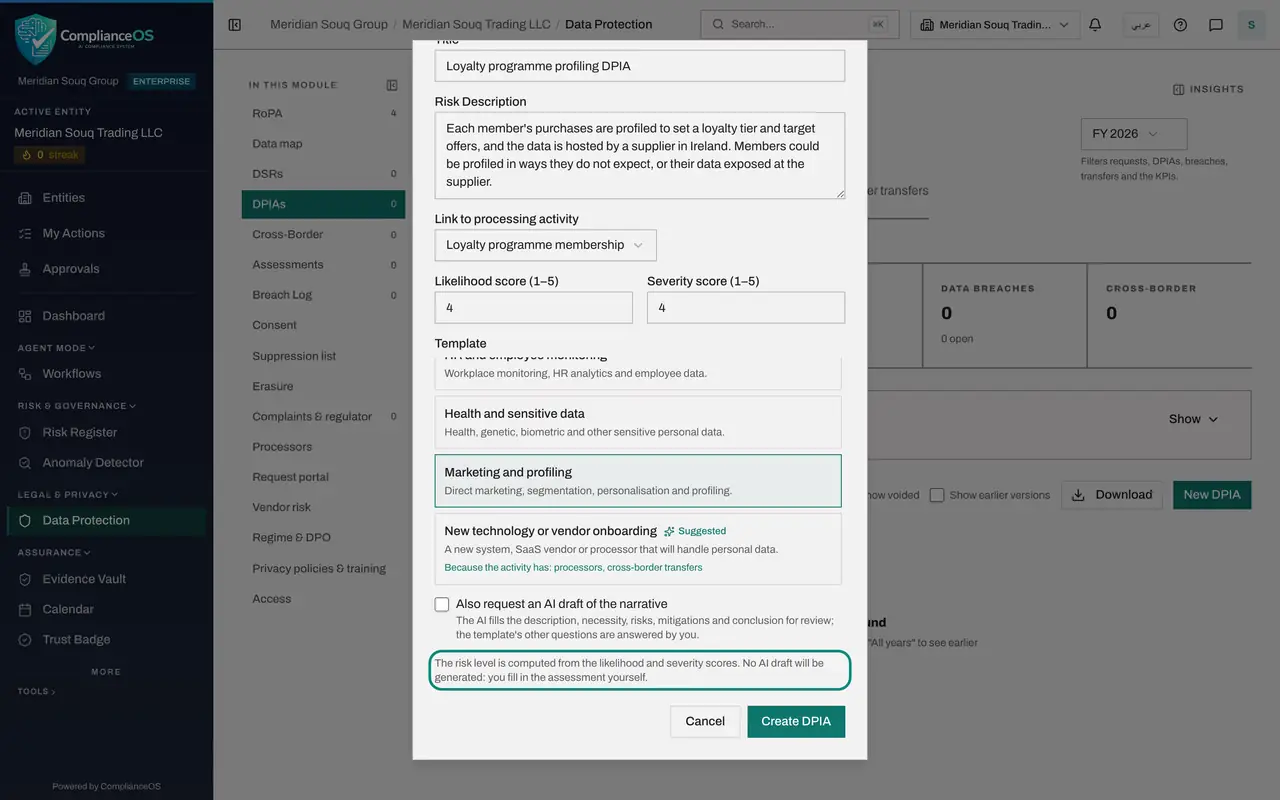
In Title, type a name that says which activity is assessed. It is the only required field. In Risk Description, say in a sentence or two what could go wrong for the people concerned.
- Type Title *:
Loyalty programme profiling DPIA - Type Risk Description:
Each member's purchases are profiled to set a loyalty tier and target…
- Type Title *:
- 3
Link the processing activity
Open Link to processing activity and choose Loyalty programme membership. The link is what lets the approval of this DPIA return the activity to Active.
- Select Select activity (optional)
- Choose Loyalty programme membership
- 4
Score the likelihood and the severity
Score how likely harm is and how severe it would be, each from 1, very low, to 5, very high. Type 4 and 4. The two scores are multiplied to give the risk level: sixteen is High.
- Type Likelihood score (1–5):
4 - Type Severity score (1–5):
4
- Type Likelihood score (1–5):
- 5
Choose the template
Under Template, eight sets of questions are offered. General DPIA is the standard assessment. The others add questions for special cases, such as children's data, employee monitoring, health data, or marketing and profiling. A Suggested tag marks a template that fits the linked activity, with the reason under it. Here the main risk is profiling, so choose Marketing and profiling.
- 6
Decide about the AI draft
Also request an AI draft of the narrative is ticked to start with, and the button reads Request AI draft. Untick it to write the assessment yourself. The note changes to say that no AI draft will be generated, and the button now reads Create DPIA. A later lesson shows the AI draft.
- 7
Select Create DPIA
Select the button. The form closes, and a message tells you to open the new assessment, fill it in and submit it for approval.
- Select Create DPIA
- 8
Read the DPIA in the list
The DPIA is listed with its risk level, High risk, the status Draft, the scores and the linked activity. On the right are Unlink, Re-draft AI, View Details and Void, which is for a DPIA entered in error. Select the title to show or hide its details.
- 9
Select View Details
Select View Details. The DPIA opens on its own page. The heading shows the title and the status Draft. Below it, the processing activity is named, with Change to link a different activity and Unlink to remove the link.
- Select View Details
- 10
Read the Overview tab
The page has three tabs. Overview shows the Risk Assessment card: the two scores, the overall risk level and your risk description. Once the questionnaire is filled in, the assessment's main answers appear here too.
- 11
Open the Risk Actions tab
Select Risk Actions. It is empty for now. Risk actions are created automatically when the DPIA is approved: each mitigation you write becomes an action that can be assigned and tracked.
- Select Risk Actions
- 12
Open the Questionnaire tab
Select Questionnaire. The top card names the template and the rated risk, with Export and Submit for approval. Submit stays greyed out until every required question is answered. The bar below counts the required questions answered. The next lesson fills them in.
- Select Questionnaire
How to check it worked
the list of impact assessments shows Loyalty programme profiling with High risk and the status Draft, and its page names Loyalty programme membership as the processing activity.
Common mistakes
- Leaving Link to processing activity empty. The DPIA is saved, but approving it will not return the activity to Active, because nothing ties the two together.
- Choosing General DPIA when a special template fits. The special templates add the questions an auditor expects, for example on consent and opting out for marketing.
- Scoring likelihood and severity low to avoid work. The scores set the risk level that the approver, the risk register and the metrics all show.
Check your understanding
1. How is the risk level of a new DPIA worked out?
- A.The AI decides it
- B.From the likelihood score multiplied by the severity score
- C.From the number of data categories
- D.The approver chooses it
Show answer
Answer: B. From the likelihood score multiplied by the severity score
The form says the risk level is computed from the likelihood and severity scores. Four times four is sixteen, which is High.
2. You untick Also request an AI draft of the narrative. What changes on the form?
- A.Nothing
- B.The note says no AI draft will be generated and the button reads Create DPIA
- C.The template list disappears
- D.The DPIA is approved straight away
Show answer
Answer: B. The note says no AI draft will be generated and the button reads Create DPIA
With the box ticked the button reads Request AI draft. Unticked, the note says you fill in the assessment yourself and the button reads Create DPIA.