Lesson 3 of 27
Add a processing activity: every field explained
What you will be able to do
Record one way your organisation uses personal data in the record of processing activities, or RoPA, and understand what every field on the form is for, what a good value looks like and what happens if you leave it empty.
Before you start
- You are signed in with the Data Protection Officer role for the entity.
- You know the business purpose of the activity, whose data it uses, how long it is kept and which suppliers handle it.
- The regime is set, as in the previous lesson, because the list of lawful bases follows it.
Steps
- 1
Select Add Activity
In Data Protection, on the RoPA section, select Add Activity. The Add Processing Activity form opens. One form describes one use of personal data.
- Select Add Activity
- 2
Try to save the empty form
Scroll to the bottom of the form and select Add Activity before typing anything. A message says activity name, purpose and legal basis are required. Those are the three fields marked with a star. Everything else may be left empty.
- Select Add Activity
- 3
Type the activity name
In Activity Name, type a short name people in the business will recognise, here Loyalty programme membership. The name is what appears in the register, on impact assessments and on transfers.
- Type Activity Name *:
Loyalty programme membership
- Type Activity Name *:
- 4
Open Legal Basis and choose the lawful basis
Open Legal Basis. The lawful basis is the legal reason that allows the processing. Members join the programme under its terms, so choose Performance of a contract with the data subject. Choose Consent only when the person can freely say no and withdraw later.
- Select Select lawful basis
- 5
Describe the purpose
In Purpose, say what the data is used for, in plain words a member would understand. A clear purpose is what lets you judge later whether a new use of the data is still covered.
- Type Purpose *:
Register members, record points earned on purchases, let members redee…
- Type Purpose *:
- 6
List the data categories
In Data Categories, list the kinds of personal data used, separated by commas. Each item becomes a tag on the record. If you leave this empty, the record shows no categories for the activity.
- Type Data Categories (comma-separated):
Name, Mobile number, Email, Date of birth, Purchase history
- Type Data Categories (comma-separated):
- 7
List the data subjects
In Data Subjects, list the groups of people the data is about, separated by commas. Here that is customers and loyalty members.
- Type Data Subjects (comma-separated):
Customers, Loyalty members
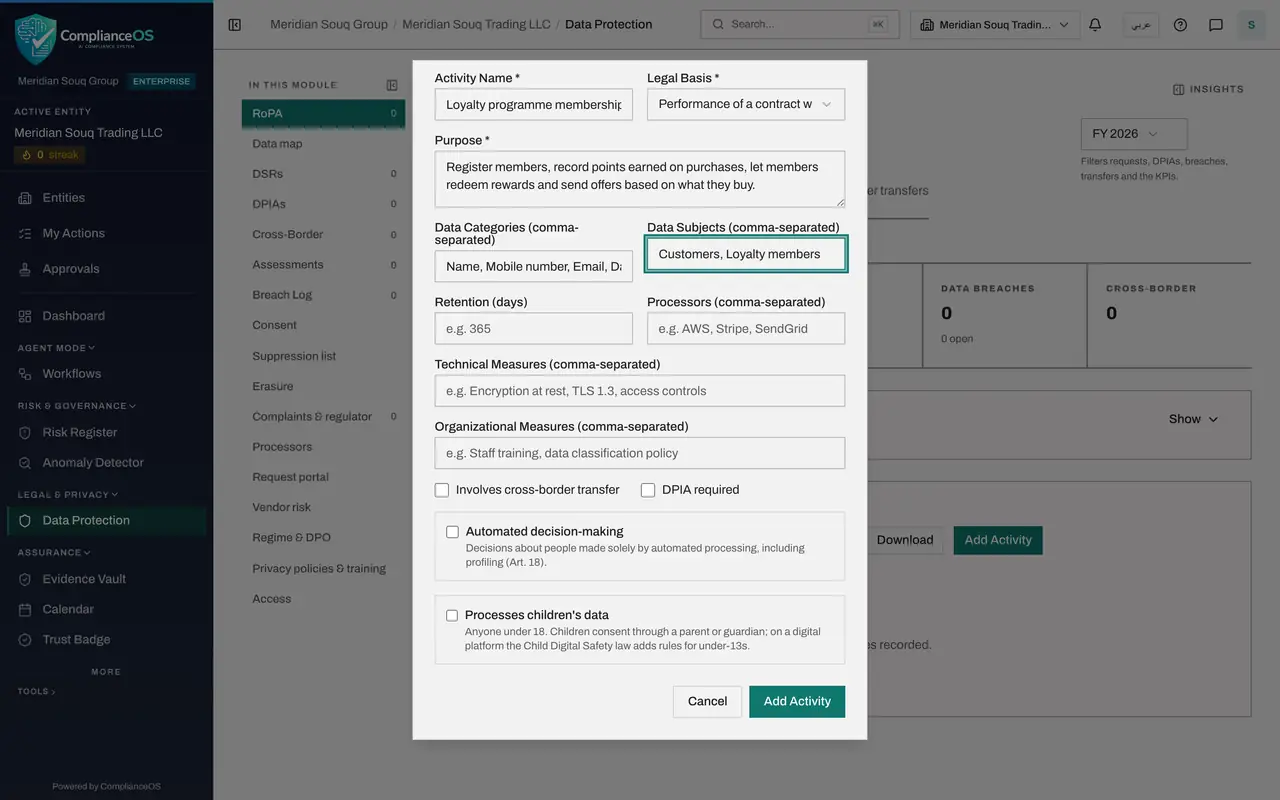
- Type Data Subjects (comma-separated):
- 8
Enter the retention period and the processors
In Retention, type how long the data is kept, in days. Five years is 1825 days. In Processors, name any supplier that handles the data for you. This is free text; the supplier's own record, with its contract, is added in the Processors lesson.
- Type Retention (days):
1825 - Type Processors (comma-separated):
BrightPoints Loyalty Cloud Ltd
- Type Retention (days):
- 9
Record the safeguards
Technical Measures are the controls built into systems, such as encryption. Organizational Measures are the rules people follow, such as training. List each kind, separated by commas. An auditor reads these two fields first.
- Type Technical Measures (comma-separated):
Encryption at rest and in transit, Role-based access, Audit logging - Type Organizational Measures (comma-separated):
Annual privacy training, Quarterly access review
- Type Technical Measures (comma-separated):
- 10
Tick Involves cross-border transfer
Four tick boxes flag special cases. The loyalty platform is hosted in Ireland, so tick Involves cross-border transfer. Leave the other three for now: DPIA required, Automated decision-making and Processes children's data are each covered in the next lessons.
- Select Involves cross-border transfer
- 11
Select Add Activity to save
Select Add Activity at the bottom of the form. The form closes and a confirmation says Processing activity added.
- Select Add Activity
- 12
Find the activity in the register
The activity is now a row in the register, with its purpose and legal basis. At this screen size the data categories and retention columns are left out so the table fits; they are on the activity's own page. View opens the full record and Edit changes it.
- 13
Read the last columns
The last columns of the row show that the activity involves a cross-border transfer, that no DPIA is required, and the status, which starts as Active.
- 14
Check the RoPA Records tile
Go to the top of the page. The RoPA Records tile now reads one, with one active, and the number beside RoPA in the section list has gone up as well.
How to check it worked
the activity appears in the register with the status Active, its Cross-Border column says Yes, and the RoPA Records tile at the top of the page has gone up by one.
Common mistakes
- Writing a vague purpose such as business use. State what the data is used for, in words a customer would understand.
- Choosing Consent as the lawful basis when the processing is needed to perform a contract. Consent can be withdrawn at any time, so use it only when it really is the basis.
- Leaving Retention empty. The activity is saved, but it can never be flagged as past its retention period, so old data is not picked up for deletion.
Check your understanding
1. Which three fields must be filled before an activity can be saved?
- A.Activity name, purpose and legal basis
- B.Activity name, processors and retention
- C.Purpose, data categories and data subjects
- D.Legal basis, technical measures and retention
Show answer
Answer: A. Activity name, purpose and legal basis
The form refuses to save without an activity name, a purpose and a legal basis. Every other field is optional, although a complete record is far more useful.
2. A loyalty programme is hosted by a supplier in Ireland. What should you tick on the activity?
- A.DPIA required
- B.Involves cross-border transfer
- C.Automated decision-making
- D.Nothing; record it on the supplier only
Show answer
Answer: B. Involves cross-border transfer
Ticking Involves cross-border transfer flags the activity, so the register and the metrics show that personal data leaves the country. The transfer itself is recorded in the Cross-Border section.