Lesson 14 of 27
Approve a DPIA as the second Data Protection Officer
What you will be able to do
Take a DPIA that a colleague submitted, from your Approvals inbox to a decision. You will read the assessment and its evidence, approve it with a note, see the linked activity return to Active by itself, and assign the risk actions the approval creates.
Before you start
- You are signed in as a second person with the right to approve DPIAs for the entity. This lesson is recorded as Yusuf Rahman, the second Data Protection Officer.
- A colleague has submitted Loyalty programme profiling DPIA for approval, as in the previous lesson.
- You did not create or edit the DPIA. Under strict maker and checker, the preparer cannot approve it.
Steps
- 1
Select Approvals in the main menu
The number beside Approvals in the main menu shows that one request is waiting for you. Select Approvals. The inbox opens on To decide.
- Select Approvals1
- 2
Read the request
The request is headed Approve a DPIA and names the assessment, the entity and when it was submitted. It shows the risk level, High, and whether children are involved. Below that is the policy: one approval step, strict maker and checker, waiting on step one.
- 3
Select Open record
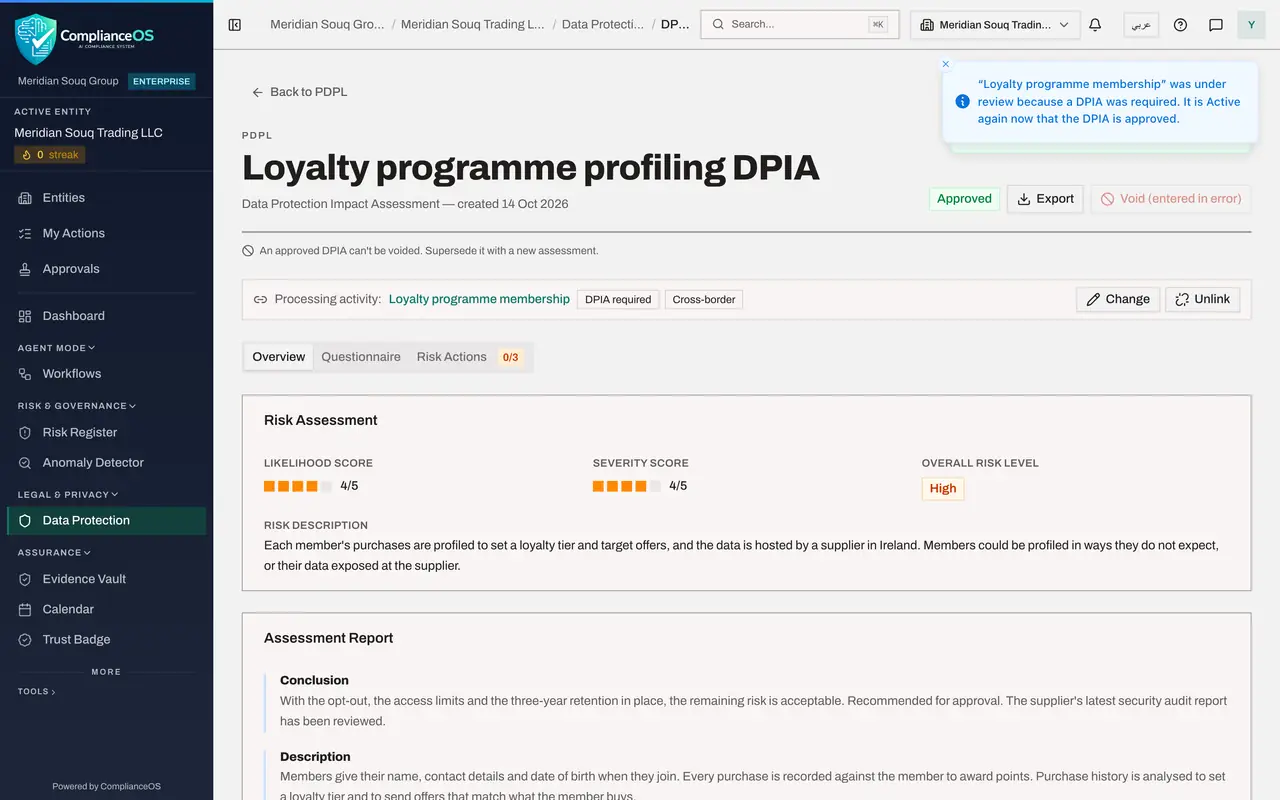
Select Open record. The DPIA opens on its Overview tab. Read the risk scores and risk description, then the conclusion, description, mitigations and necessity assessment in the Assessment Report.
- Select Open record
- 4
Check the answers and evidence on the Questionnaire tab
Select the Questionnaire tab. It shows every answer the preparer gave, read-only for the checks, and the bar must read Complete. Scroll to an evidence item and select Download to open a file the preparer attached.
- Select Questionnaire
- 5
Go back to Overview and find the decision buttons
Select the Overview tab and scroll to DPO Approval Required. Because you did not prepare this DPIA, you have two buttons: Approve DPIA and Reject DPIA. Reject asks you for the reason and sends the assessment back to the preparer.
- Select Overview
- 6
Select Approve DPIA and add your notes
Select Approve DPIA. A box asks you to confirm. In Approval Notes, say what you checked and any condition you attach. The note is kept with the DPIA.
- Select Approve DPIA
- Type Approval Notes:
Reviewed with the loyalty team. Consent wording and retention schedule…
- 7
Select Confirm Approval
Select Confirm Approval. Two messages appear. One says DPIA approved. The other says that Loyalty programme membership was under review because a DPIA was required, and is Active again now that the DPIA is approved.
- Select Confirm Approval
- 8
Read the approval on the DPIA
The status at the top now reads Approved. Scroll down the Overview tab: DPO Review Notes shows your note and the time, and Approval progress shows one of one steps complete, approved by you.
- 9
Open the Risk Actions tab
Select Risk Actions. Each mitigation in the DPIA is now an action with the status Open, and a bar shows that none of the three is implemented yet. Each action has Edit and Upload Proof.
- Select Risk Actions0/3
- 10
Assign the first action to your colleague
Select Edit on Let members switch off personalised offers in the app. In Assigned To, type your colleague's email address, set a due date, and select Save. The action now shows who owns it and when it is due.
- Select Edit
- Type Assigned To:
sara.ahmed@c05.example.com - Type Due Date:
2026-11-30 - Select Save
- 11
Assign the second action to yourself
Select Edit on Limit supplier staff access to member data. Type your own email address in Assigned To, set a due date and select Save. An action assigned to your email address appears on your My Actions page.
- Select Edit
- Type Assigned To:
yusuf.rahman@c05.example.com - Type Due Date:
2026-12-15 - Select Save
- 12
Open the linked activity
At the top of the DPIA, select the activity's name, Loyalty programme membership. Its status reads Active again, and nobody had to edit it. Scroll down: the DPIA is listed as Approved, and the amber notice about a missing DPIA has gone.
- Select Loyalty programme membership
- 13
Check the register
Select Back to PDPL. In the register, the activity's status reads Active, and its DPIA column still reads Required, now met by the approved assessment.
- Select Back to PDPL
- 14
Check that your inbox is empty
Select Approvals in the main menu again. To decide reads Nothing waiting for you: the request is closed.
- Select Approvals
How to check it worked
the DPIA's status reads Approved with your name and note under Approval progress, the Risk Actions tab lists three actions, the activity Loyalty programme membership is Active again, and your Approvals inbox is empty.
Common mistakes
- Approving from the summary in the inbox without opening the record. Open it and read the questionnaire and the evidence; your name goes on the approval.
- Rejecting without saying why. Reject asks for a reason, and the preparer needs it to put the assessment right.
- Leaving the risk actions unassigned. An action with no owner and no due date is rarely done; assign each one as soon as the DPIA is approved.
Check your understanding
1. The activity was under review because a DPIA was required. What happens to it when you approve the DPIA?
- A.Nothing until someone edits the activity
- B.It returns to Active by itself, and a message tells you so
- C.It is archived
- D.It needs a second approval
Show answer
Answer: B. It returns to Active by itself, and a message tells you so
Approving the linked DPIA returns the held activity to Active automatically. A message names the activity and says it is Active again.
2. Where do the risk actions on an approved DPIA come from?
- A.The approver types them
- B.Each mitigation written in the DPIA becomes one action
- C.They are copied from the risk register
- D.The supplier provides them
Show answer
Answer: B. Each mitigation written in the DPIA becomes one action
On approval, each measure listed under mitigations becomes a tracked action with the status Open.