Lesson 6 of 27
Sort, filter, archive and download the register
What you will be able to do
Work with the register as a whole: add a short record with only the required fields, sort and filter the list, change an activity from the list without opening it, archive an activity that has ended, and download the register as a file.
Before you start
- You are signed in with the Data Protection Officer role for the entity.
- The register holds the three activities added earlier in this course.
Steps
- 1
Add a record with only the required fields
Last year's Ramadan prize draw was never recorded. Select Add Activity, type the name Ramadan 2025 prize draw, choose Consent as the legal basis, and type the purpose. Leave every other field empty: name, legal basis and purpose are all the form insists on.
- Select Add Activity
- Type Activity Name *:
Ramadan 2025 prize draw - Select Select lawful basis
- Choose Consent — Art. 6
- Type Purpose *:
Collect entries for the Ramadan 2025 in-store prize draw and contact t…
- 2
Select Add Activity to save
Select Add Activity. The record is saved and listed in the register. Its own page will show no data categories and no retention period, because nothing was entered.
- Select Add Activity
- 3
Sort the register
Select the Activity Name column heading. The register is sorted by that column, and a small arrow in the heading shows the direction. Select a heading again to reverse the order.
- Select Activity Name
- 4
Filter by status
Open the status filter, which reads All statuses, and choose Under review. Only Loyalty programme membership is listed, because it is waiting for its impact assessment.
- Select Filter by status
- Choose Under review
- 5
Show children's data only
Set the status filter back to All statuses, then tick Children's data only. The register shows only Kids Club birthday rewards. Untick the box to see every activity again.
- Select Filter by status
- Choose All statuses
- Select Children's data only
- 6
Filter by the year an activity was recorded
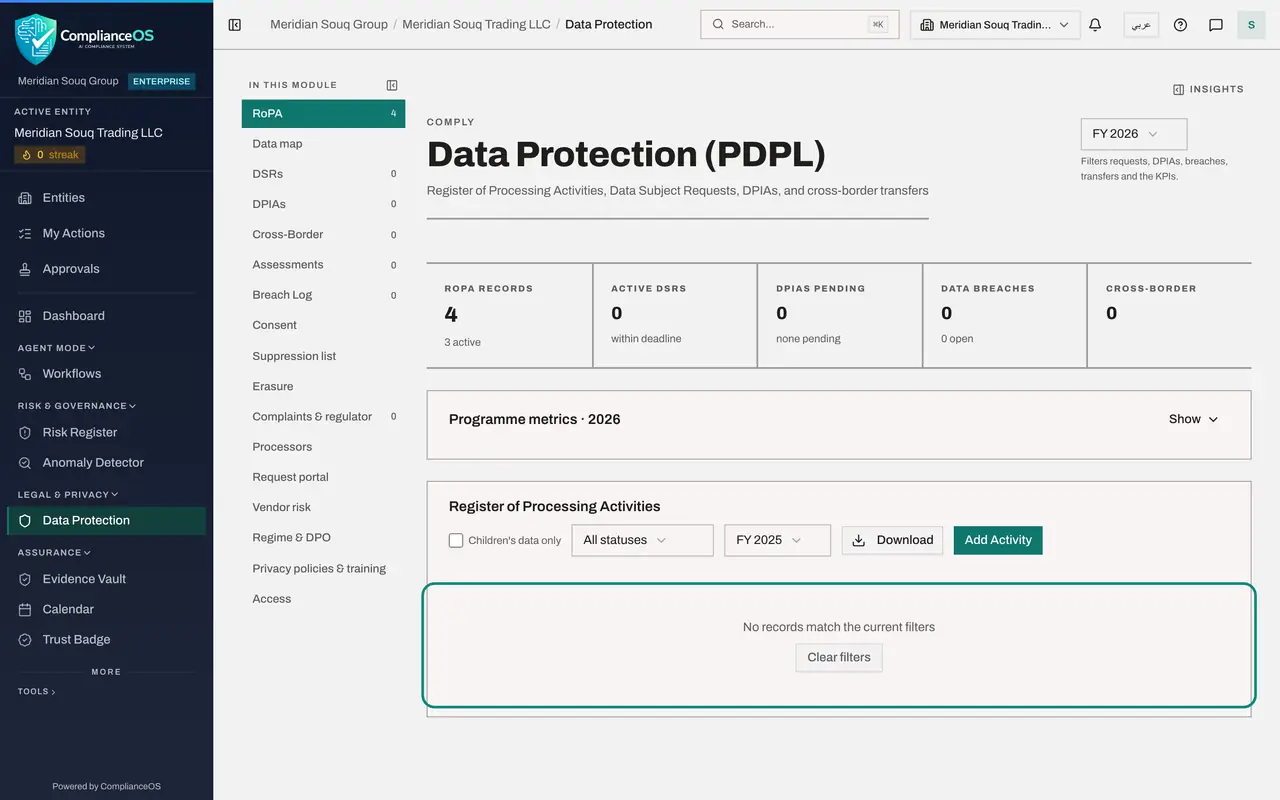
Untick Children's data only. Open the year filter beside the status filter, which reads All years, and choose FY 2025. Nothing was recorded that year, so the register says No records match the current filters.
- Select Children's data only
- Select Year
- Choose FY 2025
- 7
Select Clear filters
Select Clear filters. Every filter is reset and all four activities are listed again.
- Select Clear filters
- 8
Select Edit on the prize draw
You can change an activity without opening its page. On the Ramadan 2025 prize draw row, select Edit. A shorter form opens with the same fields and the Status list.
- Select Edit: Ramadan 2025 prize draw
- 9
Set the status to Archived and save
The draw ended and the entries were destroyed, so open Status and choose Archived. The three statuses are Active, Under review and Archived. Select Save Changes.
- Select Active
- Choose Archived
- Select Save Changes
- 10
Filter for Archived
Open the status filter and choose Archived. The prize draw is listed with the status Archived. It is kept for audit, and it no longer counts as an active activity in the tiles.
- Select Filter by status
- Choose Archived
- 11
Select Download and choose CSV
Set the status filter back to All statuses. Select Download and choose CSV. A file with every row opens in Excel or any spreadsheet. The download follows the filters you have set, so clear them first if you want the whole register.
- Select Filter by status
- Choose All statuses
- Select Download
- Select CSV (Excel, all rows)
- 12
Select Download and choose JSON
Select Download again and choose JSON. This is the full export, with every field of every activity, meant for another system or for an auditor's tools.
- Select Download
- Select JSON (full export)
How to check it worked
the register lists four activities under All statuses, the prize draw shows the status Archived, and two files have been downloaded: one ending in csv and one ending in json.
Common mistakes
- Leaving a filter on and thinking records are missing. If the list says No records match the current filters, select Clear filters.
- Looking for a Delete button. A processing activity is never deleted: set its status to Archived so the history is kept for audit.
- Sending the JSON file to someone who wanted a spreadsheet. Choose CSV for people; JSON is the full export for other systems.
Check your understanding
1. A campaign has ended and its personal data has been deleted. What do you do with its activity in the register?
- A.Delete it
- B.Set its status to Archived
- C.Leave it Active
- D.Rename it
Show answer
Answer: B. Set its status to Archived
Archived keeps the record for audit while showing that the processing has stopped. The register has no delete.
2. What does the year filter beside the status filter on the register do?
- A.It shows activities by the year they were recorded
- B.It changes the financial year of the whole module
- C.It deletes older activities
- D.It shows only activities with a retention period of one year
Show answer
Answer: A. It shows activities by the year they were recorded
The register's own year filter narrows the list to activities recorded in that year. It starts on All years, so every activity is shown.