Lesson 21 of 27
Approve a TIA and its transfer, and reject a transfer
What you will be able to do
Decide the two requests a cross-border transfer produces. You will approve a transfer impact assessment from your inbox, see the transfer itself arrive for approval automatically, approve it in the Cross-Border register, and reject another transfer with a reason.
Before you start
- You are signed in as a second person with the right to approve transfers and transfer impact assessments. This lesson is recorded as Yusuf Rahman, the second Data Protection Officer.
- A colleague has submitted the TIA for the transfer to BrightPoints Loyalty Cloud in Ireland, as in the previous lesson.
- You did not prepare the TIA or the transfer.
Steps
- 1
Select Approvals and find the TIA request
Select Approvals in the main menu. Several requests are waiting. Find the one headed Approve a transfer impact assessment, for Ireland. It shows the TIA's outcome, Permitted, and its residual risk.
- Select Approvals3
- 2
Select Open record and read the assessment
Select Open record on that request. The TIA opens. Read the Conclusion card, then scroll through the answers and open the evidence. Everything is read-only for you.
- Select Open record
- 3
Type a comment and select Approve
On the Approval card you have a comment box and two buttons. Reject stays greyed out until you type a comment, because a rejection needs a reason. Type what you checked and select Approve.
- Type Comment (required to reject):
Clauses and encryption checked against the contract. Approved. - Select Approve
- Type Comment (required to reject):
- 4
Read the approved assessment
The status reads Approved. The Approval card shows your name, the time and your comment, and the date the assessment is next due for review, one year from today. Re-assess starts a new version when the transfer changes.
- 5
Go back to Approvals and find the transfer
Select Approvals again. A new request has arrived by itself: Approve a cross-border transfer, Transfer to IE. Approving the TIA sent the transfer for approval. Nobody had to submit it.
- Select Approvals3
- 6
Select Open record, then Review
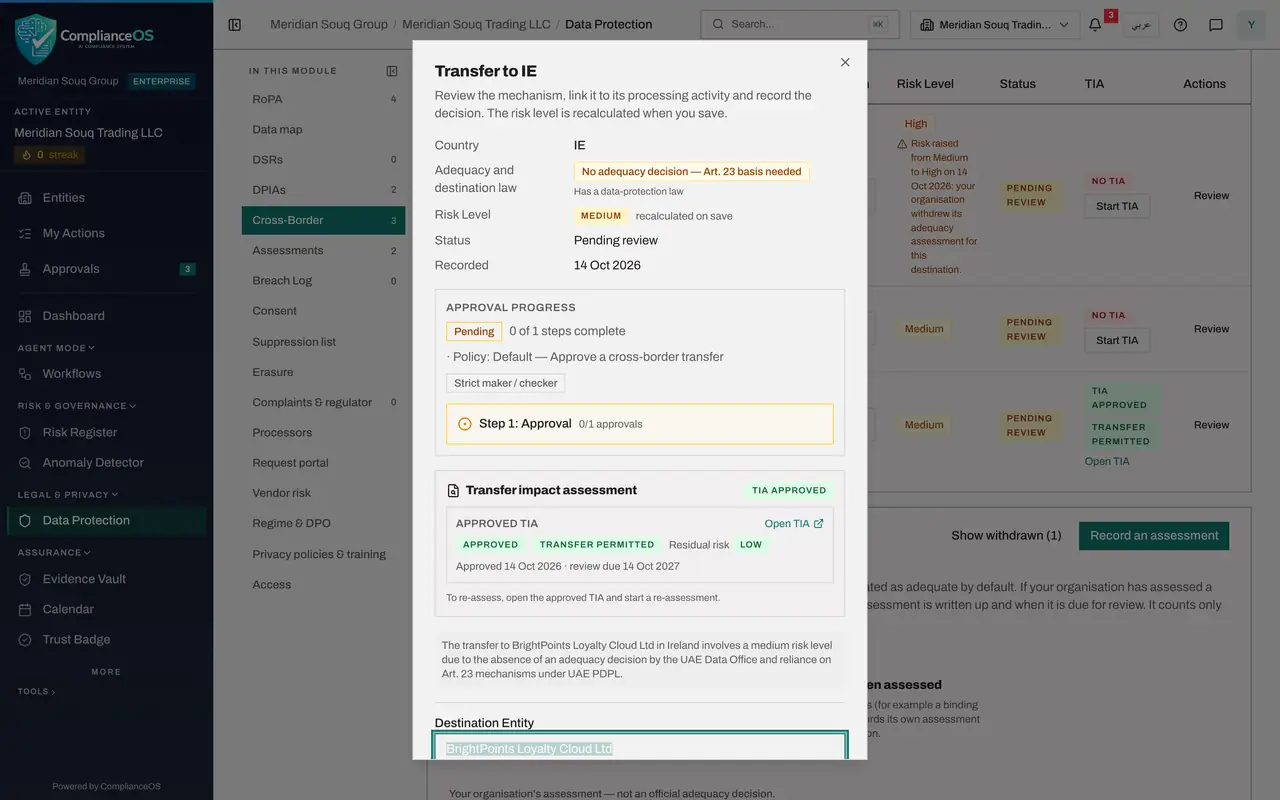
Select Open record on the transfer request. It takes you to the Cross-Border register. Select Hide on Programme metrics to bring the register up the page. The transfer's TIA column now reads TIA approved, Transfer permitted. Select Review at the end of its row.
- Select Open record
- Select Hide
- Select Review
- 7
Set the status to Approved
The form shows the approval progress and the approved TIA with its outcome. Scroll to Status, open it and choose Approved. A Review comment box appears. Type your comment.
- Select Pending review
- Choose Approved
- Type Review comment:
TIA approved and clauses in force. Transfer may go ahead.
- 8
Select Save Changes
Select Save Changes. The transfer now reads Approved in the register. It may go ahead on the recorded mechanism.
- Select Save Changes
- 9
Open the transfer you will not approve
The transfer to HelloDesk Support Services relies on customers' express consent and is rated High. Consent is a weak basis for outsourcing support, because a customer can withdraw it at any time. Select Review on its row.
- Select Review
- 10
Set the status to Rejected and give the reason
Open Status and choose Rejected. Type the reason in the Review comment box, saying what should change. Then select Save Changes.
- Select Pending review
- Choose Rejected
- Type Review comment *:
Consent is not a sound basis for outsourced support. Sign standard con… - Select Save Changes
- 11
Check the register
The transfer to HelloDesk reads Rejected and the transfer to BrightPoints reads Approved. The status filter above the register lists each status on its own.
How to check it worked
the transfer to BrightPoints Loyalty Cloud reads Approved, and its assessment column shows the impact assessment approved and the transfer permitted. The transfer to HelloDesk Support Services reads Rejected, and neither is waiting in your Approvals inbox.
Common mistakes
- Expecting the transfer to be approved when you approve its TIA. They are two decisions. Approving the TIA sends the transfer to your inbox as a second request.
- Looking for an Approve button on the transfer. A transfer is decided in its Review form: set Status to Approved or Rejected and select Save Changes.
- Rejecting without a reason. A rejection needs a comment, so the person who recorded the transfer knows what to change.
Check your understanding
1. You approve a TIA. What happens to its transfer?
- A.It is approved at the same time
- B.It goes for approval automatically and appears in the approver's inbox as its own request
- C.Nothing until the preparer submits it
- D.It is revoked
Show answer
Answer: B. It goes for approval automatically and appears in the approver's inbox as its own request
Approving the TIA opens a second request, Approve a cross-border transfer, in the approver's inbox.
2. How do you approve a cross-border transfer?
- A.Select Approve in the inbox
- B.Open the transfer with Review, set Status to Approved, add a comment and select Save Changes
- C.Edit the processing activity
- D.Ask the administrator
Show answer
Answer: B. Open the transfer with Review, set Status to Approved, add a comment and select Save Changes
The decision is recorded in the Review form of the transfer. Only someone with approval rights who did not prepare the transfer can choose Approved or Rejected.