Lesson 7 of 27
Start the data map: add a system and the records it holds
What you will be able to do
Record where personal data actually lives. You will add a system that ComplianceOS cannot connect to, describe a set of records inside it field by field, and link those records to the processing activity that uses them.
Before you start
- You are signed in with the Data Protection Officer role for the entity.
- The activity Loyalty programme membership is in the register.
- You know which system holds the data, the country where it is hosted and the fields it keeps about each person.
Steps
- 1
Open the Data map section
In Data Protection, select Data map. The data map lists the systems that hold personal data and the tables inside them. The tiles count systems, tables with personal data, sensitive data, how much is linked to the register, open suggestions and systems hosted outside the country. Everything reads zero.
- Select Data map
- 2
Read the option to search when a request is logged
Under the heading is a tick box: Search the data map automatically when a data subject request is logged. When it is ticked, a new request triggers a search of your connected systems for that person's records, using the email on the request. Nothing in your systems is changed.
- 3
Select Add system and open System type
Select Add system, then open System type. Most types connect to a live database, data warehouse or cloud service and scan it for personal data. Manual entry, at the end of the list, is for systems you describe by hand.
- Select Add system
- Select Databricks
- 4
Choose Manual entry
Choose Manual entry. The connection fields disappear, and four fields remain: Name, Hosting country, Hosting region and Description.
- Choose Manual entry
- 5
Name the system and say where it is hosted
Type a name people will recognise. In Hosting country, type the two-letter code of the country where the data is stored: IE for Ireland. In Hosting region, type the city or cloud region. The country is what tells ComplianceOS whether the data leaves the United Arab Emirates.
- Type Name:
BrightPoints loyalty portal - Type Hosting country (ISO):
IE - Type Hosting region:
Dublin
- Type Name:
- 6
Describe the system and select Save
In Description, say in a sentence what the system is and whose it is. Select Save. The system is added to the Systems list, and the tile Systems hosted outside the UAE now counts one.
- Type Description:
Supplier portal run by BrightPoints that holds loyalty member profiles… - Select Save
- Type Description:
- 7
Open the system
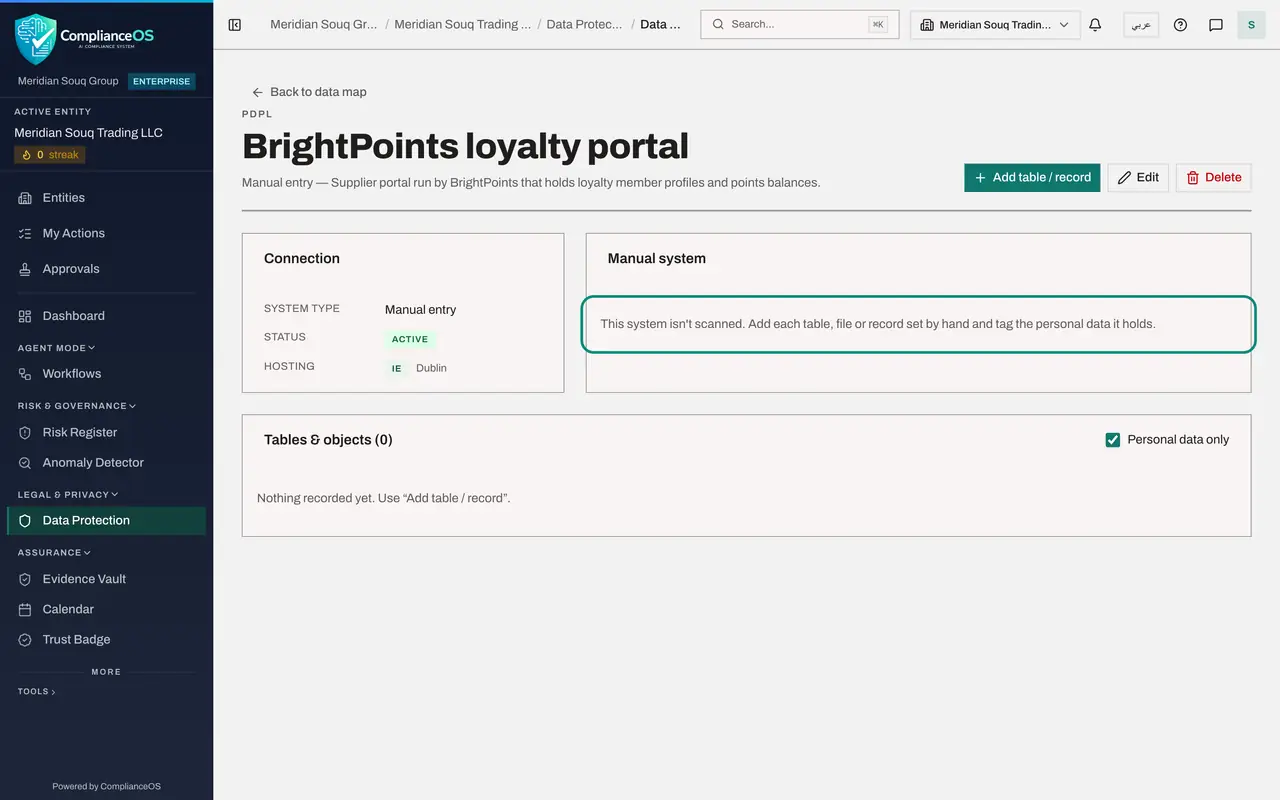
Select the system's name in the Systems list. Its page shows the type, the status and where it is hosted. A manual system is not scanned, so the list of tables and objects starts empty.
- 8
Select Add table / record
Select Add table or record to describe one table, file or set of records the system holds. Type a name for it and tick the people it is about, here Customers.
- Select Add table / record
- Type Name:
Member profiles - Select Customers
- 9
List the first field and choose its category
Under Data held, type the name of the first field, Full name, and open the category list beside it. Choose Identity, Person name. The category tells ComplianceOS what kind of personal data the field holds. Categories beginning with Sensitive raise the record's risk score.
- Type Name of field 1:
Full name - Select Category for field 1
- Choose Identity · Person name
- Type Name of field 1:
- 10
Add the contact fields
Select Add field for each further field. Add Email address with the category Contact, Email address, and Mobile number with the category Contact, Phone number.
- Select Add field
- Type Name of field 2:
Email address - Select Category for field 2
- Choose Contact · Email address
- Select Add field
- Type Name of field 3:
Mobile number - Select Category for field 3
- Choose Contact · Phone number
- 11
Add the date of birth and select Save
Add one more field, Date of birth, with the category Identity, Date of birth. Then select Save. The record opens on its own page.
- Select Add field
- Type Name of field 4:
Date of birth - Select Category for field 4
- Choose Identity · Date of birth
- Select Save
- 12
Read the record's page
The record's page shows a risk score, the data subjects and the number of personal columns. The Columns table lists each field with its category. At the bottom, a warning says this table holds personal data but is not linked to any RoPA activity yet.
- 13
Link the record to the activity
Select Link to RoPA activity. Open Activity and choose Loyalty programme membership. Leave the columns unticked, which means the activity uses the whole table, and select Link. The activity is now listed under RoPA activities using this data.
- Select Link to RoPA activity
- Select Choose an activity
- Choose Loyalty programme membership
- Select Link
- 14
Go back to the data map
Select the system's name at the top of the page, then Back to data map. The tiles now show one system, one table with personal data, and RoPA coverage of 100 percent. Under Suggestions, the data map has noticed that data is stored in Ireland with no transfer record. You will act on that suggestion in the Cross-Border lesson.
- Select Back to data map
How to check it worked
the data map shows one system and one table with personal data, RoPA coverage reads 100 percent, and the record's page lists Loyalty programme membership under RoPA activities using this data.
Common mistakes
- Choosing a connected type such as PostgreSQL for a supplier's portal you cannot log in to. Use Manual entry for anything you describe by hand.
- Typing the country's name in Hosting country. The field takes the two-letter code, for example IE for Ireland or AE for the United Arab Emirates.
- Saving a record without choosing a category for each field. A field left on Not personal data is not counted as personal data anywhere in the module.
Check your understanding
1. Your loyalty data sits in a supplier's portal that ComplianceOS cannot scan. Which system type do you choose?
- A.Snowflake
- B.Manual entry
- C.File share
- D.Salesforce
Show answer
Answer: B. Manual entry
Manual entry is for systems that cannot be connected, such as paper files and supplier portals. You list the data by hand.
2. A record holds personal data but is not linked to any activity. What does the data map show?
- A.Nothing; links are optional
- B.A warning on the record, and it counts as not yet linked in the tiles
- C.The record is deleted after 30 days
- D.The record is hidden from the list
Show answer
Answer: B. A warning on the record, and it counts as not yet linked in the tiles
The record's page says it holds personal data but is not linked to any RoPA activity, and the Linked to RoPA tile counts it as not yet linked.