Lesson 20 of 27
Complete a transfer impact assessment and submit it
What you will be able to do
Start a transfer impact assessment, or TIA, for a cross-border transfer, answer its questions about the destination, the legal basis and the safeguards, attach the contract as evidence, read the conclusion ComplianceOS works out, and submit the assessment for approval.
Before you start
- You are signed in with the Data Protection Officer role for the entity.
- The transfer to BrightPoints Loyalty Cloud in Ireland is in the Cross-Border register with the status Pending review.
- You have the signed contract reference, and you know how the data is encrypted and who holds the keys.
Steps
- 1
Open Cross-Border and select Start TIA
In Data Protection, select Cross-Border. On the transfer to BrightPoints Loyalty Cloud, select Start TIA. The assessment opens with four cards: the transfer, what ComplianceOS knows about the destination, the conclusion, which is empty until you answer the questions, and approval.
- Select Cross-Border3 (3)
- Select Start TIA
- 2
Read the Destination card
The Destination card shows what ComplianceOS holds about Ireland: its data-protection law, that the law is comprehensive, and that there is no adequacy decision, because no list has been published under the UAE law. This is reference information; your answers below are what count.
- 3
Describe the transfer
Under The transfer, type the purpose and tick the categories of personal data sent: Identity and Contact details.
- Type Purpose of the transfer *:
Host loyalty member accounts, points balances and reward redemption on… - Select Identity (name, ID numbers)
- Select Contact details
- Type Purpose of the transfer *:
- 4
Choose the volume, the frequency and the recipient's role
Choose how many people are affected, here 1,000 to 100,000. Choose how often data is sent, here Continuous or remote access. Choose what the recipient acts as, here Processor, on our instructions.
- Select Choose…
- Choose 1,000 – 100,000
- Select Choose…
- Choose Continuous / remote access
- Select Choose…
- Choose Processor (on our instructions)
- 5
Assess the destination's law and government access
Does the destination have a comprehensive data-protection law is already answered Yes, from the destination card; select Yes to confirm it. Answer Yes for an independent supervisory authority, choose Low for the risk that public authorities access the data out of proportion, No for past government requests, and Yes for enforceable rights and redress.
- Select Yes
- Select Yes
- Select Choose…
- Choose Low
- Select No
- Select Yes
- 6
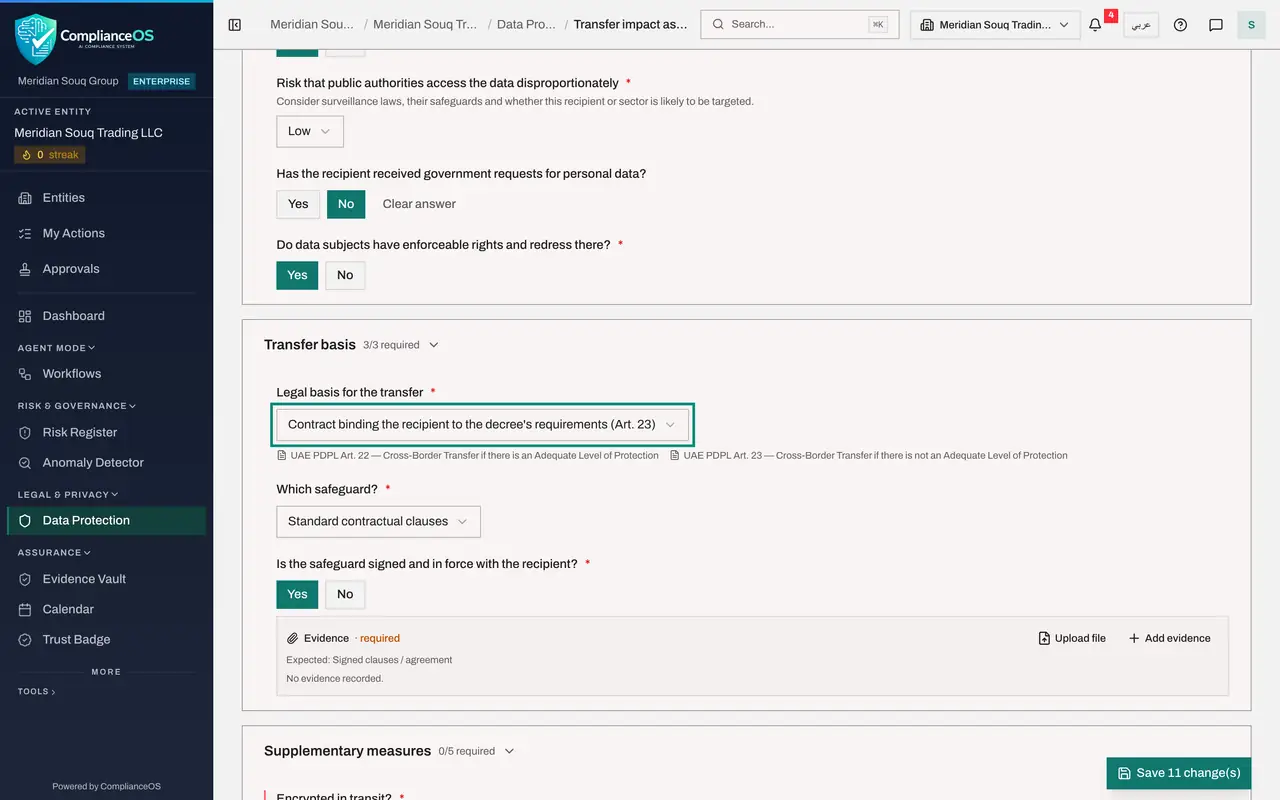
Record the transfer basis
Under Transfer basis, the legal basis is filled in from the transfer's mechanism: a contract binding the recipient, under Article 23. Choose which safeguard it is, Standard contractual clauses, and select Yes for Is the safeguard signed and in force. Evidence becomes required.
- Select Choose…
- Choose Standard contractual clauses
- Select Yes
- 7
Attach the contract as evidence
Select Add evidence under the signed-safeguard question. Type the document's name and its reference, and select Add. Select Upload file instead if you want to attach the contract itself.
- Select Add evidence
- Type Document / item *:
Master services agreement with standard contractual clauses - Type Reference or link:
MSA-2025-014 - Select Add
- 8
Answer the questions on supplementary measures
Under Supplementary measures, select Yes for encrypted in transit and Yes for encrypted at rest. A further question asks who holds the encryption keys: choose The recipient. Select No for pseudonymised before transfer, Yes for access limited, logged and reviewed, and Yes for data subjects told about the transfer.
- Select Yes
- Select Yes
- Select Choose…
- Choose The recipient
- Select No
- Select Yes
- Select Yes
- 9
Answer onward transfers and rate the remaining risk
Select No for Will the recipient pass the data on. Under Assessor's conclusion, rate the risk that remains after all measures: choose 2, Low, for likelihood and 3, Moderate, for severity. Then add your conclusion and any further measure.
- Select No
- Select Likelihood
- Choose 2 — Low
- Select Severity
- Choose 3 — Moderate
- Type Conclusion and any further measures:
Data is encrypted and access is limited and logged. The supplier holds…
- 10
Select the Save button
Select the Save button at the bottom right, which counts your unsaved changes. A message confirms Answers saved, and the bar shows every required question answered and the word Complete.
- Select Save 20 change(s)
- 11
Read the conclusion
Go back to the top of the page. The Conclusion card now shows the outcome worked out from your answers, Transfer permitted, the residual risk, and any required actions. It is provisional: it is recalculated each time you save, until the assessment is approved.
- 12
Select Submit for approval
On the Approval card, select Submit for approval. The status changes to Awaiting approval. The card now shows the approval policy and a note: you prepared this, so someone else has to approve or reject it, and it is in the approvers' inbox. Withdraw to draft takes it back if you need to change an answer. Export, at the top, downloads the assessment as a PDF.
- Select Submit for approval
How to check it worked
the TIA reads Awaiting approval, its Conclusion card says Transfer permitted with a residual risk, and the Approval card tells you that someone else has to approve or reject it and that it is in the approvers' inbox.
Common mistakes
- Accepting the suggested answer about the destination's law without checking. The suggestion comes from what ComplianceOS knows about the country; you confirm it, and your name is on the assessment.
- Answering Yes to the safeguard being signed without attaching it. That answer makes evidence required, and the assessment is not complete without it.
- Rating the residual risk before answering the questions on supplementary measures. The rating is the risk that remains after those measures, so answer them first.
Check your understanding
1. Where does the outcome on the Conclusion card, such as Transfer permitted, come from?
- A.The approver types it
- B.It is worked out from your answers each time you save
- C.It is always Transfer permitted
- D.It is copied from the transfer register
Show answer
Answer: B. It is worked out from your answers each time you save
The card says the conclusion is provisional and recalculated from the answers each time you save, until the assessment is approved.
2. You prepared and submitted a TIA. What does the Approval card show you?
- A.Approve and Reject buttons
- B.A note that you prepared it, so someone else has to approve or reject it, and that it is in the approvers' inbox
- C.Nothing
- D.An error
Show answer
Answer: B. A note that you prepared it, so someone else has to approve or reject it, and that it is in the approvers' inbox
Under strict maker and checker the preparer cannot decide. The note also confirms that the request has reached the approvers' inbox.