Lesson 24 of 27
What an auditor sees, and the files to hand over
What you will be able to do
Review the privacy programme as an auditor with read-only access. You will see that every register can be read and downloaded but nothing can be changed, download each register, read an approved DPIA, and find the supporting evidence and the audit trail.
Before you start
- You are signed in with the read-only Auditor role for the entity. This lesson is recorded as Daniel Brooks, auditor.
- The privacy team has built the registers shown in the earlier lessons.
- If you are a Data Protection Officer preparing for an audit, the same Download buttons are on your screens; this lesson shows what the auditor will see.
Steps
- 1
Open Data Protection as an auditor
Select Data Protection in the main menu. You see the same module as the privacy team, with every section in the list. On the processing register there is no Add Activity button and no Edit on the rows: only the filters, Download and View.
- 2
Download the processing register
Check that the status filter reads All statuses and the year filter All years. Select Download and choose CSV. The record of processing activities is saved as a spreadsheet with every row.
- Select Download
- Select CSV (Excel, all rows)
- 3
Open an activity
Select View on Loyalty programme membership. The full record opens, with its purpose, lawful basis, safeguards, processor, approved DPIA and linked data. There is no Edit button.
- Select View
- 4
Open the DPIAs section and download the list
Select Back to PDPL, then DPIAs. Select Download and choose CSV for the list of impact assessments with their risk levels and statuses.
- Select Back to PDPL
- Select DPIAs2 (2)
- Select Download
- Select CSV (Excel, all rows)
- 5
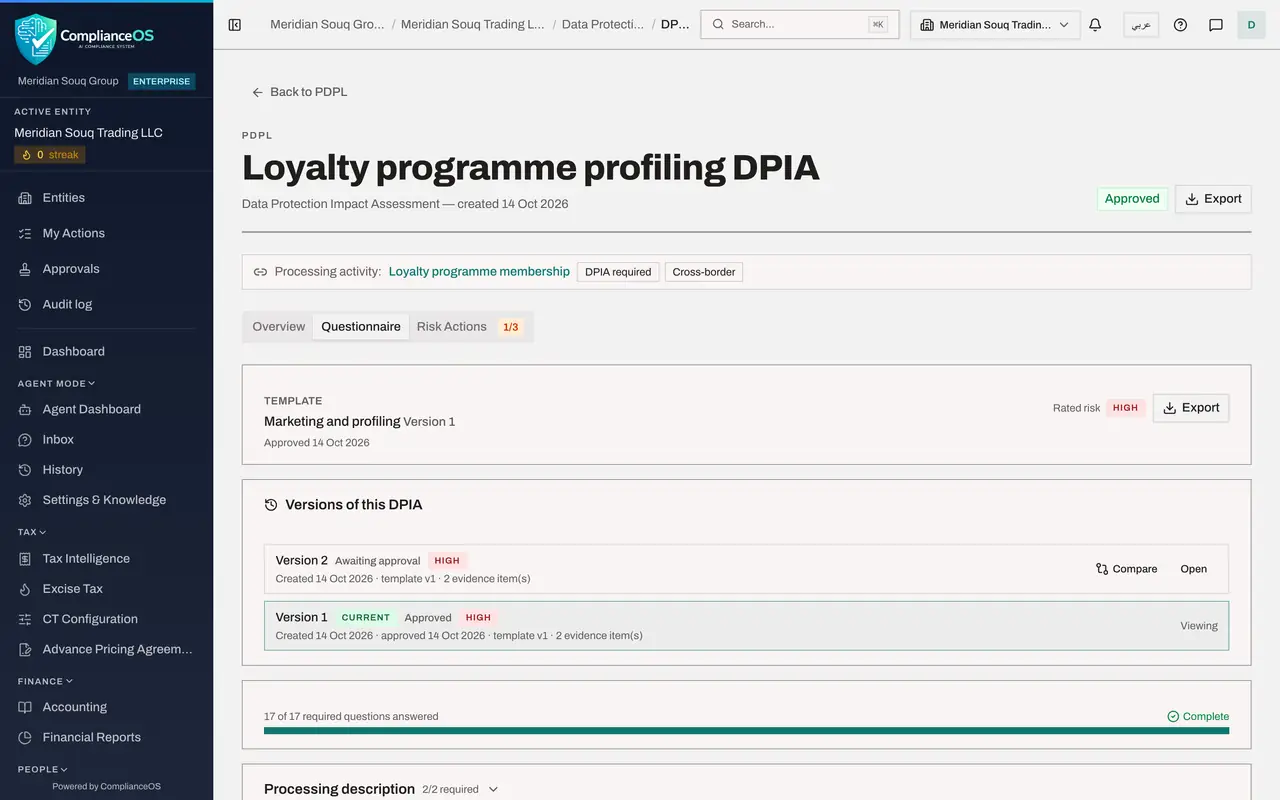
Open the approved DPIA
Select View Details on Loyalty programme profiling DPIA, the approved one. Scroll down the Overview tab: DPO Review Notes and Approval progress show who approved it, when, and the note they left.
- Select View Details
- 6
Read the answers and the evidence
Select the Questionnaire tab. Every answer is shown as text, and nothing can be changed. Under the questions that needed it, the evidence is listed: a document reference, and an uploaded file with its size and fingerprint.
- Select Questionnaire
- 7
Export the DPIA as a PDF
Go back to the top of the tab and select Export, then PDF. The approved assessment, with its answers and evidence list, is downloaded as a document for your working papers.
- Select Export
- Select PDF
- 8
Download the cross-border transfers
Select Back to PDPL, then Cross-Border. Select Download and choose CSV. The Actions column offers View where the privacy team sees Review.
- Select Back to PDPL
- Select Cross-Border2 (2)
- Select Download
- Select CSV (Excel, all rows)
- 9
Select View on a transfer
Select View on the transfer to BrightPoints Loyalty Cloud. The form shows the approval, the approved TIA with its outcome, and the notes, and every field is greyed out. Scroll to the bottom of the form. A line says you can view this transfer but not change it, and the only button is Close.
- Select View
- 10
Close the form and download the processors
Select Close. Then select Processors, Download and CSV. The file lists each supplier with its country, contract dates and whether a data processing agreement is in place.
- Select Close
- Select Processors
- Select Download
- Select CSV (Excel, all rows)
- 11
Look at a settings page
Select Regime and DPO. You can read the regime, the deadlines and the Data Protection Officer's details, but every field is greyed out and there is no way to save.
- Select Regime & DPO
- 12
Open the Evidence Vault
In the main menu, open Assurance and select Evidence Vault. The files behind the privacy records are here: the retention schedule uploaded to the DPIA, and a sealed snapshot made when the DPIA was approved. Each has a SHA-256 fingerprint, a retention period and an expiry date.
- Select Evidence Vault
- 13
Open the Audit log
Select Audit log in the main menu. It lists every action on the entities you can access, in plain words such as Approval request: Approved, with the time, the kind of record and the person. The approvals, the rejected transfer and the adequacy assessment from the earlier lessons are all here. Select Details on a row for what changed.
- Select Audit log
How to check it worked
five files have been downloaded: the processing register, the list of DPIAs, the approved DPIA as a PDF, the cross-border transfers and the processors, and you found the DPIA's evidence in the Evidence Vault and its approval in the Audit log.
Common mistakes
- Looking for Add or Edit buttons as an auditor. The Auditor role is read-only: you see View and Download, and settings appear greyed out.
- Downloading with a filter or a year still selected. A download follows the filters on screen, so check them before you rely on the file as the whole register.
- Taking the register alone as proof. Open the approved assessments and the Evidence Vault for the documents behind them.
Check your understanding
1. As a read-only auditor, what do you see at the end of a transfer's row in the Cross-Border register?
- A.Review
- B.View
- C.Approve
- D.Nothing
Show answer
Answer: B. View
People who can change transfers see Review. A read-only user sees View, which opens the same details without any way to save changes.
2. Where do you find the file a DPIA's preparer uploaded as evidence?
- A.Only by asking the preparer
- B.On the DPIA's Questionnaire tab, and in the Evidence Vault with its fingerprint and retention period
- C.In the Access section
- D.In the processing register download
Show answer
Answer: B. On the DPIA's Questionnaire tab, and in the Evidence Vault with its fingerprint and retention period
Uploaded evidence is stored in the Evidence Vault, sealed, with a SHA-256 fingerprint. The DPIA shows it under the question it supports.