Lesson 8 of 27
Keep data map records up to date and link them from an activity
What you will be able to do
Maintain the records in the data map: find a record, describe it, say roughly how many rows it holds and whose data it is, check how each field is classified, add a second record, and link a record to an activity starting from the activity's own page.
Before you start
- You are signed in with the Data Protection Officer role for the entity.
- The system BrightPoints loyalty portal and its record Member profiles are in the data map, as added in the previous lesson.
- The activity Kids Club birthday rewards is in the register.
Steps
- 1
Open Data map and scroll to Tables and objects
In Data Protection, select Data map and scroll to the bottom, to Tables and objects. This list shows every record across all systems. You can filter it by system or category, or tick Personal data only, Sensitive only or Needs review.
- Select Data map
- 2
Search for a record and open it
Type Member in the search box. The list narrows to Member profiles, with its categories, risk score and the note that it is linked to one activity. Select the record's name to open it.
- Type Search tables…:
Member - Select Member profiles
- Type Search tables…:
- 3
Describe the record and estimate its size
Select Edit beside No description yet. Type what the record holds, and in Estimated number of rows type 48000, the number of members. Select Save. The row count feeds the check for large-scale processing.
- Select Edit description and row count
- Type Description:
One row for each loyalty member, with contact details and date of birt… - Type Estimated number of rows:
48000 - Select Save
- 4
Correct the data subjects
Members also use the shopping app, so select Edit under Data subjects, tick App users as well as Customers, and select Save.
- Select Edit data subjects
- Select App users
- Select Save
- 5
Check how each field is classified
The Columns table lists every field with its category, how confident the classification is, and why. You set these by hand, so each reads 100 percent, Set by a reviewer, Confirmed. Open Change beside a field to pick another category, or select Not personal if a field holds no personal data. Press the Escape key to leave the list without changing anything.
- Select Change the category of Date of birth
- 6
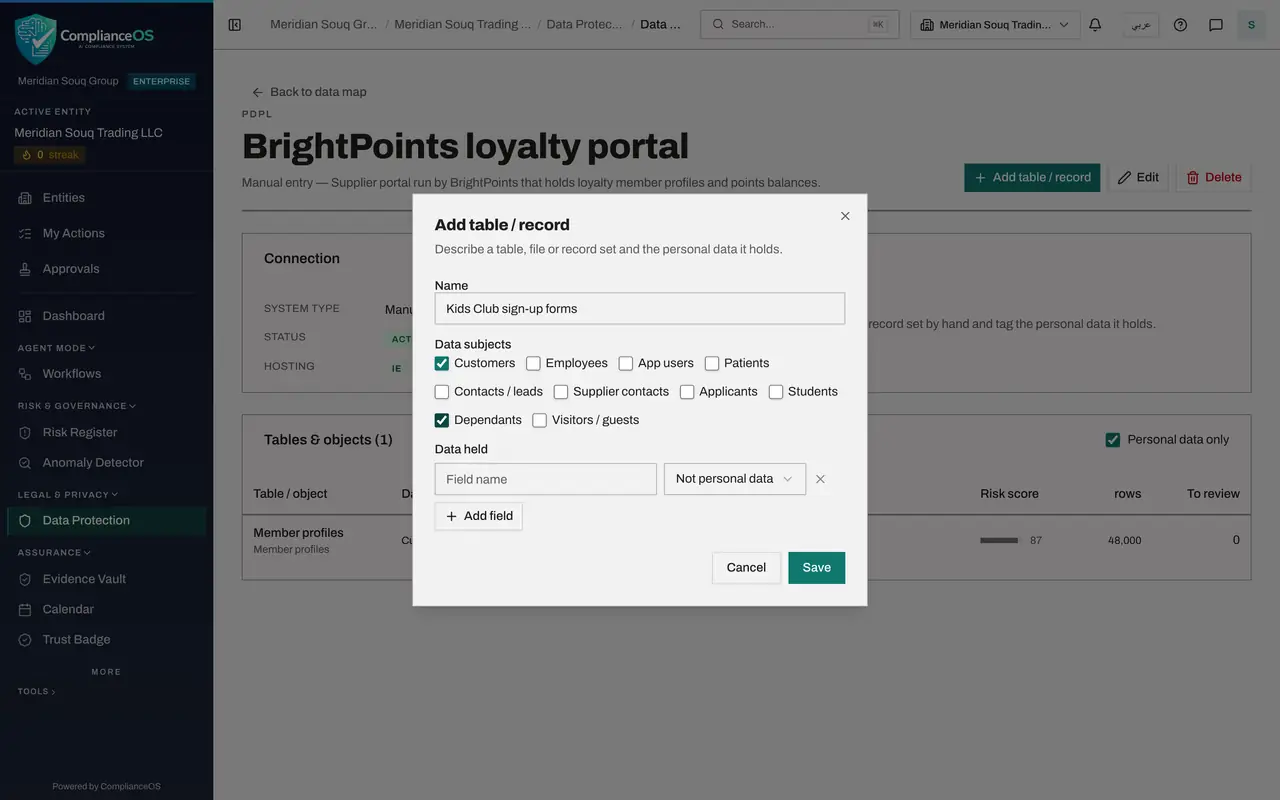
Go back to the system and select Add table / record
Select the system's name at the top of the page to go back to the system. Its list now shows Member profiles with about 48,000 rows. Select Add table or record to describe the second set of records the supplier holds.
- Select Add table / record
- 7
Name the record and tick whose data it is
Type the name Kids Club sign-up forms. Tick Customers for the parents and Dependants for the children.
- Type Name:
Kids Club sign-up forms - Select Customers
- Select Dependants
- Type Name:
- 8
List the fields and select Save
Add three fields: Child's first name as Identity, Person name; Child's date of birth as Identity, Date of birth; and Parent's mobile number as Contact, Phone number. Select Save. The record opens with a warning that it is not linked to any activity yet.
- Type Name of field 1:
Child's first name - Select Category for field 1
- Choose Identity · Person name
- Select Add field
- Type Name of field 2:
Child's date of birth - Select Category for field 2
- Choose Identity · Date of birth
- Select Add field
- Type Name of field 3:
Parent's mobile number - Select Category for field 3
- Choose Contact · Phone number
- Select Save
- Type Name of field 1:
- 9
Open the activity from the register
This time, make the link from the activity. Select the system's name, then Back to data map, then RoPA in the section list. On the Kids Club birthday rewards row, select View.
- Select Back to data map
- Select RoPA4 (4)
- Select View
- 10
Select Link data on the activity
Scroll to the Linked data card at the bottom of the activity's page and select Link data. A list shows the tables in the data map that hold personal data. Select Kids Club sign-up forms, then Link.
- Select Link data
- Select Link
- 11
Check the Linked data card
The Linked data card now lists the table with the system it belongs to and the kinds of personal data it holds. Anyone reading the activity can see exactly where its data is kept.
- 12
Go back to the data map and check the tiles
Select Open the data map on the card, or go back and select Data map. The tiles show two tables with personal data, RoPA coverage of 100 percent, and Linked to RoPA reads two with none left unlinked.
- Select Back to PDPL
- Select Data map
- 13
Open the system and look at Edit and Delete
Select the system's name in the Systems list. Edit changes its name, hosting country, region or description. Delete removes the system and the records under it from the map, so use it only for a system added by mistake.
How to check it worked
the system's page lists two records, the Kids Club activity shows Kids Club sign-up forms under Linked data, and the data map tile Linked to RoPA reads two with no personal-data tables left unlinked.
Common mistakes
- Leaving the row count empty on a large table. The estimate is what tells ComplianceOS that processing is large scale, which is one of the reasons a DPIA is needed.
- Selecting Not personal on a field to tidy the list. That removes the field from every count of personal data, so use it only when the field truly holds no personal data.
- Deleting a system to correct a typing mistake. Delete removes the system and its records from the map. Use Edit to change the name, country, region or description.
Check your understanding
1. From where can you link a data map record to a processing activity?
- A.Only from the record's page
- B.Only from the activity's page
- C.From either: Link to RoPA activity on the record, or Link data on the activity
- D.Only an administrator can link them
Show answer
Answer: C. From either: Link to RoPA activity on the record, or Link data on the activity
The record's page has Link to RoPA activity, and the activity's page has Link data under Linked data. Both create the same link.
2. Why enter an estimated number of rows on a record?
- A.It is required before the record can be saved
- B.It feeds the check for large-scale processing used when deciding whether a DPIA is needed
- C.It sets the retention period
- D.It changes the lawful basis
Show answer
Answer: B. It feeds the check for large-scale processing used when deciding whether a DPIA is needed
The form says so: the row count feeds the DPIA large-scale check.