Lesson 9 of 27
Tune discovery: automation settings and the configuration page
What you will be able to do
Know the settings behind the data map and change them safely for one entity: when reviewers are asked about unclear columns, who is alerted when personal data changes, when a link to an activity is suggested, and the thresholds, categories and rules on the Discovery configuration page.
Before you start
- You are signed in with the Data Protection Officer role for the entity.
- The data map holds at least one system, as added earlier in this course.
- These settings matter most once live systems are connected and scanned. With only hand-entered systems you can still set them now, ready for the first scan.
Steps
- 1
Open Data map and find Discovery automation
In Data Protection, select Data map and scroll down to the Discovery automation card. It sums up four settings: classification questions, change alerts, the minimum score for suggesting a link to an activity, and the processor providers discovery recognises. Select Change settings.
- Select Data map
- Select Change settings
- 2
Set when reviewers are asked about unclear columns
After a scan, ComplianceOS asks a reviewer about columns it is not sure of. The first switch turns those questions on or off. Ask when confidence is below sets how unsure it must be; change it from 70 to 80 so more columns are checked by a person. Questions per scan limits how many are asked each time.
- Type Ask when confidence is below (%):
80
- Type Ask when confidence is below (%):
- 3
Read the change alerts
Change alerts tell people when personal data changes between two scans, for example a new column holding passport numbers. The switches choose who is told: the Data Protection Officer, using the email you entered in Regime and DPO, and the system's owner. If neither is on, everyone with access to the entity is told.
- 4
Raise the score needed to suggest a link
Minimum score to suggest a RoPA link decides how sure the data map must be before it suggests linking a table to an activity. Points come from the same system, matching data categories and data subjects, and shared words in names. Change it from 50 to 60 for fewer, surer suggestions.
- Type Minimum score to suggest a RoPA link (1–100):
60
- Type Minimum score to suggest a RoPA link (1–100):
- 5
Read the processor providers and select Save
The Processor providers table lists well-known suppliers. When a connected system matches one, by its type or host name, the data map suggests adding that supplier to the processor register. Switch a provider off if you do not want that suggestion, or add your own below the table. Select Save.
- Select Save
- 6
Select Open configuration
On the Discovery configuration card just above, select Open configuration. The page lists twelve sections, from thresholds and personal-data categories to hosting regions and document detection. A note says the entity is using the platform defaults.
- Select Open configuration
- 7
Find a threshold with the filter box
The first section, Thresholds and connector settings, is a long list. Type DPIA in the Filter box to find DPIA trigger, rows. Under each setting you can see the platform default and the allowed range.
- Type Filter…:
DPIA
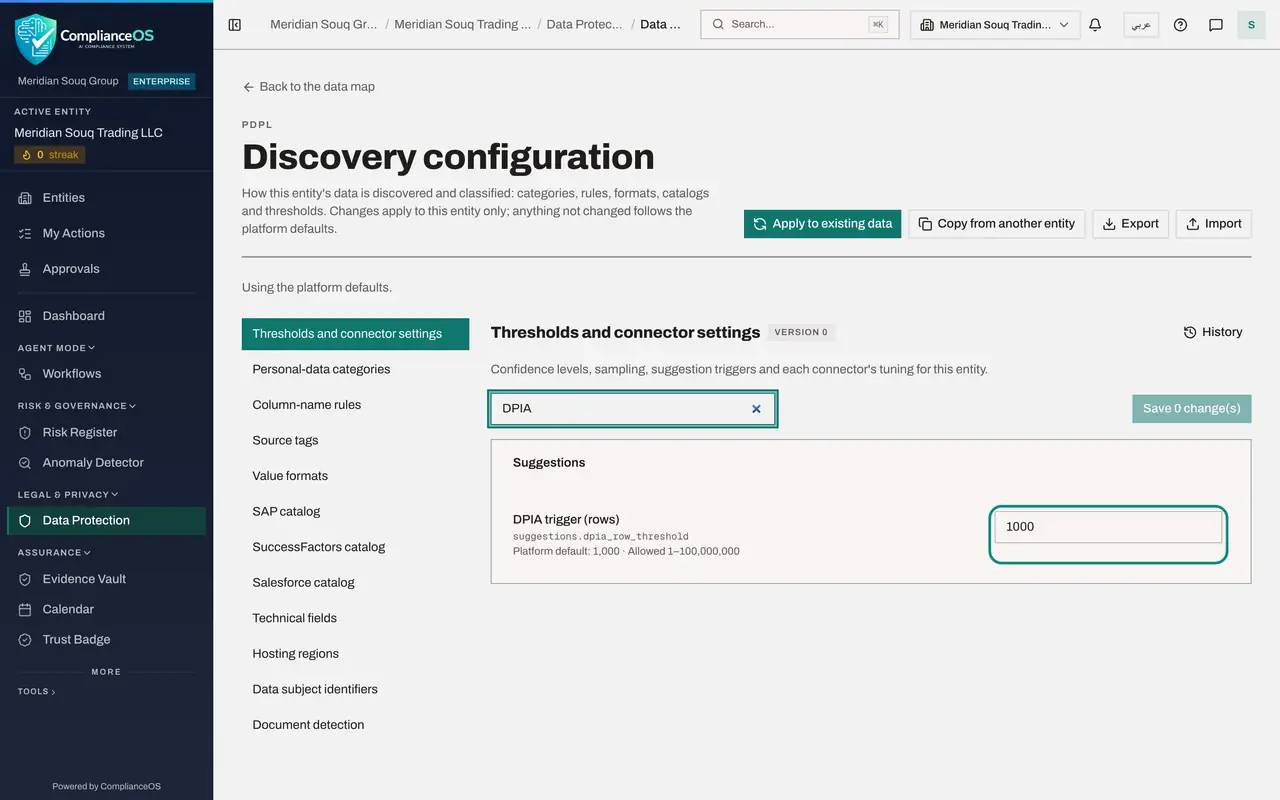
- Type Filter…:
- 8
Change the threshold and save
Meridian Souq treats tables of 5,000 people or more as large. Type 5000 in DPIA trigger, rows. The Save button now counts one change. Select it.
- Type DPIA trigger (rows):
5000 - Select Save 1 change(s)
- Type DPIA trigger (rows):
- 9
Select History
The version number beside the section's title has gone up, and a Reset section button has appeared, which puts the whole section back to the platform defaults. Select History to see what changed and when. Every save adds a version, and Restore beside an earlier version puts that version back.
- Select History
- 10
Open Personal-data categories
Select Personal-data categories. Three lists appear: the categories of personal data, the groups they belong to, and the types of data subject. Platform entries are marked Platform. Select Add on the Categories list to see what a category of your own needs: a code, a group, an English label and an Arabic label, and whether it is sensitive or identifies a person. Select Cancel to close the form without adding anything.
- Select Personal-data categories
- Select Add
- Select Cancel
- 11
Open Hosting regions
Select Hosting regions. Each cloud region code is matched to the country where its data is stored. This list is what drives the cross-border suggestions: a system in a region outside the United Arab Emirates prompts a transfer record.
- Select Hosting regions
- 12
Open Data subject identifiers
Select Data subject identifiers. These are the identifiers a data subject request can be searched by, such as email address, phone number and Emirates ID, and the categories that hold each. The other sections, such as column-name rules and value formats, work the same way: a list you can add to, edit or switch off for this entity.
- Select Data subject identifiers
- 13
Look at the buttons at the top of the page
Four buttons act on the whole configuration. Apply to existing data re-runs classification on columns already scanned, keeping the decisions people made. Copy from another entity copies sections from a sister company. Export saves the configuration as a file, and Import loads one. Select Export to keep a copy before larger changes.
- Select Export
- 14
Go back to the data map
Select Back to the data map. The Discovery configuration card no longer says the entity is using the platform defaults.
- Select Back to the data map
How to check it worked
the Discovery automation card shows the new confidence level and link score, and the Thresholds and connector settings section of the configuration page shows a new version with your change in its history.
Common mistakes
- Changing many thresholds at once. Change one, save, and watch the next scan, so you know which change had which effect.
- Expecting a changed threshold to reclassify data already scanned. Select Apply to existing data on the configuration page to re-run classification with the new settings.
- Editing the configuration of the wrong entity. Every change on these screens applies to this entity only; the entity's name is at the top of the page.
Check your understanding
1. You change a setting on the Discovery configuration page. Which entities does it affect?
- A.Every entity in the organisation
- B.This entity only
- C.Every organisation on the platform
- D.Only entities in the same free zone
Show answer
Answer: B. This entity only
The page says it: changes apply to this entity only, and anything not changed follows the platform defaults.
2. What does the setting DPIA trigger, rows, control?
- A.How many rows are read from each table during a scan
- B.The size of table above which the data map suggests an impact assessment
- C.How many DPIAs can be open at once
- D.The number of rows in the register
Show answer
Answer: B. The size of table above which the data map suggests an impact assessment
It is a suggestion trigger: tables with personal data at or above that many rows prompt a suggestion that a DPIA may be needed.