Lesson 16 of 27
Get a first draft of a DPIA from the AI and finish it
What you will be able to do
Start a DPIA from an activity that recommends one, ask the AI to write the first draft of the narrative, check and correct what it wrote, answer the questions it cannot answer for you, and submit the finished assessment for approval.
Before you start
- You are signed in with the Data Protection Officer role for the entity.
- The activity Kids Club birthday rewards is in the register and is marked as processing children's data.
- You have completed a DPIA by hand, as in the earlier lessons, so you know what a good answer looks like.
Steps
- 1
Open the Kids Club activity
On the RoPA section, select View on Kids Club birthday rewards and scroll to Data protection impact assessments. A notice recommends a DPIA for processing children's data, with a Start a DPIA link.
- Select View
- 2
Select Start a DPIA
Select Start a DPIA. The New Data Protection Impact Assessment form opens, with the activity already chosen under Link to processing activity.
- Select Start a DPIA
- 3
Type the title and describe the risk
Type the title, then describe the risk in a sentence or two. The AI writes its draft from this description and from the linked activity, so say plainly what is done and what could go wrong.
- Type Title *:
Kids Club birthday rewards DPIA - Type Risk Description:
Parents sign their children up to the Kids Club in the shopping app. T…
- Type Title *:
- 4
Score the risk and choose the template
Type 3 for likelihood and 4 for severity, which gives twelve, a Medium risk. Under Template, choose Children's data, which is marked Suggested because the activity processes children's data.
- Type Likelihood score (1–5):
3 - Type Severity score (1–5):
4
- Type Likelihood score (1–5):
- 5
Leave the AI draft ticked and select Request AI draft
Leave Also request an AI draft of the narrative ticked and select Request AI draft. A message says the DPIA is created and the AI draft is being generated.
- Select Request AI draft
- 6
Open the DPIA and read the AI Assessment Report
Select View Details on the new DPIA. The draft usually takes less than a minute; reload the page if it is not there yet. The AI Assessment Report has a description, a necessity assessment, risks with scores, mitigations and a conclusion, with the articles of the law it relied on. The status still reads Draft.
- Select View Details
- 7
Open the Questionnaire tab
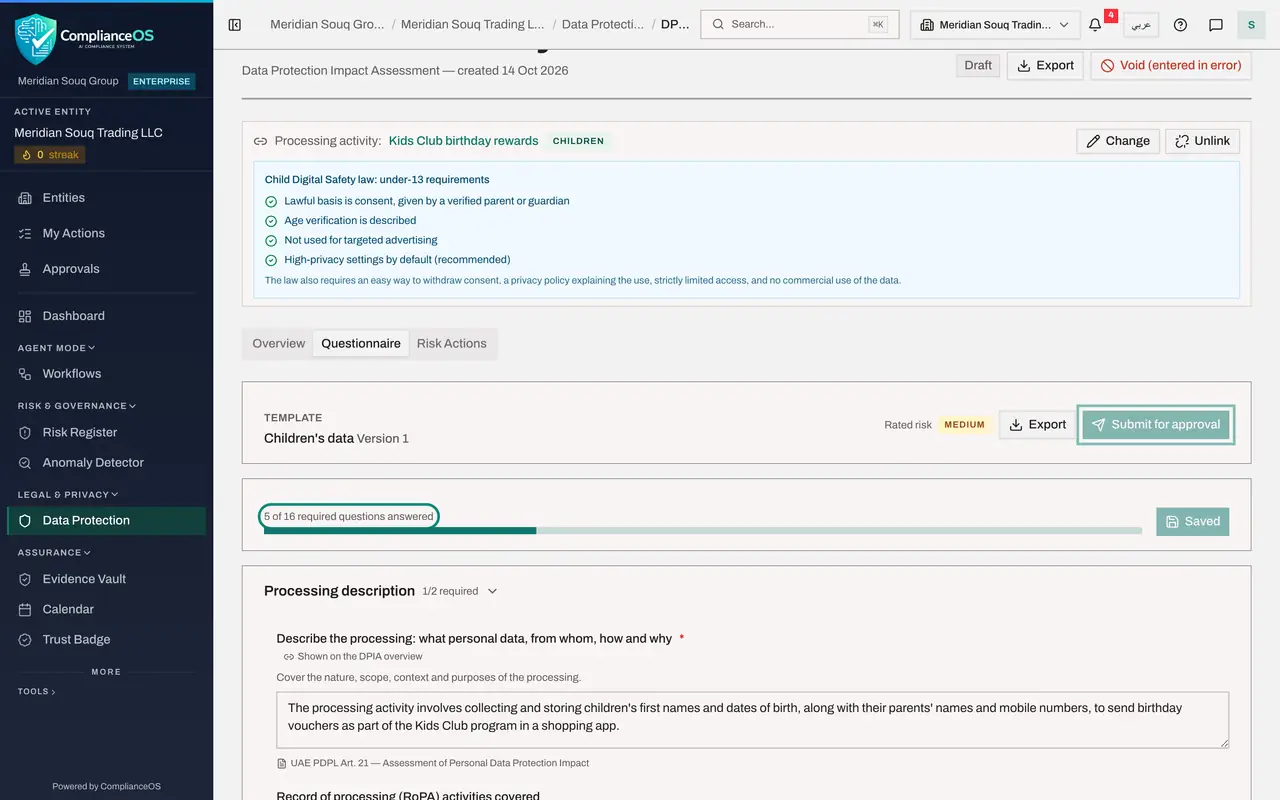
Select the Questionnaire tab. While the DPIA is a draft, you correct the AI's text here. It has filled the narrative answers, such as the description and the mitigations, but the bar shows that several required questions are still open. Submit for approval stays greyed out until they are answered.
- Select Questionnaire
- 8
Add a mitigation the AI missed
The AI did not know your retention rule. Scroll to Measures to reduce the risks and add a line at the end: delete the child's data on their thirteenth birthday unless the parent renews the membership.
- Type Measures to reduce the risks (one per line) *:
Implement strict access controls and encryption for stored data. Ensur…
- Type Measures to reduce the risks (one per line) *:
- 9
Say whose data it is and which ages
Under Whose personal data is processed, tick Children and Customers, for the parents. Under Which age bands are processed, tick Under 13 and 13 to 17.
- Select Children (under 18)
- Select Customers
- Select Under 13
- Select 13 to 17
- 10
Answer the Child Digital Safety questions
Select Yes for Is the entity a digital platform. Two more questions appear. Select Yes for verifiable parental consent; evidence becomes required, so add the consent screen by reference. Describe how age is verified, select Yes for high-privacy defaults, and No for targeted advertising.
- Select Yes
- Select Yes
- Select Add evidence
- Type Document / item *:
Kids Club parental consent screen and log sample - Type Reference or link:
DOC-PRIV-0131 - Select Add
- Type How is age verified, in proportion to the risk? *:
The parent enters the child's date of birth and confirms it with a one… - Select Yes
- Select No
- 11
Answer the necessity checks
Check the necessity answer the AI wrote, then select Yes for the lawful basis being recorded, Yes for only the data needed, and Yes for a defined retention period. Add the retention schedule as evidence by reference.
- Select Yes
- Select Yes
- Select Yes
- Select Add evidence
- Type Document / item *:
Retention schedule 2026 - Type Reference or link:
DOC-PRIV-0102 - Select Add
- 12
Describe the risks and finish the conclusion
Describe the main risk scenarios in your own words. Check the conclusion the AI wrote. Select Yes for residual risk acceptable and Yes for Data Protection Officer consulted.
- Type Describe the main risk scenarios (loss, misuse, unfair outcomes) *:
A child's name and birthday are used for marketing, shown to staff who… - Select Yes
- Select Yes
- Type Describe the main risk scenarios (loss, misuse, unfair outcomes) *:
- 13
Select the Save button
Select the Save button at the bottom right. The bar shows every required question answered and the word Complete, and Submit for approval is now available.
- Select Save 14 change(s)
- 14
Select Submit for approval
Select Submit for approval. The status changes to Pending DPO approval, and the request goes to the approvers' inbox, as for a DPIA written by hand.
- Select Submit for approval
How to check it worked
the DPIAs section lists Kids Club birthday rewards DPIA with the status Pending DPO approval, its mitigations include the one you added, and its questionnaire reads Complete.
Common mistakes
- Treating the AI draft as finished. It writes the description, necessity, risks, mitigations and conclusion from the little you typed. Read every line and correct it.
- Submitting without answering the template's own questions. The AI leaves the yes and no checks and the evidence to you, and Submit stays greyed out until they are done.
- Putting confidential detail in the risk description expecting it to stay on screen only. What you type is what the AI works from.
Check your understanding
1. Which parts of a DPIA does the AI draft fill in?
- A.Every question of the questionnaire
- B.The description, necessity, risks, mitigations and conclusion; the template's other questions are answered by you
- C.Only the title
- D.The approval
Show answer
Answer: B. The description, necessity, risks, mitigations and conclusion; the template's other questions are answered by you
The New DPIA form says it: the AI fills the narrative for review, and the template's other questions are answered by you.
2. What is the status of a DPIA right after the AI draft is written?
- A.Approved
- B.Draft, until you complete it and select Submit for approval
- C.Pending DPO approval
- D.Rejected
Show answer
Answer: B. Draft, until you complete it and select Submit for approval
The AI draft stays a draft. You complete the questionnaire and submit it, exactly as for a DPIA written by hand.