Lesson 27 of 27
How this connects: My Actions, notifications and the Approvals inbox
What you will be able to do
Follow the work the Data Protection module sends to the rest of ComplianceOS for one person. You will find a risk action from a DPIA in My Actions and in the notifications, decide the requests waiting in your Approvals inbox, and approve a new version of a DPIA, watching it replace the old one.
Before you start
- You are signed in as the second Data Protection Officer. This lesson is recorded as Yusuf Rahman.
- Earlier in this course a risk action was assigned to your email address, a new version of the loyalty DPIA was submitted, and an AI-drafted DPIA was created with its questionnaire unfinished.
Steps
- 1
Select My Actions in the main menu
Select My Actions. It lists open work assigned to you across the entities and modules you can see. Under Assigned to me there is one item: a Risk Action from Data Protection, Limit supplier staff access to member data. It came from the loyalty DPIA, where the action was assigned to your email address.
- Select My Actions
- 2
Select All I can see
Select All I can see. The list now shows every open item, whoever it is assigned to: all three risk actions from the DPIA, with who owns each and when it is due. Select Assigned to me to return to your own list.
- Select All I can see
- Select Assigned to me1
- 3
Select Open on the action
Select Open at the end of the row. It takes you straight to the DPIA the action belongs to. Select the Risk Actions tab to see the action with its due date, and use Upload Proof when the measure is in place.
- Select Open
- Select Risk Actions1/3
- 4
Select the bell at the top of the screen
Select the bell at the top right of the screen. The assignment raised a notification: Risk Action Assigned, with the action's name and the time. View all notifications opens the full list. Notifications tell you something happened; My Actions is where the work stays until it is done.
- Select 3 unread notifications
- 5
Select Approvals
Close the notifications and select Approvals in the main menu. Two requests from Data Protection are waiting: the re-assessment of the loyalty DPIA, and the Kids Club DPIA that the preparer completed from an AI draft. Each shows its risk level and whether children are involved.
- Select Approvals2
- 6
Open the Kids Club DPIA and check it
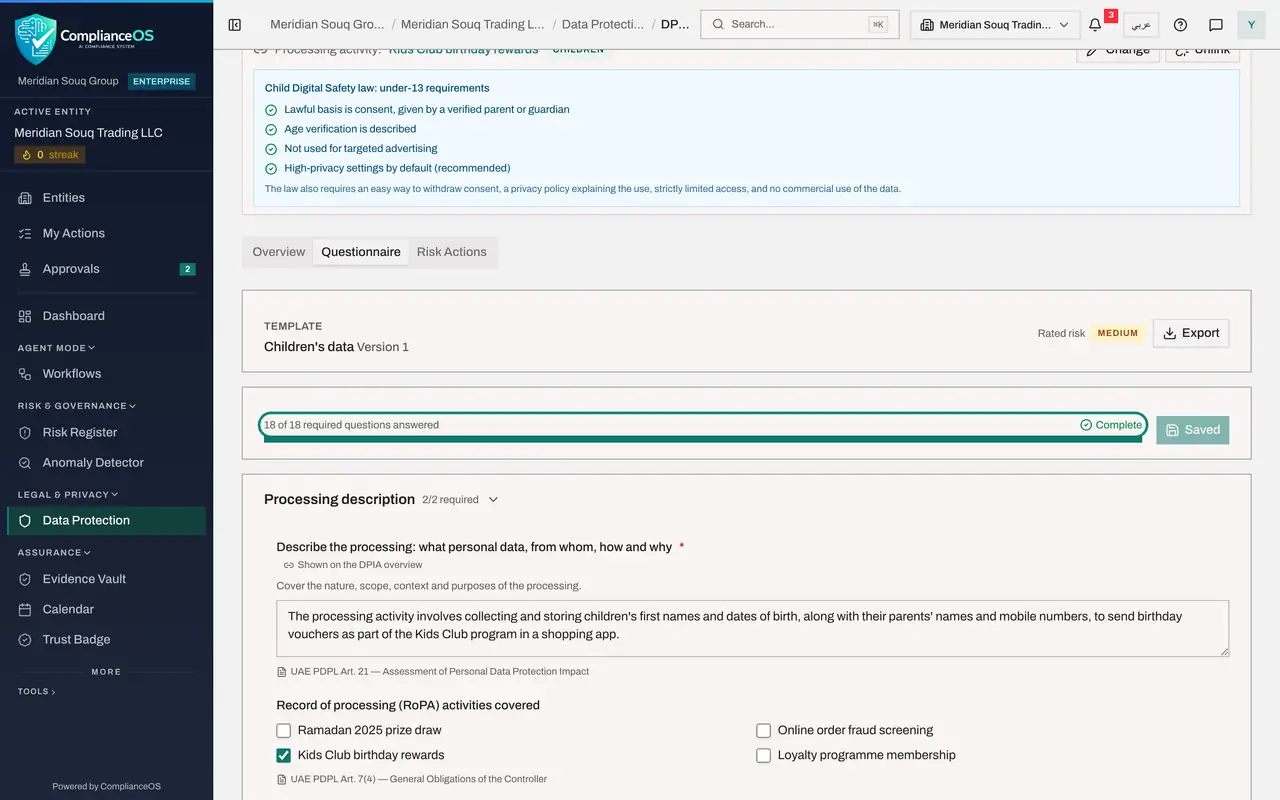
Select Open record on Kids Club birthday rewards DPIA. Read the AI Assessment Report on the Overview tab, then open the Questionnaire tab: it reads Complete, with the parental consent evidence under its question.
- Select Open record
- Select Questionnaire
- 7
Approve the Kids Club DPIA
Select the Overview tab, scroll down and select Approve DPIA. Type a note and select Confirm Approval. The status changes to Approved.
- Select Overview
- Select Approve DPIA
- Type Approval Notes:
Consent, age checks and deletion at thirteen checked. Approved. - Select Confirm Approval
- 8
Open the re-assessment and select Compare
Go back to Approvals and select Open record on the loyalty DPIA's re-assessment. On its Questionnaire tab, the Versions card shows Version 2 awaiting approval and Version 1 approved and current. Select Compare to see exactly what changed between them.
- Select Approvals1
- Select Open record
- Select Questionnaire
- Select Compare
- 9
Approve the new version
The changes are the browsing-history use and the extra measure asking members to agree. Select the Overview tab, scroll down, select Approve DPIA, type a note and select Confirm Approval.
- Select Overview
- Select Approve DPIA
- Type Approval Notes:
Change reviewed. Approved with the new consent measure. - Select Confirm Approval
- 10
See that the first version is superseded
Select the Questionnaire tab. On the Versions card, Version 2 is now Approved and Current, and Version 1 is marked Superseded. It is kept read-only for the record.
- Select Questionnaire
- 11
Bring back the earlier version
Select Back to PDPL, then the section named DPIAs. The list shows the current version only. Tick the box Show earlier versions, and the first version returns to the list with a tag showing it was superseded.
- Select Back to PDPL
- Select DPIAs0 (0)
- Select Show earlier versions
- 12
Check your inbox
Select Approvals once more. To decide reads Nothing waiting for you.
- Select Approvals
How to check it worked
My Actions lists the risk action assigned to you, both DPIAs read Approved, the first version of the loyalty DPIA is marked superseded, and your inbox is empty.
Common mistakes
- Watching only the Data Protection module for your work. Risk actions assigned to you appear in My Actions, and approval requests in Approvals, both in the main menu and across every entity you can see.
- Looking for the earlier version of a DPIA and thinking it was deleted. It is superseded and hidden from the list; tick Show earlier versions.
- Approving a new version without selecting Compare. Compare shows exactly which answers changed, so you review the change and not the whole assessment again.
Check your understanding
1. A colleague typed your email address in Assigned To on a DPIA's risk action. Where does it appear for you?
- A.Nowhere until you open the DPIA
- B.In My Actions, under Assigned to me, and as a notification
- C.In the Access section
- D.In the processing register
Show answer
Answer: B. In My Actions, under Assigned to me, and as a notification
My Actions collects open work assigned to you across modules. The assignment also raises a notification.
2. You approve version 2 of a DPIA. What happens to version 1?
- A.It is deleted
- B.It is marked superseded and kept read-only for the record
- C.It stays current
- D.It goes back to Draft
Show answer
Answer: B. It is marked superseded and kept read-only for the record
An approved re-assessment supersedes the earlier version, which is kept read-only. Show earlier versions brings it back into the list.