Lesson 15 of 27
After approval: the report, risk actions and a new version
What you will be able to do
Work with a DPIA once it is approved: download the report, follow up the risk actions with proof that each measure is in place, and start a new version when the processing changes, comparing it with the approved one before you submit it.
Before you start
- You are signed in with the Data Protection Officer role for the entity.
- Loyalty programme profiling DPIA is approved and has three risk actions, as in the previous lesson.
- You have a document that shows a measure is in place, as a PDF, Word file or image.
Steps
- 1
Open the DPIAs section and download the report
In Data Protection, select DPIAs. The assessment now reads Approved, with the approval date. Select Report, PDF, on its row. The approved assessment is downloaded as a document, and a message confirms DPIA report downloaded.
- Select DPIAs0 (0)
- Select Report (PDF)
- 2
Open the DPIA's Risk Actions tab
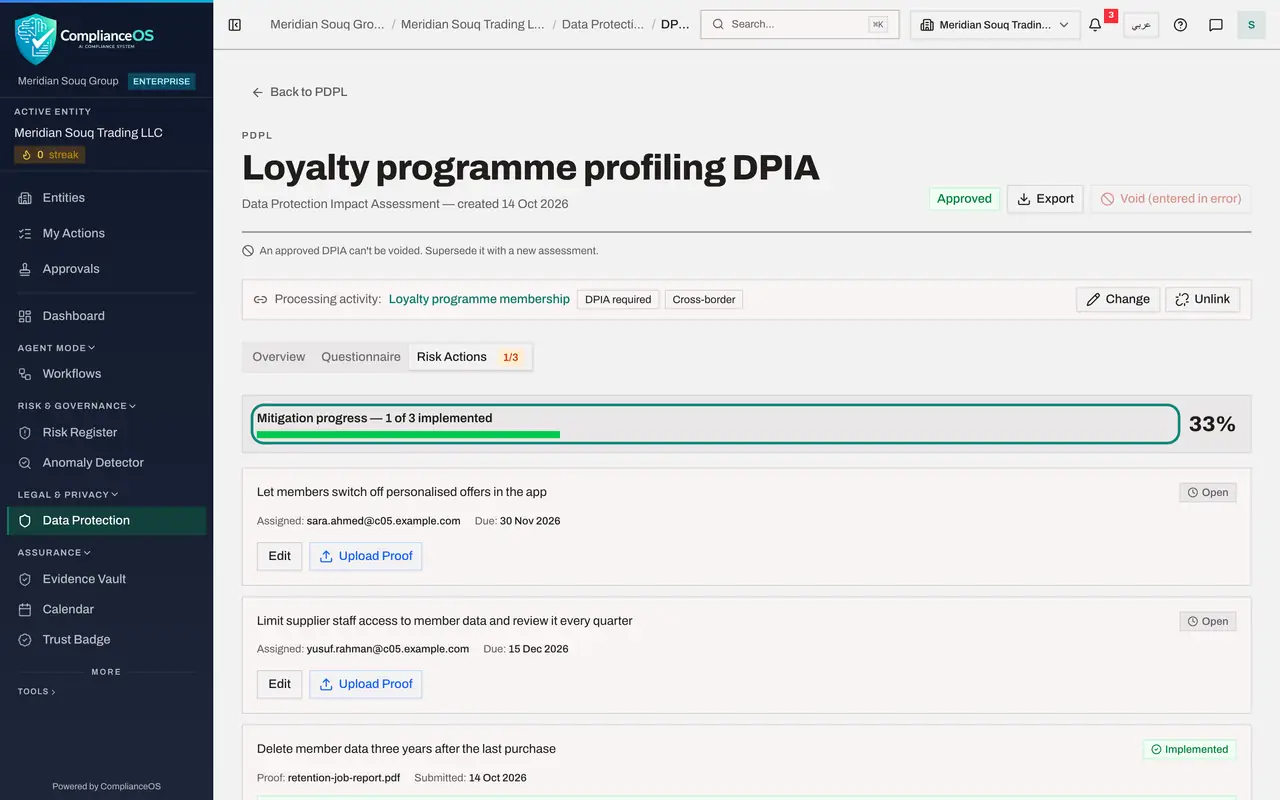
Select View Details, then the Risk Actions tab. Two actions show who they are assigned to and when they are due, as the approver set them. The third, Delete member data three years after the last purchase, has no owner yet.
- Select View Details
- Select Risk Actions0/3
- 3
Select Upload Proof on the retention action
IT Operations has sent the report of the job that deletes old member data. Select Upload Proof on Delete member data three years after the last purchase, and choose the file, here retention-job-report.pdf. The upload takes a PDF, a Word document or an image.
- Select Upload Proof
- Upload Evidence file:
retention-job-report.pdf
- 4
Select Submit for AI Review
Select Submit for AI Review. The file is stored with the action, which now reads AI reviewing. The review usually takes less than a minute.
- Select Submit for AI Review
- 5
Read the AI verdict
When the review is done, the action shows the AI verdict, with a confidence figure and the reason. Reload the page if it has not appeared yet. The verdict is advice: the action moves to In progress, and a person decides when the measure is in place.
- 6
Mark the action Implemented
Select Edit on the same action. The form holds who it is assigned to, its due date, its status and notes. Open Status and choose Implemented; the four statuses are Open, In progress, Implemented and Rejected. Add a note and select Save. The bar at the top now reads one of three implemented.
- Select Edit
- Select Open
- Choose Implemented
- Type Notes:
Purge job confirmed in production by IT Operations on 1 October 2026. - Select Save
- 7
Open the Questionnaire tab and select Re-assess
The business now wants to use members' app browsing history for offers as well. An approved DPIA cannot be edited, so select the Questionnaire tab, then Re-assess. A new draft opens, named after the original with re-assessment added, carrying every answer and evidence item forward.
- Select Questionnaire
- Select Re-assess
- 8
Read the Versions card
On the new draft, select the Questionnaire tab. A card headed Versions of this DPIA lists Version 2, the draft you are viewing, and Version 1, which is approved and marked Current. Version 1 stays the valid assessment until Version 2 is approved.
- Select Questionnaire
- 9
Change the answers that are different now
Change only what has changed. In the profiling logic answer, add that app browsing history is used. Under Mitigations, add a fourth measure on a new line.
- Type Describe the profiling logic and the data it uses *:
Members are placed in one of four tiers by their spend over the last t… - Type Measures to reduce the risks (one per line) *:
Let members switch off personalised offers in the app Limit supplier s…
- Type Describe the profiling logic and the data it uses *:
- 10
Save, then select Compare
Select the Save button at the bottom right. Then go back to the Versions card and select Compare beside Version 1. A table lists each answer that changed, with the text before and after, and any change to the narrative shown on the Overview.
- Select Save 2 change(s)
- Select Compare
- 11
Select Submit for approval
The new version is complete, so select Submit for approval at the top of the tab. Its status changes to Pending DPO approval, and the request goes to the approver's inbox, exactly as the first version did.
- Select Submit for approval
- 12
Check both versions in the DPIAs section
Select Back to PDPL, then DPIAs. Two entries are listed: the re-assessment, tagged Version 2 and Pending DPO approval, and the original, still Approved. Once Version 2 is approved, Version 1 is marked superseded and hidden from the list; tick Show earlier versions to see it.
- Select Back to PDPL
- Select DPIAs1 (1)
How to check it worked
the Risk Actions tab shows one of three actions implemented, the DPIAs section lists a second entry tagged Version 2 with the status Pending DPO approval, and the approved Version 1 is still listed as the current one.
Common mistakes
- Editing an approved DPIA to reflect a change. An approved assessment is read-only. Select Re-assess to start a new version, so the approved one is kept as the record of what was agreed.
- Marking an action Implemented without proof. Upload the proof first; the status and the proof together are what an auditor checks.
- Uploading proof as a plain text file. The upload takes a PDF, a Word document or an image.
Check your understanding
1. The loyalty programme is about to start using a new kind of data. The DPIA is already approved. What do you do?
- A.Edit the approved DPIA
- B.Select Re-assess to start a new version, change the answers and submit it
- C.Void the DPIA and start again
- D.Nothing; an approved DPIA covers future changes
Show answer
Answer: B. Select Re-assess to start a new version, change the answers and submit it
Re-assess copies the approved answers into a new draft version. The approved version stays current until the new one is approved.
2. What does Compare show on the Versions of this DPIA card?
- A.The two PDF reports side by side
- B.What changed between two versions: answers, risk rating, narrative and evidence
- C.Who viewed each version
- D.The approval policy
Show answer
Answer: B. What changed between two versions: answers, risk rating, narrative and evidence
Compare lists the answers that changed, with the text before and after, and any change in risk, narrative or evidence.