Lesson 22 of 27
Track assessments, adapt a template and set the review cadence
What you will be able to do
Use the Assessments section to see which transfers still lack an approved transfer impact assessment and when approved ones fall due for review, make your own version of an assessment template, and set how often assessments are reviewed.
Before you start
- You are signed in with the Data Protection Officer role for the entity.
- At least one transfer impact assessment has been approved, as in the previous lesson.
Steps
- 1
Open the Assessments section
In Data Protection, select Assessments. It has three tabs: Transfer impact assessments, Template library and Review cadence. The tiles on the first tab count transfers needing attention, transfers without an approved TIA, and re-assessments due.
- Select Assessments1 (1)
- 2
Read Transfers without a TIA
Transfers without a TIA lists each cross-border transfer that has no assessment yet, with a Start TIA button beside it. Work down this list until it is empty.
- 3
Read the list of assessments
The table below lists every TIA with its destination, status, outcome, residual risk and the date it is due for review. The assessment for Ireland is Approved, Transfer permitted, and due for review in a year. View opens it. Tick Needs re-assessment only to see the ones that have fallen due or been flagged.
- 4
Open the Template library
Select the Template library tab. It holds the question sets for DPIAs and TIAs. Each card shows the kind, whether the template is from the platform, its version and how many assessments use it. The search box and the kind filter narrow the list.
- Select Template library
- 5
Search for a template and select Preview
Type CCTV in the search box, then select Preview on CCTV and biometrics. The preview lists every section and question, the kind of answer each takes, where evidence is required, and the article of the law behind it. Close the preview.
- Type Search templates:
CCTV - Select Preview
- Select Close
- Type Search templates:
- 6
Select Copy and customise
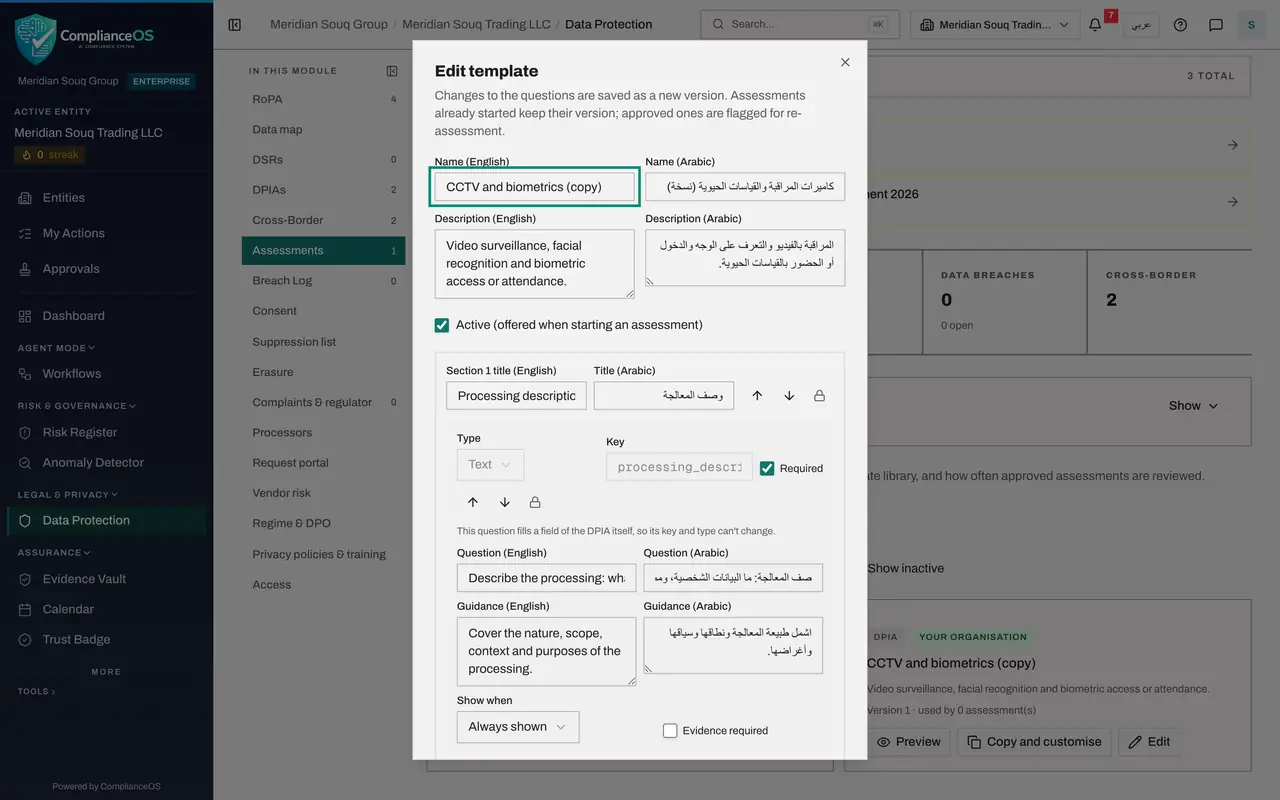
Meridian Souq wants its own wording for store cameras. Select Copy and customise on CCTV and biometrics. A copy is made and opens for editing, with every section and question of the original.
- Select Copy and customise
- 7
Rename the copy and describe it
Change the English name to Meridian Souq store CCTV DPIA, and change the English description to say when to use it. Names and descriptions have an Arabic field beside the English one. Active, below, decides whether the template is offered when someone starts an assessment.
- Type Name (English):
Meridian Souq store CCTV DPIA - Type Description (English):
Use for cameras in Meridian Souq stores and warehouses.
- Type Name (English):
- 8
Look at the question editor and select Save
Scroll down the form. Each question has its type, whether it is required, its wording and guidance, when it is shown, and whether evidence is required. Add question and Add section are at the bottom. Select Save. Changes to questions are saved as a new version of the template.
- Select Save
- 9
Find your copy in the library
Your template is in the library, tagged Your organisation, with an Edit button the platform templates do not have. It is now offered in the Template list when someone starts a new DPIA.
- 10
Open Review cadence
Select the Review cadence tab. It sets how often an approved DPIA and an approved TIA must be reviewed, in months, and how many days ahead the reminder is sent. It starts on the defaults: twelve months, with reminders thirty days ahead.
- Select Review cadence
- 11
Set the review periods and the reminder
Meridian Souq reviews assessments every year and wants more warning. Type 12 for the DPIA review, 12 for the TIA review, and 45 in Remind this many days before.
- Type DPIA review every (months):
12 - Type TIA review every (months):
12 - Type Remind this many days before:
45
- Type DPIA review every (months):
- 12
Read the three switches and select Save
Three switches decide what else brings an assessment back. Flag a TIA when its transfer changes, such as a new recipient or mechanism. Flag assessments when their template changes. And block approving transfers whose TIA concludes not permitted. Leave all three on and select Save. Review dates are checked every day, and flagged assessments notify the entity's users.
- Select Save
How to check it worked
the Assessments section lists the approved TIA with its review date, the Template library shows your copy tagged Your organisation, and the Review cadence tab shows the months and reminder days you saved.
Common mistakes
- Editing a platform template directly. You cannot: select Copy and customise, and change your own copy.
- Changing the questions of a template that approved assessments already use and expecting nothing to happen. A changed template is saved as a new version, and approved assessments on the old version are flagged for re-assessment.
- Setting a long review period to reduce work. The review date is what brings an assessment back to you before it goes stale.
Check your understanding
1. Where do you see which cross-border transfers still need a transfer impact assessment?
- A.In the Access section
- B.In Assessments, under Transfers without a TIA
- C.In the Regime and DPO section
- D.Only in the downloaded register
Show answer
Answer: B. In Assessments, under Transfers without a TIA
The first tab of Assessments lists each transfer without a TIA, with a Start TIA button, and counts transfers without an approved one.
2. How do you change the questions in a platform template?
- A.Select Edit on the platform template
- B.Select Copy and customise, then edit your organisation's copy
- C.Ask the vendor
- D.You cannot use different questions
Show answer
Answer: B. Select Copy and customise, then edit your organisation's copy
Platform templates are fixed. Copy and customise makes a copy tagged Your organisation, which has an Edit button.