Lesson 26 of 27
What you see without access to these tools
What you will be able to do
This lesson is for everyone outside the tax and compliance teams, and for the people who support them. A member of staff with no tax or compliance role does not see these tools in the menu. You will see what the left menu looks like, and what each page says when a colleague sends you its address.
Before you start
- You are signed in as Aisha Farouk, an employee whose only role is self-service access to her own staff record.
- Colleagues have sent her the addresses of Excise Tax, Government Portals, the Trust Badge, the Policy Engine, Workflows and Catch-up bookkeeping.
Steps
- 1
Look at the left menu
Aisha's left menu is short: Entities, My Actions, Approvals, Dashboard, Workforce and a few tools. There is no Tax group, so no Excise Tax, and no Government Portals, Trust Badge, Policy Engine or Workflows.
- 2
Open the address of Excise Tax
Paste the address of Excise Tax into the browser. Instead of the products, the page says Module access required. It explains that you do not hold Excise tax, View on this entity, tells you to ask an access administrator for a role that includes it, and names the administrators.
- 3
Open the address of Government Portals
The address of Government Portals gives the same page, this time naming the permission Filing, View. Stored portal details and filing receipts are not shown to anyone without it.
- 4
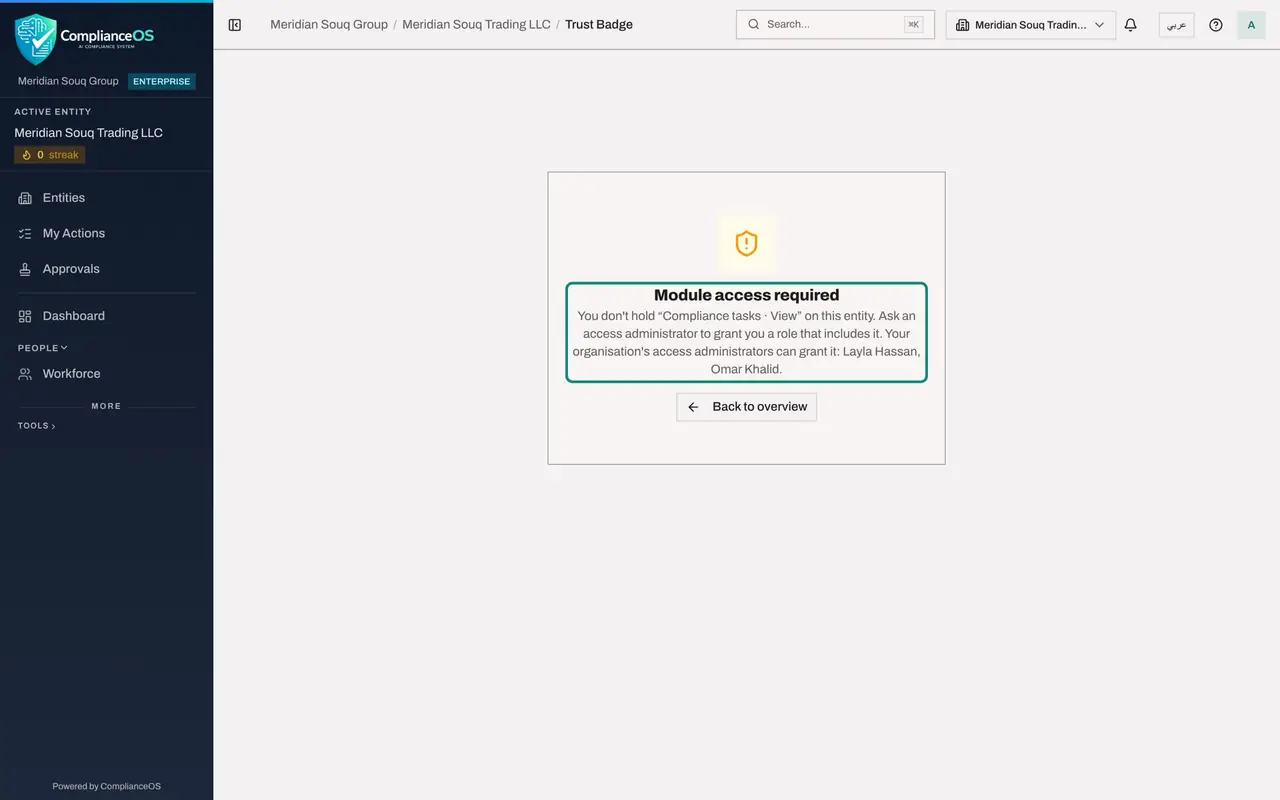
Open the address of the Trust Badge
The Trust Badge settings name the permission Compliance tasks, View. Remember that this is the page for setting the badge up. The public page it publishes can be opened by anyone who has its link.
- 5
Open the address of the Policy Engine
The Policy Engine names the permission Policies, View.
- 6
Open the address of Workflows
Workflows names the permission Compliance tasks, View.
- 7
Open the address of Catch-up bookkeeping
Catch-up bookkeeping is a tax page, so its address gives the same message, naming the permission Tax, View. Select Back to overview on any of these pages to return to the entity dashboard.
How to check it worked
The left menu has no Tax group and no Government Portals, Trust Badge, Policy Engine or Workflows. The address of each of those pages shows Module access required with the name of the missing permission. The address of Catch-up bookkeeping gives the same message, naming Tax, View.
Common mistakes
- Asking a colleague to share their sign-in so you can look. Never share accounts. Ask for the figures you need, or for a role that includes them.
- Expecting a page reached from a colleague's link to work because the link opens. Access is checked on every page, whoever sent the link.
Check your understanding
1. An employee without a tax role opens the address of Excise Tax. What appears?
- A.The products, read only
- B.Module access required, naming the permission Excise tax, View
- C.The sign-in page
- D.An empty list
Show answer
Answer: B. Module access required, naming the permission Excise tax, View
Without the permission to view the module the page shows no data, only the name of the permission that is needed and whom to ask.
2. Who can give you access to one of these tools?
- A.Any colleague who has it
- B.An access administrator of your organisation
- C.The auditor
- D.Nobody
Show answer
Answer: B. An access administrator of your organisation
Roles are granted by the people who administer access. The page names them.