Lesson 17 of 27
Catch-up bookkeeping: bring earlier months up to date
What you will be able to do
This lesson is for the accountant. When a company starts using ComplianceOS part way through its life, earlier months have to be brought in. The Catch-up bookkeeping page shows every month since a starting year and whether it has data, still needs classifying, or is done. You will find the page, bring in a file of earlier transactions, classify them all with one button, and follow the months that now need review to the Sign-off cockpit.
Before you start
- You are signed in as the accountant, Ahmed Saleh. No tax transactions are recorded yet.
- You have a CSV file, history-2025-2026.csv, with eight invented sales and purchases: five from January to March 2025 and three from July and September 2026. Importing transactions is taught in detail in the VAT course: here it is one step on the way.
- Classify all pending uses the AI classifier, which uses AI credits. It can take a minute or two.
Steps
- 1
Open Tax Intelligence, select Returns, then CT Return
In the left menu select Tax Intelligence. Select Returns above the tabs, then the tab CT Return. CT is short for corporate tax. Under the Compute Return button is a row of shortcuts, and the last one is Catch-up.
- Select Tax Intelligence
- Select Returns
- Select CT Return
- 2
Select Catch-up
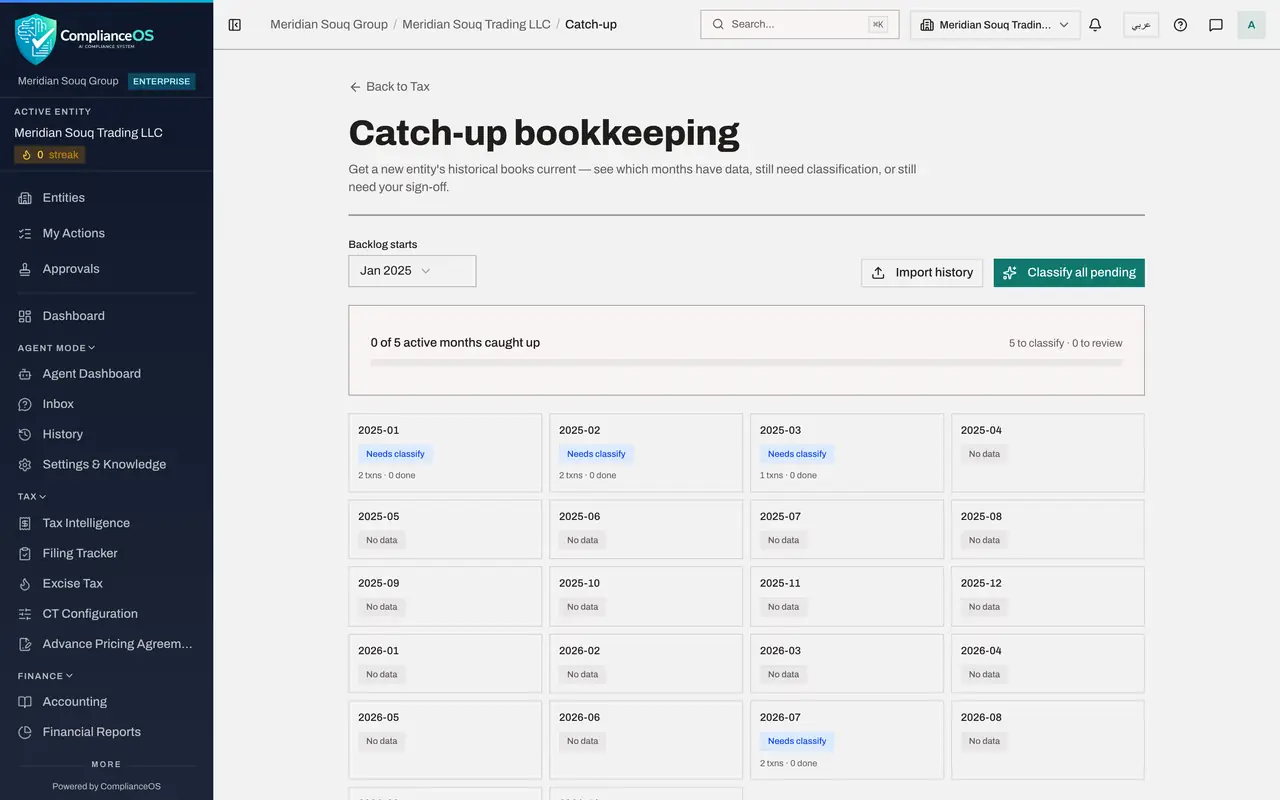
Select Catch-up. The Catch-up bookkeeping page opens. It has one box for each month, starting from January of last year and running to the current month. Every box says No data, and the line above reads 0 of 0 active months caught up.
- Select Catch-up
- 3
Check where the backlog starts
Open Backlog starts, at the top left. It offers January of this year and of the three years before. Choose the January from which your history should be shown. Here the earliest transaction is from January 2025, so keep Jan 2025.
- Select Backlog starts
- Choose Jan 2025
- 4
Select Import history
Select Import history at the top right. It takes you to the Transactions tab of Tax Intelligence, where files are brought in. Select Import, above the list.
- Select Import history
- Select Import
- 5
Choose the file and confirm
Select Choose File and pick history-2025-2026.csv. The app checks the file and shows a preview: Will import 8. Select Confirm import, and wait until the window says the transactions are imported, not classified yet.
- Upload Choose a file:
history-2025-2026.csv - Select Confirm import (8 rows)
- Upload Choose a file:
- 6
Close the window and go back to Catch-up
Select Close. Then go back to Catch-up the same way: Returns, CT Return, Catch-up. The page can still show the months as they were before the import, so reload the page in your browser.
- Select Close
- Select Returns
- Select CT Return
- Select Catch-up
- 7
Read the months
Five boxes have changed. January and February 2025 each show 2 transactions, March 2025 shows 1, July 2026 shows 2 and September 2026 shows 1, all marked Needs classify. The line above reads 0 of 5 active months caught up, with 5 to classify and 0 to review: these two figures count months, not transactions.
- 8
Select Classify all pending
Select Classify all pending. The button reads Classifying while the AI classifier works through every unclassified transaction of the entity. When it finishes, a message reads Classified 8, with 0 approved automatically and 8 to review. A classification proposed only by the AI is not approved by itself: it waits for a person.
- Select Classify all pending
- 9
Reload the page and read the months again
The boxes can lag behind the message, so reload the page in your browser. Every month with data is now marked Needs review, with the count of transactions still to review and a small Review link. The line at the top reads 0 to classify and 5 to review: five months wait for a sign-off.
- 10
Select Review on a month
Select Review in the box of January 2025. The Sign-off cockpit of Tax Intelligence opens. It lists the 8 classifications awaiting sign-off, each with its counterparty, amount, proposed category, confidence and the label AI suggestion, with 95 percent.
- Select Review
- 11
Leave the approval to the tax manager
Approving a classification needs the permission to approve tax records, which the accountant does not hold. The approve buttons are on the page, but the sign-off belongs to the tax manager, who does it in the next lesson. Until then the months stay at Needs review.
How to check it worked
On Catch-up bookkeeping, five months show a count of transactions instead of No data: January, February and March 2025, and July and September 2026. After Classify all pending and a reload, each of them is marked Needs review with a Review link, and the Review link opens the Sign-off cockpit with the 8 AI suggestions.
Common mistakes
- Reading No data as a problem. It only means that no transaction is dated in that month. Only months with data are counted as active months in the progress line.
- Trusting the boxes straight after the message. In this example they still said Needs classify until the page was reloaded.
- Expecting Classify all pending to finish the job. Classifications proposed only by the AI wait in the Sign-off cockpit until someone with the approve permission signs them off.
- Leaving Backlog starts on the wrong year. Months before the chosen January are not shown at all, so transactions dated earlier would not appear in the grid.
Check your understanding
1. A month is marked Needs classify. What does that mean?
- A.It has no transactions
- B.It has transactions that have no tax classification yet
- C.It has been filed
- D.It is locked
Show answer
Answer: B. It has transactions that have no tax classification yet
The month holds imported transactions that the classifier has not yet treated. Classify all pending classifies every such transaction in one go.
2. After Classify all pending, a month is marked Needs review. What is it waiting for?
- A.More transactions
- B.A person with the approve permission to sign off the AI's classifications
- C.The tax authority
- D.Nothing: it is done
Show answer
Answer: B. A person with the approve permission to sign off the AI's classifications
Classifications proposed only by the AI are not approved by themselves. The Review link opens the Sign-off cockpit, where they are approved or rejected.