Lesson 21 of 27
Workflows: run an AI workflow and read what it did
What you will be able to do
This lesson is for the compliance officer. A workflow is a task the AI carries out in several steps on its own, in the background, using a fixed set of tools. The Workflows page starts a run and keeps a full trace of every run. You will start a Regulatory Impact Analysis on an invented regulatory change, watch it finish, and read its inputs, its steps and its result.
Before you start
- You are signed in as the compliance officer, Mariam Aziz.
- The regulatory change used here is invented for training and is labelled as such in the text you type. Never present an invented rule as real.
- A workflow uses the AI and can use AI credits. What it writes is a draft for a person to check, not a decision.
Steps
- 1
Open Workflows
In the left menu, in the group Agent Mode, select Workflows. Four figures head the page: Active, for runs in progress, Completed, Failed, and AI Credits used across all runs. Under Active Workflows the list says No workflows yet.
- Select Workflows
- 2
Select New Workflow
Select New Workflow at the top right. The form explains that a workflow runs in the background and that its steps appear when it is complete. It has three fields.
- Select New Workflow
- 3
Choose the workflow type
Open Workflow Type and choose Regulatory Impact Analysis. A line under the field says what it does: it analyses a new regulatory alert and maps its impact across the entity's obligations. The type is the only required field.
- Select Workflow Type *
- Choose Regulatory Impact Analysis
- 4
Type the trigger event
Trigger Event is a short label for what set this run off. It is shown in the list, so use it to tell runs apart. Type training example. If you leave it empty, the run is labelled manual.
- Type Trigger Event:
training example
- Type Trigger Event:
- 5
Type the inputs
Inputs is what the workflow works on, written as JSON: each name and each value in double quotes, pairs separated by commas, all inside curly brackets. For this workflow give the title of the regulatory update, its source, its jurisdiction, a summary and a relevance score from 0 to 1. The text typed here says clearly that it is a training example and not a real publication.
- Type Inputs (optional JSON):
{"title":"Training example: excise returns to list each product regist…
- Type Inputs (optional JSON):
- 6
Select Run Workflow
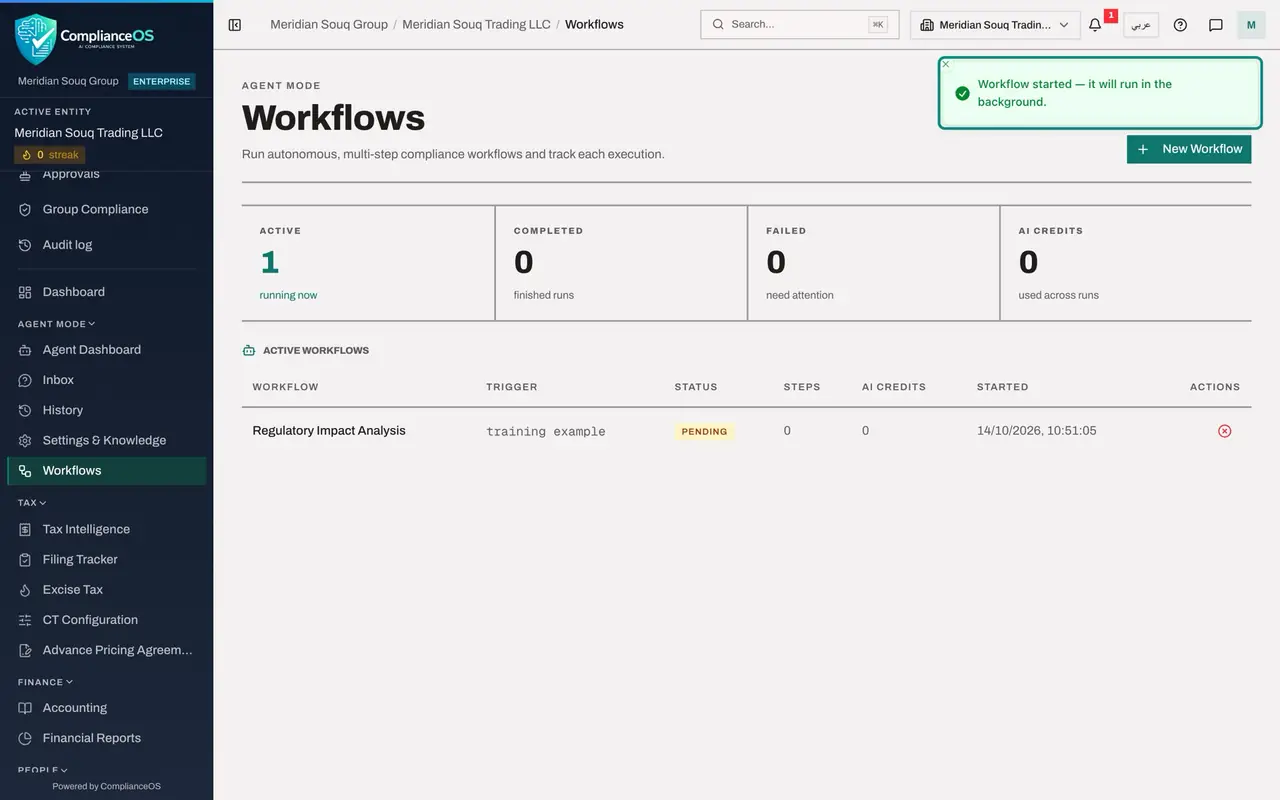
Select Run Workflow. The form closes with the message Workflow started, it will run in the background. The run appears in the list at once, and Active at the top counts it while it is in progress. You can leave the page: the run carries on.
- Select Run Workflow
- 7
Wait for the run to finish
The list refreshes by itself every few seconds. After a short while the status changes to Completed. Reading across the row: the workflow type, the trigger label you typed, the status, the number of steps it took, the AI credits it used, and when it started.
- 8
Open the run
Select the row. A window opens with the trace of the run. At the top are its status, the AI credits used and the time it completed. Under Trigger Inputs is the text you typed, together with a line the app added itself: the list of tools this run was allowed to use.
- 9
Read the steps
Below the inputs is Steps. Each numbered step names the tool the workflow used, its status and how long it took, and shows what came back under Output. The first step here read the entity's regulatory alerts. The steps are the evidence of what the workflow really looked at.
- 10
Read the result
Scroll to the end, to Result. It lists any errors, here none, then the actions the run took: in this example one calendar entry and one risk insight, and no notification. Then comes the outcome, the workflow's own summary, the tools it used and the number of steps. A run in which a step failed is shown as Completed with errors. Treat it as a draft: compare it with the steps above, and check any action it reports in the place where that action would appear.
- 11
Close the window and check the figures
Close the window. At the top of the page Active is back to 0 and Completed reads 1. Every run stays in this list with its trace, so a colleague or an auditor can see later what was run, on what inputs, and what it did.
- Select Close
How to check it worked
The list under Active Workflows has one row, Regulatory Impact Analysis, with the status Completed and a number under Steps. Opening the row shows the inputs you typed, each step with the tool it used and what came back, and a Result with the errors, the actions taken and a written summary. Completed at the top reads 1.
Common mistakes
- Typing the inputs as ordinary sentences. The Inputs box needs JSON: names and values in double quotes inside curly brackets. Anything else is refused with the message Inputs must be valid JSON.
- Running the analysis with no inputs. The workflow then has nothing to analyse, and its result only asks you for the details of the regulatory update.
- Taking the summary as fact. Open the steps and check what the workflow actually read, and check any action it took in the place where it appears: a calendar entry it created shows in the Compliance Calendar.
Check your understanding
1. Where do you see exactly what a workflow did?
- A.In the Evidence Vault
- B.In the run's detail window: its steps, each with the tool used and the output
- C.Only in the summary
- D.It is not recorded
Show answer
Answer: B. In the run's detail window: its steps, each with the tool used and the output
Selecting a run opens its trace: the trigger inputs, each numbered step with its tool, status, duration and output, and the final result.
2. What does the Trigger Event field record?
- A.The date the workflow should run
- B.A short label for what set the run off, shown in the Trigger column
- C.The person who approved it
- D.The number of AI credits
Show answer
Answer: B. A short label for what set the run off, shown in the Trigger column
It is a label, such as manual. It is shown in the list so that you can tell runs apart. If you leave it empty the run is labelled manual.