Lesson 16 of 27
Record a filing and its receipt, edit a portal and remove its credentials
What you will be able to do
This lesson is for the tax manager and anyone who files with an authority. After you file on a portal, you record the submission here with its receipt number, so that anyone can later find what was filed, when, and under which reference. You will record two submissions and learn every field, read the figures that show a missing receipt, rename a portal, and remove stored credentials.
Before you start
- You are signed in as the tax manager, Fatima Noor, and the two portals from the previous lesson are on the page.
- The September excise return was submitted on EmaraTax on 12 October 2026 and accepted under the reference EX-2026-09-0147. A salary file was uploaded on the MOHRE portal today, and its receipt has not arrived yet. Both are invented.
Steps
- 1
Open Government Portals and select Record submission
In the left menu select Government Portals. Select Record submission at the top right. The Record a submission form opens.
- Select Tools
- Select Government Portals
- Select Record submission
- 2
Choose the portal and type the status
Open Portal and choose EmaraTax main account. In Status type the state of the filing in your own words, such as Submitted, Accepted or Rejected. This one was accepted, so type Accepted. Both fields are required.
- Select Portal
- Type Status:
Accepted
- 3
Type the receipt number
In Reference or receipt number type the acknowledgement number the portal gave you, here EX-2026-09-0147. It is optional, but it is the proof of the filing, and it is the same reference you typed when you marked the excise return as filed.
- Type Reference / receipt number (optional):
EX-2026-09-0147
- Type Reference / receipt number (optional):
- 4
Say what the filing was for
In Used for or period type what was filed and for which period, here Excise return, September 2026. It appears in the list under Used for.
- Type Used for / period (optional):
Excise return, September 2026
- Type Used for / period (optional):
- 5
Enter when it was submitted
In Submitted at enter the date and time shown on the portal's acknowledgement: 12 October 2026 at 10:30. If you leave it empty, the app uses the moment you save the record.
- Type Submitted at (optional):
2026-10-12T10:30
- Type Submitted at (optional):
- 6
Add a note and record
Notes is free text, for example who filed it and where the acknowledgement is kept. Type: Filed by Fatima Noor. Acknowledgement saved in the Evidence Vault. Then select Record submission.
- Type Notes (optional):
Filed by Fatima Noor. Acknowledgement saved in the Evidence Vault. - Select Record submission
- Type Notes (optional):
- 7
Read the row and the figures
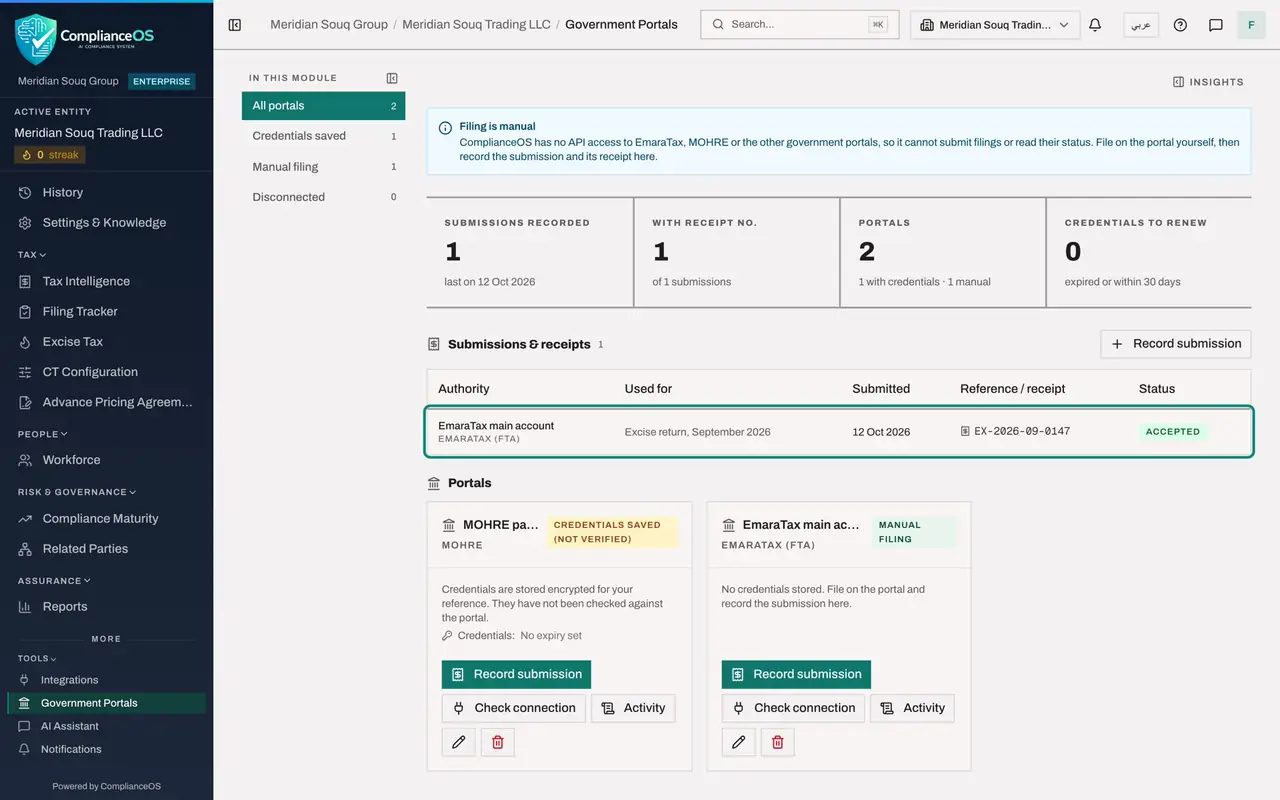
The submission is listed under Submissions and receipts with its authority, what it was used for, when it was submitted, its reference and its status. The figures above now read Submissions recorded 1 and With receipt number 1.
- 8
Record a submission from a portal's card
Each card has its own Record submission button, which opens the same form with the portal already chosen. Select it on the card of MOHRE payroll account. Type the status Submitted and, under Used for, Salary file, September 2026. The receipt has not arrived, so leave the reference empty and select Record submission.
- Select Record submission
- Type Status:
Submitted - Type Used for / period (optional):
Salary file, September 2026 - Select Record submission
- 9
Find the submission without a receipt
The new row shows No receipt where the reference should be. Above the list, With receipt number now reads 1 of 2 submissions, so you can see at a glance that one receipt is still missing.
- 10
Edit a portal
Select the pencil on the card of MOHRE payroll account. The Edit portal window opens with the name and the address. The portal type cannot be changed. Replace the name with MOHRE salary files. Leave New credentials JSON blank to keep the stored values, and select Save changes.
- Select Edit
- Type Name:
MOHRE salary files - Select Save changes
- 11
Select Remove credentials
The stored sign-in name is no longer wanted. On the same card select the last button, Remove credentials. A window asks whether to delete the credentials saved for this portal and mark it disconnected, and says that recorded submissions are kept.
- Select Remove credentials
- 12
Confirm, and read the card
Select Remove credentials in the window. The message Credentials removed appears. The card is now marked Disconnected, and it no longer offers Record submission or Remove credentials. Its earlier submission is still in the list above.
- Select Remove credentials
- 13
Filter by Disconnected
On the left select Disconnected. Only the disconnected portal is shown, and the counts read All portals 2, Manual filing 1 and Disconnected 1. Select All portals to return to the full page.
- Select Disconnected
How to check it worked
Submissions and receipts lists two rows. The EmaraTax row shows the reference EX-2026-09-0147 and the status Accepted. The MOHRE row shows No receipt. The figures above read Submissions recorded 2 and With receipt number 1 of 2. The MOHRE portal is renamed MOHRE salary files and marked Disconnected.
Common mistakes
- Recording the submission without the receipt number and never coming back to it. The figure With receipt number shows how many are still missing one. A recorded submission cannot be edited on this page, so wait for the receipt when you can.
- Thinking that Remove credentials deletes the portal. It deletes only the stored sign-in details and marks the portal Disconnected. The portal's card and its recorded submissions stay.
- Leaving Submitted at empty for a filing made days ago. An empty field is saved as the time you recorded it, not the time you filed.
Check your understanding
1. Which two things must be given to record a submission?
- A.Portal and status
- B.Reference and notes
- C.Period and submitted at
- D.All six fields
Show answer
Answer: A. Portal and status
The form refuses to save without a portal and a status. The reference, the period, the time and the notes are optional, but the reference is the point of the record.
2. After Remove credentials, what is still on record for that portal?
- A.Nothing
- B.Its card, marked Disconnected, and its recorded submissions
- C.Only its name
- D.The credentials, hidden
Show answer
Answer: B. Its card, marked Disconnected, and its recorded submissions
The confirmation says the saved credentials are deleted and the portal is marked disconnected, and that recorded submissions are kept.