Lesson 2 of 27
Register an excise product, field by field
What you will be able to do
This lesson is for the accountant, who keeps the excise records. Before any stock can be recorded, each excise product must be registered. You will register an energy drink and learn what every field of the Register Excise Product form is for: the product code, the name, the excise category, the retail sale price, the customs code, the imported tick box, the rate type, and the two optional reference numbers.
Before you start
- You are signed in as the accountant, Ahmed Saleh.
- You have the product's details to hand. In this lesson it is Souq Volt Energy Drink 250 ml, an own label energy drink with the internal code ENR-250, sold in the shops for 9.00 dirhams a can and imported from abroad.
- All names, codes and reference numbers in this course are invented for training.
Steps
- 1
Open Excise Tax
In the left menu, under Tax, select Excise Tax. The Products section opens, still empty.
- Select Excise Tax
- 2
Select Register Product
Select Register Product, above the list on the right. The Register Excise Product form opens.
- Select Register Product
- 3
Type the product code
In Product Code type your own short code for the product, here ENR-250. It must be different for every product of the entity. Stock movements and import files refer to the product by this code, and it cannot be changed later.
- Type Product Code:
ENR-250
- Type Product Code:
- 4
Type the product name
In Product Name type the name as it appears on your price list, here Souq Volt Energy Drink 250 ml. Include the pack size, so that two sizes of the same drink are easy to tell apart.
- Type Product Name:
Souq Volt Energy Drink 250 ml
- Type Product Name:
- 5
Choose the excise category
Open Excise Category and choose Energy Drinks. Each of the six categories shows its percentage beside its name. The category decides the rate, and it is locked once the product is registered, so choose with care. If you leave it empty, the app refuses to save and asks you to select a category.
- Select Excise Category
- Choose Energy Drinks (100%)
- 6
Type the retail sale price
In Retail Sale Price type the price one unit sells for in the shops, in dirhams: 9.00. For a percentage rate, excise is charged on this price unless a stock movement carries a higher unit price.
- Type Retail Sale Price (AED):
9.00
- Type Retail Sale Price (AED):
- 7
Type the customs code
HS Code is optional. It is the customs tariff code of the goods, the same code that appears on the customs declaration. Here it is 2202.99. It helps you match the product to import paperwork, and the list is saved without it if you leave it blank.
- Type HS Code (optional):
2202.99
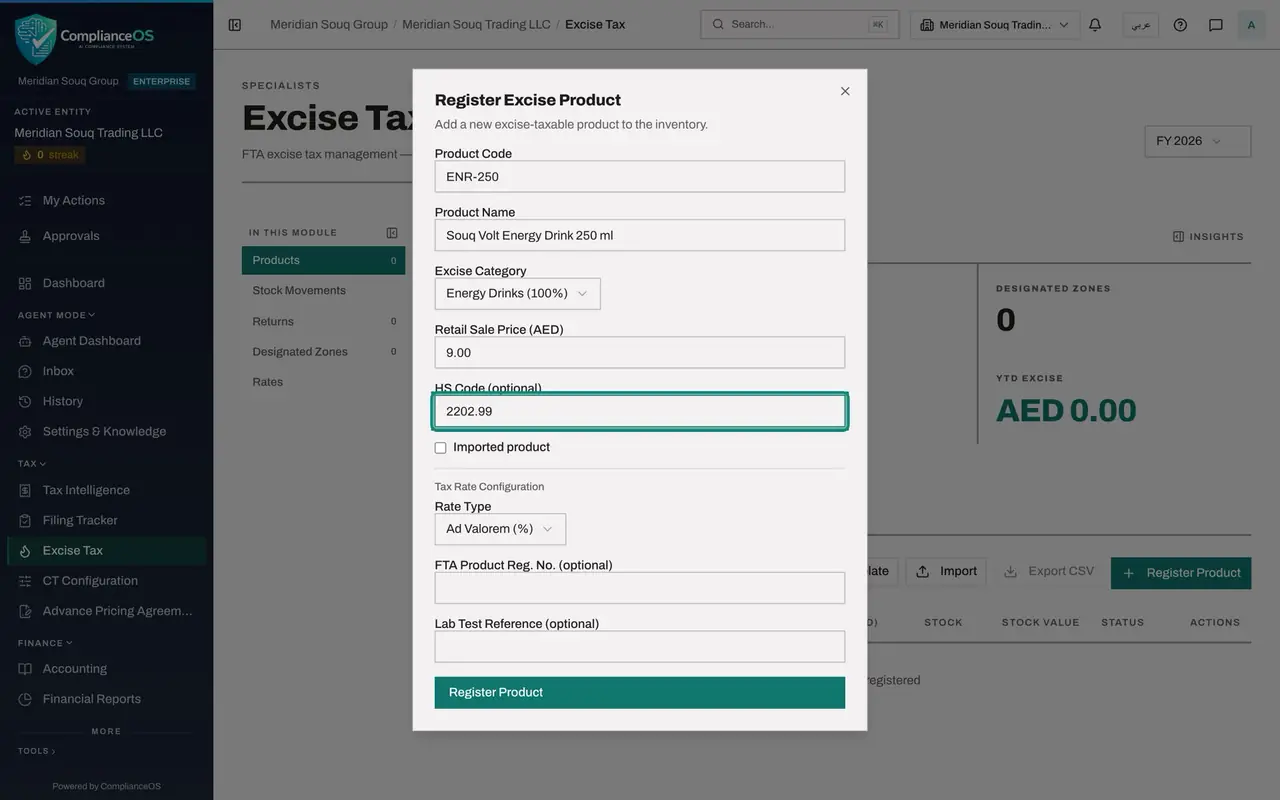
- Type HS Code (optional):
- 8
Tick Imported product
Tick Imported product, because these cans are brought in from abroad. Leave it empty for goods produced in the country. The edit window shows this tick as read only, so set it now.
- Select Imported product
- 9
Leave the rate type on Ad Valorem
Under Tax Rate Configuration, Rate Type is already Ad Valorem, a percentage of the price. That is right for this product. The other two choices, Specific and Volumetric, open extra fields and are shown in the next lesson.
- 10
Type the registration number
FTA Product Reg. No. is optional. FTA is the Federal Tax Authority. If the authority has given this product a registration number, type it here so it is on record with the product. This one is invented: FTA-EX-TRAINING-20417.
- Type FTA Product Reg. No. (optional):
FTA-EX-TRAINING-20417
- Type FTA Product Reg. No. (optional):
- 11
Leave Lab Test Reference blank
Lab Test Reference is optional too. Use it for the reference of a laboratory report, for example one that states the sugar content of a drink. This product has none, so leave it blank.
- 12
Select Register Product
Select Register Product at the bottom of the form. The form closes and the message Product registered appears.
- Select Register Product
- 13
Read the new row
The product is in the list. Reading across: the code, the name, the category Energy Drinks, the rate type Ad Valorem, the rate of 100 percent taken from the category, and RSP, the retail sale price, 9.00 dirhams. Stock and Stock Value are zero until movements are recorded. Status is Active. Edit and Deactivate are at the end of the row.
- 14
Check the figures at the top
Products and Active at the top of the page now both read 1, and the count beside Products under In this module reads 1.
How to check it worked
The Products list has one row: ENR-250, Souq Volt Energy Drink 250 ml, category Energy Drinks, rate type Ad Valorem, rate 100 percent, retail price 9.00 dirhams, stock zero, status Active. The Products and Active figures at the top both read 1.
Common mistakes
- Choosing the wrong excise category. The category sets the rate, and it cannot be changed after the product is registered. Check it before you select Register Product.
- Typing the price you paid the supplier into Retail Sale Price. This field is the price the product sells for in the shops. For a percentage rate the app charges excise on whichever is higher: this price, or the unit price typed on a stock movement.
- Leaving the Imported product box unticked for imported goods. It cannot be changed afterwards from the edit window.
Check your understanding
1. Which field decides the percentage of excise on the product?
- A.Product Code
- B.Excise Category
- C.HS Code
- D.Lab Test Reference
Show answer
Answer: B. Excise Category
Each category carries its own rate, shown beside its name in the list, for example Energy Drinks, 100 percent. The app copies that rate onto the product.
2. After registering, which of these can still be changed with Edit?
- A.The product code
- B.The excise category
- C.The name, the retail sale price and the customs code
- D.Whether it is imported
Show answer
Answer: C. The name, the retail sale price and the customs code
The edit window locks the code, the category and the imported tick. Only the name, the retail sale price and the customs code can be changed.