Lesson 4 of 27
Edit a product, meet the duplicate check, and deactivate a product
What you will be able to do
This lesson is for the accountant. Prices change and product lines end. You will change the retail sale price of a registered product, see which fields are locked, see what the app does when a product code is used twice, and take a product out of use with Deactivate and bring it back with Activate.
Before you start
- You are signed in as the accountant, Ahmed Saleh, and the three products from the earlier lessons are registered.
- The shop price of Souq Orchard Iced Tea 500 ml has gone up from 5.00 to 5.50 dirhams.
Steps
- 1
Open Excise Tax and find the product
In the left menu select Excise Tax. In the Products list, find SWT-500, the iced tea. Each row ends with two buttons: Edit and Deactivate.
- Select Excise Tax
- 2
Select Edit
Select Edit on the row. The Edit Excise Product window opens. Product Code and Excise Category are greyed out, and so is the tick Imported product, marked read only. Product Name, Retail Sale Price and HS Code can be changed.
- Select Edit
- 3
Change the retail sale price
In Retail Sale Price replace the old price with the new shop price, 5.50. The new price is used for movements you record from now on. Movements already recorded keep the figures they were saved with.
- Type Retail Sale Price (AED):
5.50
- Type Retail Sale Price (AED):
- 4
Add the customs code and save
The customs code was left out when the product was registered. In HS Code type 2202.99. Then select Save Changes. The window closes with the message Product updated.
- Type HS Code (optional):
2202.99 - Select Save Changes
- Type HS Code (optional):
- 5
Read the row again
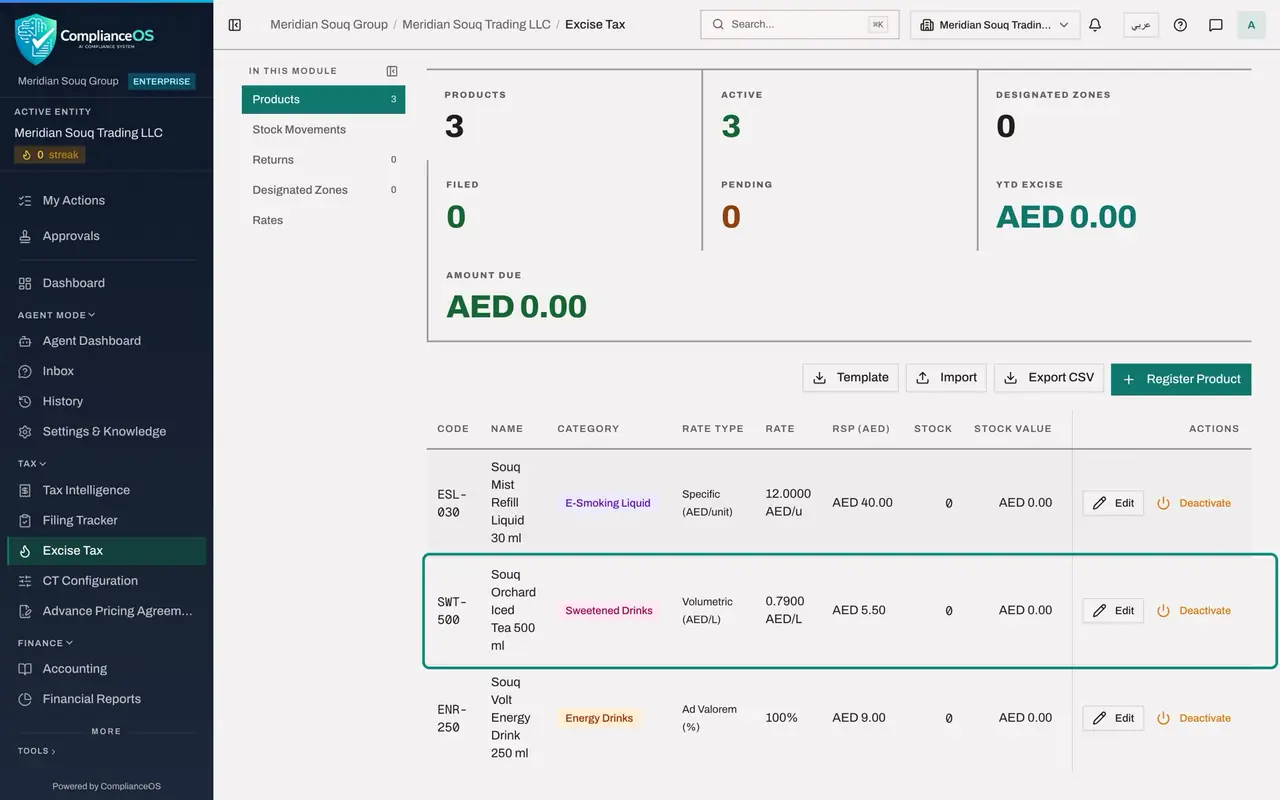
The row of the iced tea now shows 5.50 dirhams under RSP. Nothing else in the row has changed.
- 6
Try to register a code that is already used
Now see the duplicate check. Select Register Product and fill the form for the energy drink again with the same Product Code, ENR-250: the name, the category Energy Drinks and the price 9.00. Check that Rate Type reads Ad Valorem.
- Select Register Product
- Type Product Code:
ENR-250 - Type Product Name:
Souq Volt Energy Drink 250 ml - Select Excise Category
- Choose Energy Drinks (100%)
- Type Retail Sale Price (AED):
9.00
- 7
Select Register Product and read the message
Select Register Product. The app refuses: a red message says Product code already exists for this entity. Nothing was saved and the form stays open, so you can correct the code or close the form.
- Select Register Product
- 8
Close the form
Select the cross at the top right of the form to close it without saving. The list still has one energy drink.
- Select Close
- 9
Deactivate a product
Suppose the shops stop selling the refill liquid. On the row of ESL-030 select Deactivate. There is no confirmation question: the message Product deactivated appears at once, the row is dimmed and its button now says Activate. The product stays on record with its history.
- Select Deactivate
- 10
Activate it again
The decision is reversed, so select Activate on the row of ESL-030. The message Product activated appears and the row returns to normal.
- Select Activate
How to check it worked
In the Products list, SWT-500 shows 5.50 dirhams under RSP and the customs code 2202.99 is saved. There is still only one product with the code ENR-250. ESL-030 is back to normal in the list, with the button Deactivate at the end of its row.
Common mistakes
- Trying to correct a wrong category or a wrong code with Edit. Those fields are locked. Deactivate the wrong product and register it again under a new code.
- Looking for a delete button. The list has none: a product that is no longer sold is deactivated, and its history stays.
- Reading the message Product code already exists as a fault. It is the app protecting you from registering the same product twice.
Check your understanding
1. Which fields can you change in the Edit Excise Product window?
- A.All of them
- B.Product Name, Retail Sale Price and HS Code
- C.Only the category
- D.Only the product code
Show answer
Answer: B. Product Name, Retail Sale Price and HS Code
Product Code, Excise Category and the Imported product tick are greyed out. The name, the retail sale price and the customs code can be changed.
2. What happens when you select Deactivate on a product?
- A.It is deleted with its movements
- B.It stays in the list, dimmed, and Activate brings it back
- C.Its excise rate becomes zero
- D.Nothing until a manager approves
Show answer
Answer: B. It stays in the list, dimmed, and Activate brings it back
Deactivate acts at once, with no confirmation question, and keeps the product in the list, dimmed. The button on the row changes to Activate.