Lesson 23 of 27
Trust Badge: share the page, see who looked, change it and take it down
What you will be able to do
This lesson is for the compliance officer. You will copy the public address, open the public page as a customer sees it, see the visit counted, refresh the published values, change the settings, and unpublish and republish the badge.
Before you start
- You are signed in as the compliance officer, Mariam Aziz, and the badge from the previous lesson is published.
- Share the address by copying it into your own email or document. Nothing on this page sends it for you.
Steps
- 1
Open Trust Badge and copy the address
In the left menu select Trust Badge. In the box Public URL, select the copy button beside the address. The address is now on your clipboard, ready to paste into an email, a tender document or your website.
- Select Trust Badge
- Select Copy public URL
- 2
Open the public page
Open the address in the browser, as a customer would. No sign-in is asked for. The page shows the company's heading, the line Compliance status published by the business, the count 2 of 5 published items verified, and your message.
- 3
Read the items as a customer sees them
Each published item is shown with its value and, in small print, its source. VAT status reads Registered with the last four digits of the registration number. Sanctions screening reads All clear. Audit trail reads 0 percent SHA-256 hashed, with a warning sign. Corporate Tax and Compliance score read Not available. The last line gives the date and time the figures were checked, and says that they come from the business's records in ComplianceOS and are not an FTA certificate. FTA is the Federal Tax Authority.
- 4
Go back and see the visit counted
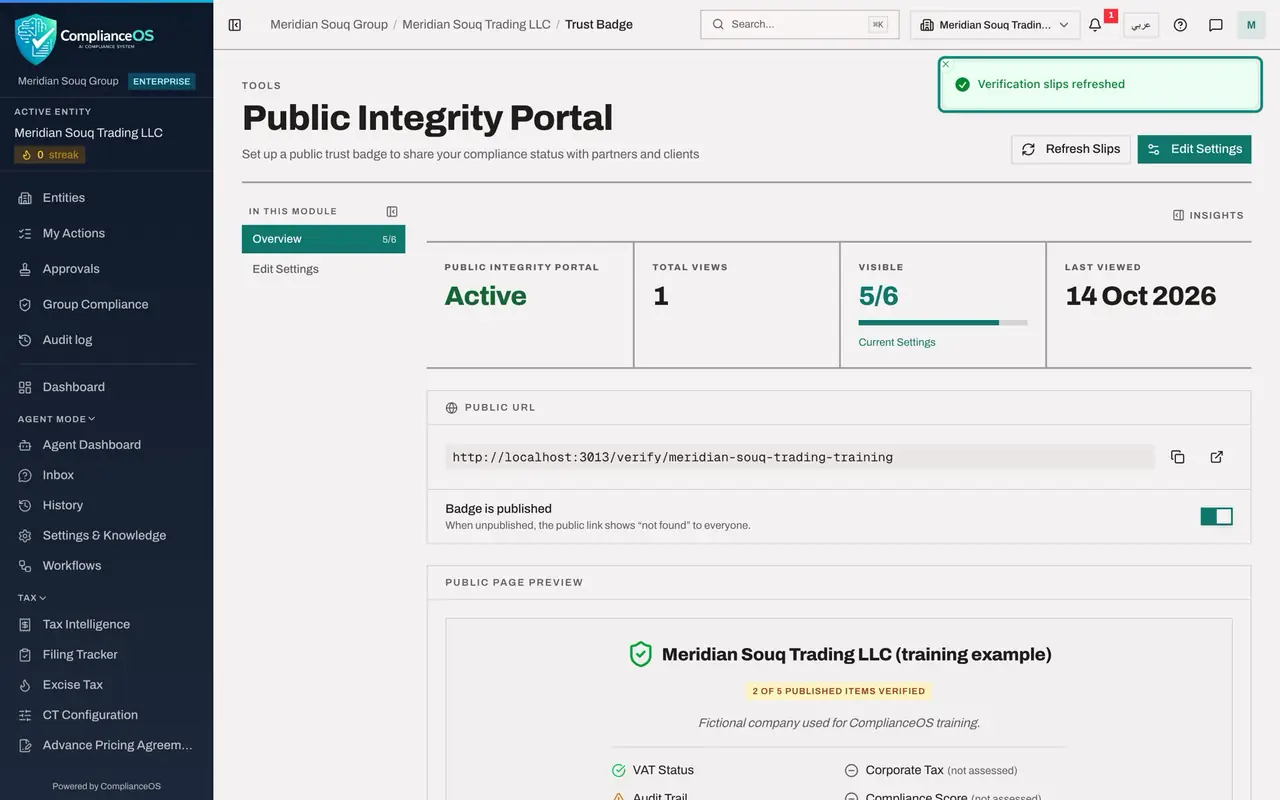
Return to ComplianceOS and open Trust Badge again. Total Views has gone up by one and Last Viewed shows today's date. Every opening of the public page is counted.
- 5
Open Insights
Select Insights. The panel shows Verification activity, with the views and the last view, then Who checked, recent access, with the total number of checks and the date and time of each recent one. It does not say who the visitor was. Trust profile shows the status, the number of visible items and when the settings were last updated. Close the panel.
- Select Show insights panel
- 6
Select Refresh Slips
Close the panel and select Refresh Slips at the top right. The app reads each source again and stores the values. The message Verification slips refreshed confirms it. Do this whenever the records behind the badge have changed, for example after a return is filed.
- Select Close
- Select Refresh Slips
- 7
Select Edit Settings
Select Edit Settings. The same form opens as when you created the badge, headed Edit Verification Profile, filled with the current values.
- Select Edit Settings
- 8
Change the message and switch an item off
Replace the message with: Fictional company used for ComplianceOS training. Figures refreshed monthly. Then switch off Compliance Score, which has no report behind it yet. Select Update Profile. The message Verification profile updated appears.
- Type Custom Message (optional):
Fictional company used for ComplianceOS training. Figures refreshed mo… - Select Toggle Compliance Score
- Select Update Profile
- Type Custom Message (optional):
- 9
Check the result
Back on the badge page, Visible reads 4 of 6, and the table Published items no longer lists the compliance score. The public page has changed in the same way.
- 10
Unpublish the badge
To take the public page down, select the switch Badge is published. The message Trust badge unpublished appears and the line now reads Badge is not published. Your address and settings are kept.
- Select Publish the trust badge
- 11
See what a customer sees now
Open the public address again. The page says Verification not found: this trust badge does not exist or is no longer published.
- 12
Publish it again
Return to Trust Badge and select the switch once more. The message Trust badge published appears, and the same address works again.
- Select Publish the trust badge
How to check it worked
The public page shows the company's heading, the count of verified items, your message and five items with their values, and a line saying when the figures were checked and that they are not a certificate from the tax authority. Back on the Trust Badge page, Total Views has gone up and Last Viewed shows today. At the end of the lesson the switch reads Badge is published.
Common mistakes
- Telling customers the page is a certificate. The public page itself says that the figures come from the business's records in ComplianceOS and are not a certificate from the Federal Tax Authority.
- Forgetting Refresh Slips after the underlying records change. The published values are a stored snapshot. They change when you select Refresh Slips.
- Deleting nothing but hoping the page is gone. To take the page down, switch off Badge is published. The link then shows Verification not found to everyone, and your settings are kept.
Check your understanding
1. A customer opens the link after you switched off Badge is published. What do they see?
- A.The old values
- B.A sign-in page
- C.Verification not found
- D.An empty page with your logo
Show answer
Answer: C. Verification not found
When the badge is unpublished the public link shows not found to everyone. Switching it back on restores the page with the same address.
2. How do you bring the published values up to date?
- A.They update every time someone opens the page
- B.Select Refresh Slips
- C.Create the profile again
- D.Ask the auditor
Show answer
Answer: B. Select Refresh Slips
Refresh Slips reads the sources again and stores the new values. The message Verification slips refreshed confirms it.