Lesson 20 of 27
Policy Engine: work the alerts, pause a rule and delete a rule
What you will be able to do
This lesson is for the compliance officer. A rule is only useful if someone looks at what it finds. You will read the alerts raised by the rule from the previous lesson, open a matched record, mark the alerts as resolved and find them again under Resolved, then add a second rule, pause it, and delete it.
Before you start
- You are signed in as the compliance officer, Mariam Aziz.
- The rule Large purchases over 50,000 dirhams has been run and has raised two alerts.
Steps
- 1
Open the Policy Engine and select Alerts
In the left menu select Policy Engine. Unresolved Alerts at the top reads 2. Select Alerts. The panel lists the two alerts, newest first.
- Select Policy Engine
- Select Alerts
- 2
Read one alert
Each alert shows a severity label, here Medium, the kind of record and the date. Its title names the record that matched: here the transaction's description, its amount and its date, Winter homeware stock for the Deira store, 62,000.00 dirhams. The lines under it give the rule's name and the rule itself. On the right are View and Resolve.
- 3
Select View
Select View on the first alert. Tax Intelligence opens on the Transactions list, already narrowed to that transaction's date and counterparty, so the matched purchase is the row shown.
- Select View
- 4
Go back and resolve the first alert
You have checked the purchase against its approval. Go back to the Policy Engine from the left menu and select Alerts. Select Resolve on the first alert. It leaves the Open list, and the heading now reads 1 unresolved.
- Select Policy Engine
- Select Alerts
- Select Resolve
- 5
Resolve the second alert
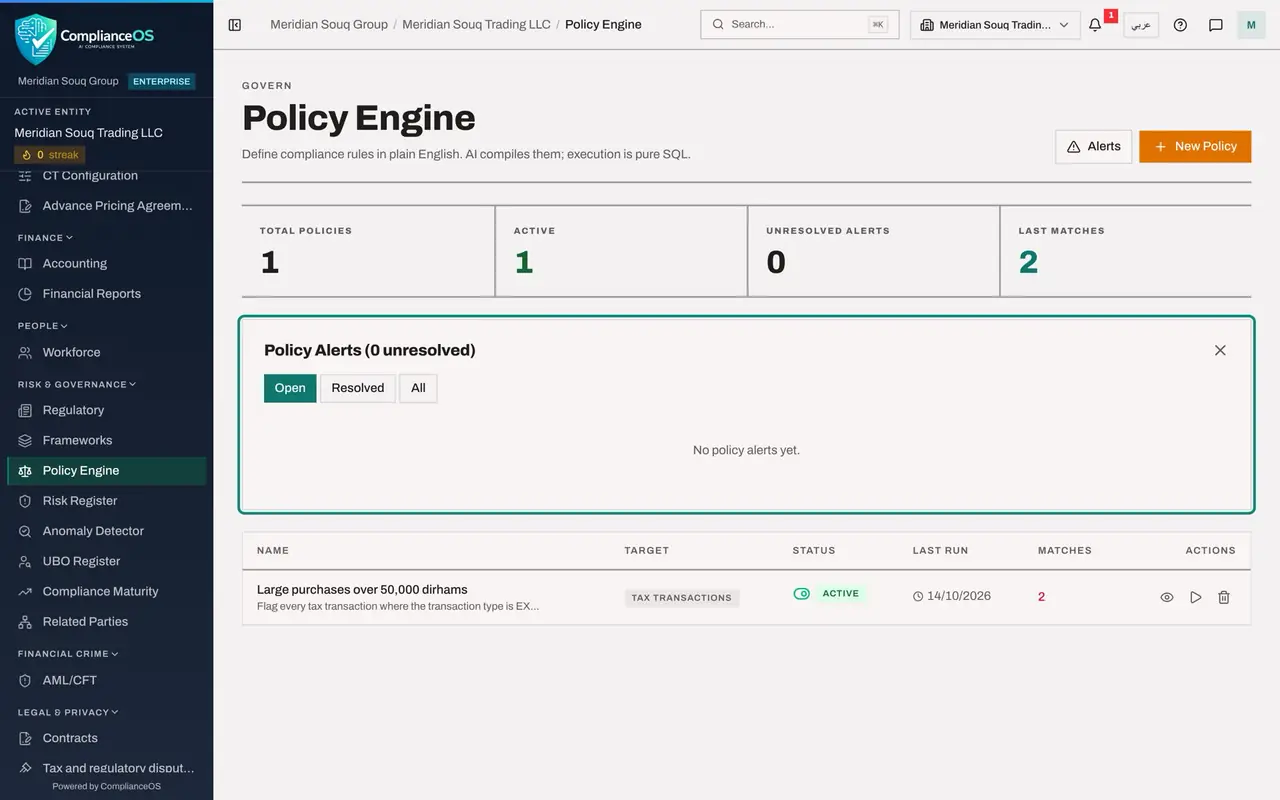
Select Resolve on the other alert, the shop fit-out of 128,000.00 dirhams. The heading reads 0 unresolved, and Unresolved Alerts at the top of the page is back to zero.
- Select Resolve
- 6
Select Resolved
Above the list, the filter reads Open, Resolved and All. Select Resolved. Both alerts are listed with the date and time each was resolved, so the record of what the rule found is kept.
- Select Resolved
- 7
Add a second rule
Close the alerts panel with its cross and select New Policy. Type the name Sales to hotel customers, keep the target Tax Transactions, and describe the rule: Flag every tax transaction where the transaction type is INCOME and the vendor name contains Hospitality. Select Create and Compile.
- Select Close
- Select New Policy
- Type Policy Name:
Sales to hotel customers - Type Policy Description (Natural Language):
Flag every tax transaction where the transaction type is INCOME and th… - Select Create & Compile
- 8
Pause the rule
The sales team asks you to hold this rule back for now. In the Status column of its row, select the label Active. It changes to Inactive, and the play arrow on the row is greyed out: an inactive rule cannot be run. Total Policies at the top reads 2 and Active reads 1.
- Select Active
- 9
Select the bin
In the end the rule is not wanted. Select the bin at the end of its row. A window asks you to confirm: Delete policy, followed by the rule's name.
- Select Delete
- 10
Select Confirm
Select Confirm. The rule leaves the list at once, and Total Policies is back to 1. Deleting a rule cannot be undone: to bring it back you would have to describe it and compile it again.
- Select Confirm
How to check it worked
Alerts is headed Policy Alerts, 0 unresolved, and under Resolved both alerts are listed with when they were resolved. The list has one rule again, Large purchases over 50,000 dirhams. The second rule, Sales to hotel customers, is gone.
Common mistakes
- Resolving an alert without looking at the record. Resolve only records that you have dealt with it. This page offers no way to reopen it.
- Clearing the filters on the Transactions list before looking. View narrows the list to the matched transaction's date and counterparty: that is the row to check.
- Deleting a rule to stop it for a while. Select its Active label instead: the rule becomes Inactive, Run now is greyed out, and the rule and its history stay.
Check your understanding
1. How do you pause a rule without losing it?
- A.Delete it and create it again later
- B.Select its Active label in the Status column, which changes it to Inactive
- C.Resolve all its alerts
- D.Rename it
Show answer
Answer: B. Select its Active label in the Status column, which changes it to Inactive
The status label is a switch. An inactive rule stays in the list, and its Run now button is greyed out until you select the label again.
2. What does Resolve do to an alert?
- A.Deletes the matched record
- B.Marks the alert as dealt with: it moves from Open to Resolved and is no longer counted as unresolved
- C.Runs the rule again
- D.Sends an email
Show answer
Answer: B. Marks the alert as dealt with: it moves from Open to Resolved and is no longer counted as unresolved
The alert moves to the Resolved list with the time it was resolved, and the count of unresolved alerts goes down by one. The matched record itself is not changed.