Lesson 5 of 27
Bring in products from a spreadsheet, and export the list
What you will be able to do
This lesson is for the accountant. When there are many products, typing each one is slow. You will download the template, bring in a file of five products, read the result to see which rows were imported and why two were skipped, and then download the whole product list as a file.
Before you start
- You are signed in as the accountant, Ahmed Saleh, and three products are registered.
- You have a spreadsheet saved as a CSV file, excise-products-october.csv, with five rows: a cola, a tobacco molasses, a refillable device, the energy drink that is already registered, and a packet of crisps with a category that does not exist.
Steps
- 1
Open Excise Tax and select Template
In the left menu select Excise Tax. Above the Products list select Template. An Excel file named excise products template is downloaded. It has one column for each field of the form, and the columns marked with a star are required: product code, product name, excise category and retail sale price. The sample rows inside it are examples only: replace them with your own products.
- Select Excise Tax
- Select Template
- 2
Select Import
Select Import. The Import Products window opens. It accepts a CSV file or an Excel file, and Download Template offers the same template again.
- Select Import
- 3
Choose your file
Select the file box and pick your spreadsheet, here excise-products-october.csv. Its name appears in the box, and the button Upload and Import becomes available.
- Upload File (CSV or XLSX):
excise-products-october.csv
- Upload File (CSV or XLSX):
- 4
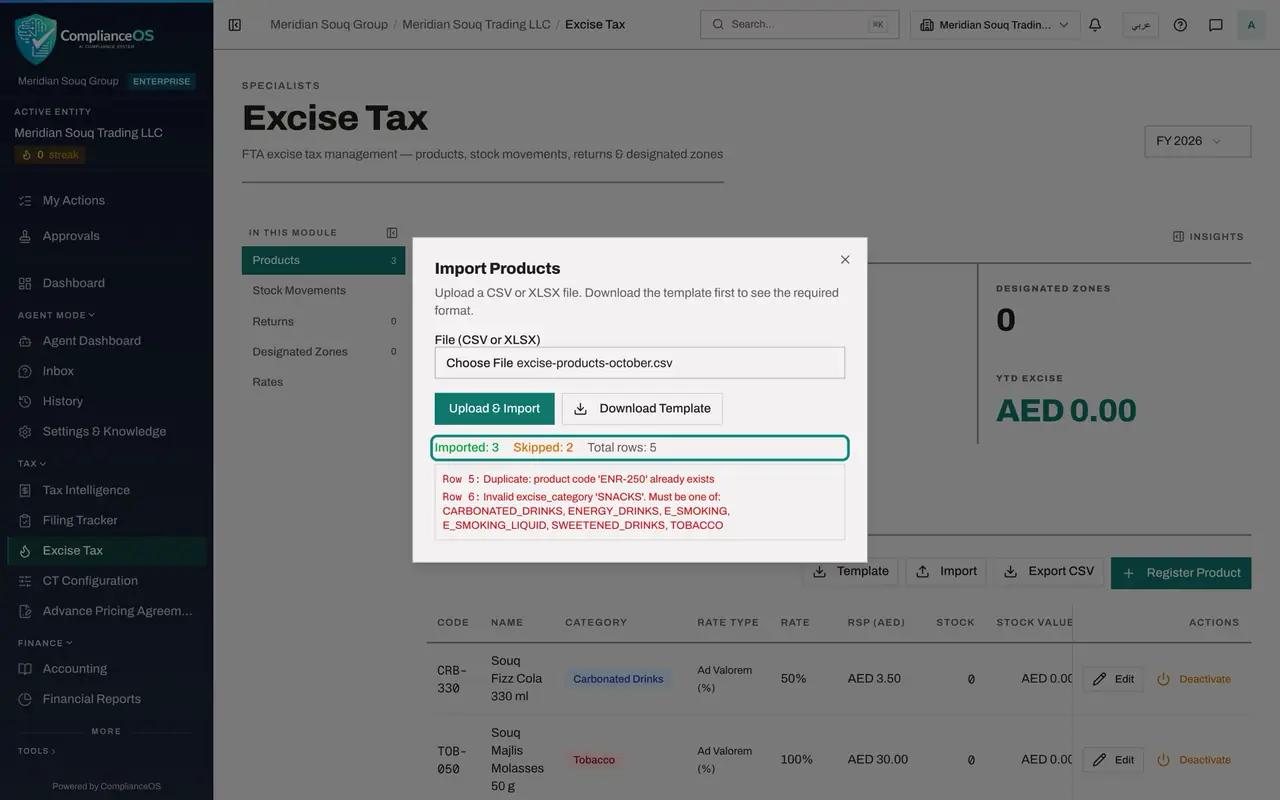
Select Upload and Import
Select Upload and Import. The rows are checked and saved in one go: there is no preview first. When it finishes, the result appears in the same window.
- Select Upload & Import
- 5
Read the skipped rows
The result reads Imported 3, Skipped 2, Total rows 5. Under it each skipped row is listed with its row number in the file, counting the heading as row 1. Row 5 was skipped as a duplicate because the energy drink's code already exists. Row 6 was skipped because SNACKS is not an excise category, and the message lists the six accepted values.
- 6
Close the window and read the list
Close the window with the cross. The Products list now has six rows. The three new products took their rate from their category: 50 percent for the cola, and 100 percent for the molasses and the device.
- Select Close
- 7
Select Export CSV
Select Export CSV, next to Import. A CSV file named excise products with today's date is downloaded. It lists every product with its code, name, category, rate, price, stock, customs code, whether it is imported, and its status. Use it to check the list against your price file, or to hand it to your adviser.
- Select Export CSV
How to check it worked
The import result says Imported 3, Skipped 2, Total rows 5, and names row 5 and row 6 with the reason for each. The Products list has six rows, including CRB-330, TOB-050 and ESD-001, and a file named excise-products with today's date has been downloaded.
Common mistakes
- Writing the category the way it appears on screen, such as Carbonated Drinks. In the file the category is written in capitals with underscores, such as CARBONATED_DRINKS. The template lists the accepted values.
- Closing the window before reading the result. Skipped rows are not saved anywhere else: note the row numbers and reasons, fix the file, and import the corrected rows.
- Importing the same file twice to be safe. Rows whose product code already exists are skipped, so nothing is doubled, but nothing is updated either. Use Edit to change a product that exists.
Check your understanding
1. The file contains a product code that is already registered. What does the import do with that row?
- A.Updates the existing product
- B.Creates a second product with the same code
- C.Skips it and lists it with the reason Duplicate
- D.Stops the whole import
Show answer
Answer: C. Skips it and lists it with the reason Duplicate
The good rows are imported and the row with the existing code is skipped. The result names the row and says the product code already exists.
2. What does Export CSV on the Products section download?
- A.Only the rows on screen
- B.The whole product list as a CSV file
- C.The import template
- D.The excise return
Show answer
Answer: B. The whole product list as a CSV file
Export CSV downloads every registered product with its code, name, category, rate, price, stock, customs code, imported flag and status.