Lesson 1 of 27
Find Excise Tax and read the page
What you will be able to do
This lesson is for the tax manager and the accountant. Excise tax is a tax on goods such as tobacco, energy drinks, carbonated drinks, sweetened drinks and electronic smoking products. You will find the Excise Tax page, read the figures at the top, visit its five sections while they are still empty, and read the reference table of rates that the app applies.
Before you start
- You are signed in as the tax manager, Fatima Noor.
- Nothing has been recorded for excise tax yet, so every section shows its empty message.
Steps
- 1
Open Excise Tax from the left menu
In the left menu, find the group named Tax and select Excise Tax. The page opens on its first section, Products.
- Select Excise Tax
- 2
Read the figures at the top
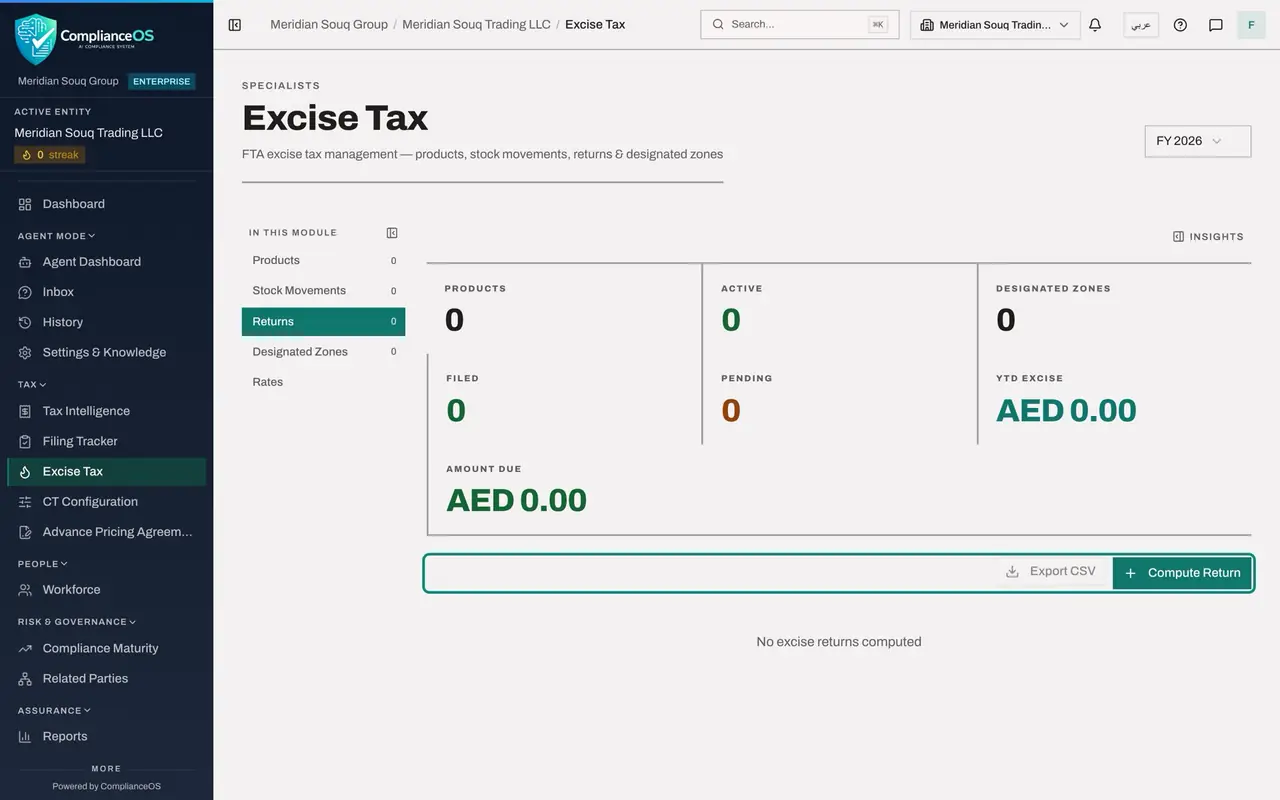
Seven figures summarise the year: Products and Active count the goods you have registered, Designated Zones counts your bonded warehouses, Filed and Pending count returns, YTD Excise, short for year to date, is the excise for the year so far, and Amount Due is the excise in returns that are computed and not yet filed. Everything is zero for now.
- 3
Find the year selector
At the top right, the selector reads FY 2026, the current financial year. It decides which year's returns the figures and the Returns section show. Open it to choose another year or All Years.
- Select Year
- 4
Keep FY 2026 and read the Products section
Choose FY 2026 again. Under the heading In this module, Products is selected. The list says No excise products registered. Above it are four buttons: Template and Import bring products in from a spreadsheet, Export CSV is greyed out until there is something to export, and Register Product adds one by hand.
- Choose FY 2026
- 5
Select Stock Movements
Select Stock Movements. A stock movement is one event in the life of the goods: an import, a sale, a transfer, a disposal. The list says No stock movements recorded. Template, Import and Record Movement sit above it.
- Select Stock Movements
- 6
Select Returns
Select Returns. This is where the app adds up a period's movements into an excise return. It says No excise returns computed. Compute Return starts one, and Export CSV downloads the list once it has rows.
- Select Returns
- 7
Select Designated Zones
Select Designated Zones. A designated zone is a warehouse or area approved by the tax authority where excise goods can be held before the tax is due. None is registered yet. Add Zone records one.
- Select Designated Zones
- 8
Select Rates and read the percentage rates
Select Rates. The note at the top says these are the rates applied by the app, for reference only. The first table, Ad Valorem Rates, gives a percentage for each category: 100 percent for tobacco, energy drinks, electronic smoking devices and their liquids, and 50 percent for carbonated drinks and sweetened drinks. Ad valorem means a percentage of the price.
- Select Rates
- 9
Read the rates per litre and the cap
The second table, Volumetric Rates, gives an amount per litre for each sugar tier: nothing for the low tier, 0.79 dirhams for the moderate tier and 1.09 dirhams for the high tier. Below it, Max specific rate per unit shows 100 dirhams: the most the app accepts when a product is taxed at a fixed amount per unit.
- 10
Open Insights
Select Insights at the top right of the figures. A panel slides in with the same counts for the year, the product registry, and a one line note that sums them up. Pin keeps the panel open beside the page. Close it with the cross.
- Select Show insights panel
- 11
Close Insights and go back to Products
Close the panel and select Products. This is where the next lesson starts: registering the first excise product.
- Select Close
- Select Products
How to check it worked
You can open Excise Tax from the Tax group of the left menu, name its five sections, which are Products, Stock Movements, Returns, Designated Zones and Rates, and say which rate the app applies to an energy drink: 100 percent.
Common mistakes
- Looking for excise tax inside Tax Intelligence. It has its own page, Excise Tax, in the Tax group of the left menu.
- Reading the Rates section as something you can change. It is a reference table of the rates built into the app. The rate of each product comes from the category you choose when you register it.
- Expecting the app to file with the tax authority. Nothing on this page is sent anywhere. You file on the authority's own portal and record here that you did.
Check your understanding
1. Where do you open Excise Tax?
- A.Inside Tax Intelligence, under Returns
- B.In the Tax group of the left menu
- C.In Settings
- D.In the Filing Tracker only
Show answer
Answer: B. In the Tax group of the left menu
Excise Tax is its own page, listed in the Tax group of the left menu next to Tax Intelligence and Filing Tracker.
2. What does the Rates section let you do?
- A.Change the excise rates
- B.Read the rates the app applies
- C.File a return
- D.Register a product
Show answer
Answer: B. Read the rates the app applies
Rates is marked reference only. It lists the percentage for each category and the amount per litre for each sugar tier, and nothing in it can be edited.