Lesson 19 of 27
Policy Engine: write a rule in plain English and run it
What you will be able to do
This lesson is for the compliance officer. The Policy Engine lets you describe a check in an ordinary sentence, such as flag every purchase above a certain amount. The AI turns the sentence into a filter once, and from then on the filter is run against your records without AI. You will write a rule for tax transactions, read the filter the AI built from it, run it, and find the alerts it raised.
Before you start
- You are signed in as the compliance officer, Mariam Aziz.
- The accountant brought in eight tax transactions in the catch-up lesson, and the tax manager has signed off their classifications. Two of them are purchases above 50,000 dirhams.
- Creating a rule uses the AI once, to compile the sentence. It can take up to a minute.
Steps
- 1
Open the Policy Engine
In the left menu, in the group Risk and Governance, select Policy Engine. The page has four figures, Total Policies, Active, Unresolved Alerts and Last Matches, all at zero, and an empty list that says No policies yet. At the top right are Alerts and New Policy.
- Select Policy Engine
- 2
Select New Policy
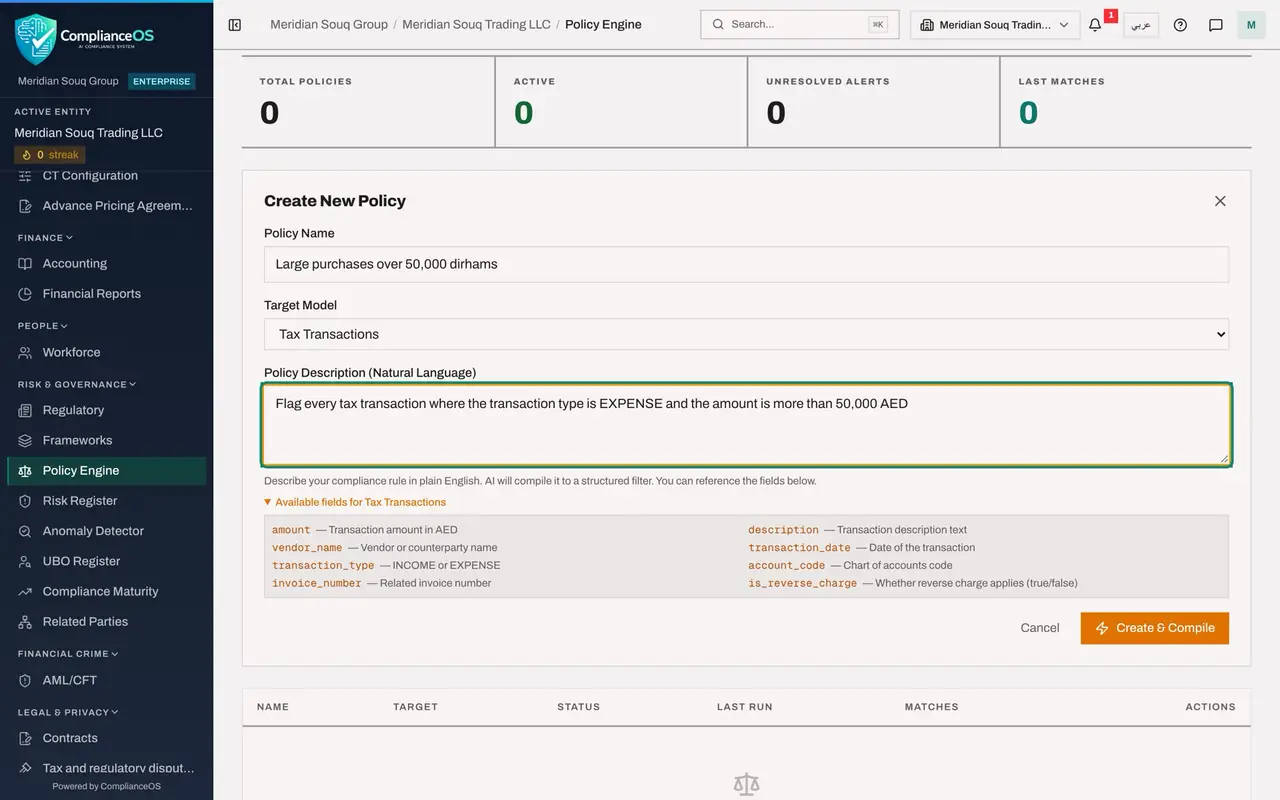
Select New Policy. The Create New Policy form opens above the list, with three fields: a name, a target and a description.
- Select New Policy
- 3
Type the name
In Policy Name type a short name that says what the rule catches, here Large purchases over 50,000 dirhams. The name appears in the list and at the start of every alert the rule raises.
- Type Policy Name:
Large purchases over 50,000 dirhams
- Type Policy Name:
- 4
Choose the target
Target Model is the kind of record the rule looks at. The list offers three kinds: Tax Transactions, Contracts and Employees. A rule looks at one kind only. Keep Tax Transactions.
- Choose Target Model:
Tax Transactions
- Choose Target Model:
- 5
Open the list of available fields
Under the description box, select Available fields for Tax Transactions. It lists what a rule on this target can refer to: the amount in dirhams, the description, the vendor or counterparty name, the transaction date, the transaction type, which is INCOME or EXPENSE, the account code, the invoice number, and whether reverse charge applies.
- Select Available fields for Tax Transactions
- 6
Describe the rule
In Policy Description write the rule as one clear sentence, using the field names you have just read. Type: Flag every tax transaction where the transaction type is EXPENSE and the amount is more than 50,000 AED. Say exactly which records, and give exact values.
- Type Policy Description (Natural Language):
Flag every tax transaction where the transaction type is EXPENSE and t…
- Type Policy Description (Natural Language):
- 7
Select Create and Compile
Select Create and Compile. The button reads Compiling while the AI turns your sentence into a filter. Then the form closes and the rule appears in the list, with the status Active, Never under Last Run and 0 under Matches.
- Select Create & Compile
- 8
Open the rule's details
Each row ends with three icons: an eye for the details, a play arrow to run the rule, and a bin to delete it. Select the eye. A panel opens with the target, the filter version, when the rule last ran and how many records it matched.
- Select View details
- 9
Read the compiled filter
Compiled Filter is what the AI built. Read it line by line. It has two conditions: the field transaction type must equal EXPENSE, and the field amount must be greater than 50000. The word AND means both must be true. It also carries a severity, which is copied onto each alert. If the filter does not say what you meant, delete the rule and describe it again more exactly.
- 10
Close the details and select Run now
Close the panel with its cross. On the row select the play arrow, Run now. The rule is applied to every tax transaction of the entity. A message says the run found 2 matches, the Policy Alerts panel opens by itself, Last Run shows today's date and Matches shows 2.
- Select Close
- Select Run now
- 11
Open Alerts again later
Each match raises one alert. When you come back to the page later, select Alerts at the top right to open the panel again. It is headed Policy Alerts, 2 unresolved, and Unresolved Alerts at the top reads 2. Working through alerts is the next lesson.
- Select Alerts
How to check it worked
The list has one rule, Large purchases over 50,000 dirhams, with the target Tax Transactions, the status Active, today's date under Last Run and 2 under Matches. The figures at the top read Total Policies 1, Active 1 and Last Matches 2, and Alerts shows 2 unresolved alerts.
Common mistakes
- Writing a rule about something the target does not hold. Open Available fields first: a rule can only use the fields listed there for the chosen target.
- Saving the rule without reading the compiled filter. The filter is what actually runs. Open the rule's details and check that the fields, the comparisons and the values say what you meant.
- Expecting the rule to run as soon as it is created. A new rule shows Never under Last Run until you select Run now.
- Running the rule again and expecting new alerts for the same records. A record that already has an open alert from the rule is not alerted again.
Check your understanding
1. When does the Policy Engine use AI?
- A.Every time a rule runs
- B.Once, to turn your sentence into a filter when the rule is created
- C.Never
- D.Only when an alert is resolved
Show answer
Answer: B. Once, to turn your sentence into a filter when the rule is created
The button is called Create and Compile: the sentence is compiled into a structured filter. Running the rule applies that filter to the records.
2. Where do you check what a rule will really look for?
- A.In the rule's name
- B.In Compiled Filter, in the rule's details
- C.In the Evidence Vault
- D.In the audit log
Show answer
Answer: B. In Compiled Filter, in the rule's details
The details panel shows the compiled filter: each condition with its field, its comparison and its value, and whether all or any of them must be true.