Lesson 9 of 27
Bring in stock movements from a spreadsheet
What you will be able to do
This lesson is for the accountant. A month of movements usually comes out of the stock system as a spreadsheet. You will download the movements template, bring in a file of six movements, and read the result: which rows were saved, and why one was skipped.
Before you start
- You are signed in as the accountant, Ahmed Saleh. Six products are registered and four movements are recorded.
- You have a CSV file, excise-movements-september.csv, with six rows: for September 2026 an import of cola, an import of molasses, a sale of cola and a disposal of damaged energy drinks, then one import of molasses from late August, and an import for the product code ESD-777, which is not registered.
Steps
- 1
Open Stock Movements and select Template
In the left menu select Excise Tax, then Stock Movements. Select Template. An Excel file named excise stock movements template is downloaded. Its columns are the product code, the movement type, the movement date, the quantity and the unit price, which are all required, then the designated zone name, the reference number and notes.
- Select Excise Tax
- Select Stock Movements
- Select Template
- 2
Select Import and choose your file
Select Import. The Import Stock Movements window opens. Select the file box and pick your file, here excise-movements-september.csv.
- Select Import
- Upload File (CSV or XLSX):
excise-movements-september.csv
- 3
Select Upload and Import
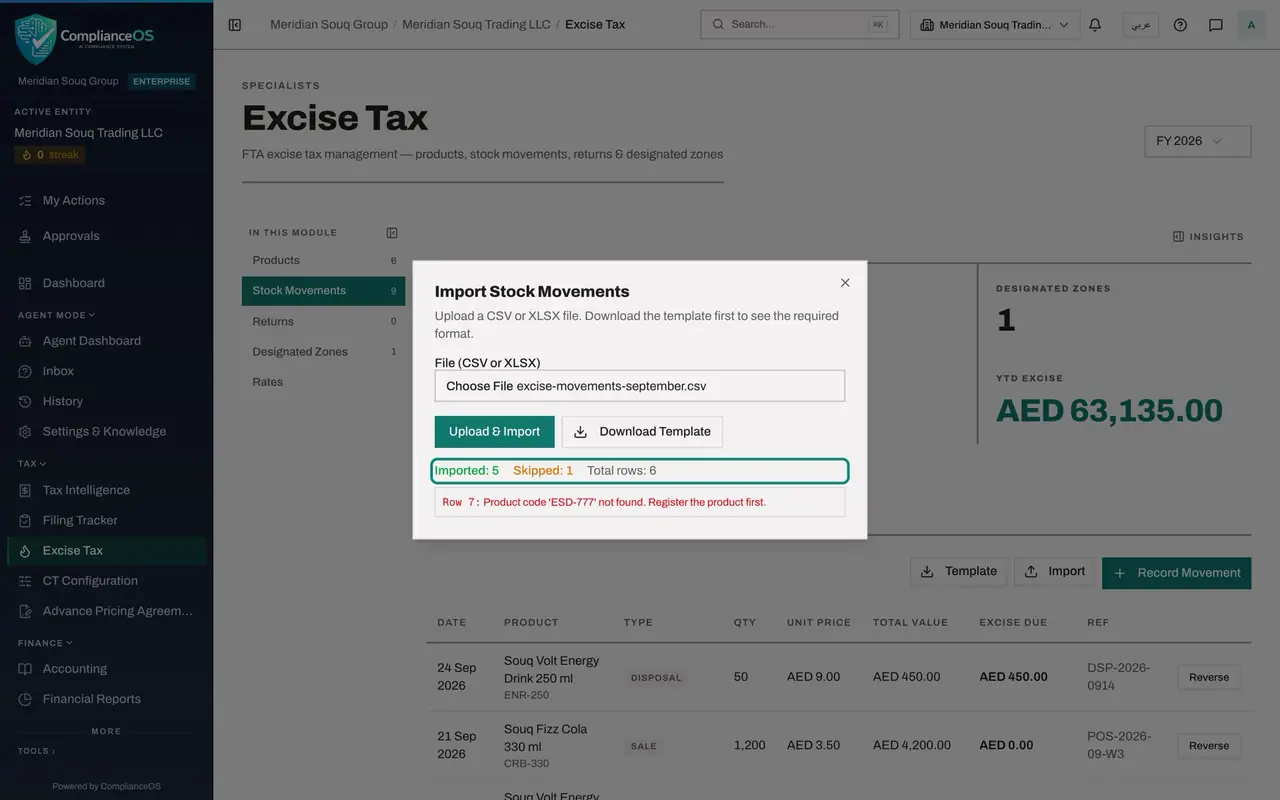
Select Upload and Import. As with products, the rows are checked and saved at once, and the result appears in the same window: Imported 5, Skipped 1, Total rows 6.
- Select Upload & Import
- 4
Read the skipped row
Row 7 of the file was skipped, and the reason is given beside it: its product code, ESD-777, is not on the Products list. The correct code for the device is ESD-001. Correct the file and import that one row again another day.
- 5
Close the window and read the list
Close the window with the cross. The list now has nine movements, newest first. The five new rows carry the references from the file. The app worked out the excise on each: the imports are charged, the sale shows zero, and the disposal of damaged cans shows an amount that will be taken off the return.
- Select Close
How to check it worked
The import result says Imported 5, Skipped 1, Total rows 6, and names row 7 with its reason. The Stock Movements list has nine rows, and the count beside Stock Movements under In this module reads 9.
Common mistakes
- Using a product code that is not registered. Each row must carry the code of a product on the Products list, typed exactly. Register the product first, then import its movements.
- Writing the movement type as it is spoken, such as transfer to zone. The file needs the exact word in capitals with underscores, such as TRANSFER_TO_DZ. The template lists all nine.
- Putting sales before the imports they depend on. The rows are checked against the stock on hand in the order they appear, so list the movements that add stock first.
Check your understanding
1. One row of the file has a product code that is not registered. What does the import do?
- A.Stops and saves nothing
- B.Saves the other rows and lists that row as skipped with the reason
- C.Registers the product for you
- D.Saves the row without a product
Show answer
Answer: B. Saves the other rows and lists that row as skipped with the reason
Good rows are saved. The skipped row is listed by its row number with the reason, so you can register the product and import that row again.
2. How is the date written in the import file?
- A.Day, month, year with slashes
- B.Year, month, day with dashes, such as 2026-09-07
- C.The month in words
- D.Any way you like
Show answer
Answer: B. Year, month, day with dashes, such as 2026-09-07
The template gives the format as year, month, day, separated by dashes.