Lesson 25 of 27
What a read-only auditor sees in these tools
What you will be able to do
This lesson is for auditors, and for the people who give them access. The auditor role can read and export but cannot change anything. You will see what that means in Excise Tax: the auditor reads the products, movements and returns and downloads a return, the buttons for adding and changing records are not shown. You will also see which of the other tools in this course the auditor role cannot open at all.
Before you start
- You are signed in as the auditor, Daniel Brooks, whose role is read only.
- The excise products, movements and returns from the earlier lessons are on record.
Steps
- 1
Open Excise Tax
In the left menu, under Tax, select Excise Tax. The auditor sees the figures and the six products, with Template and Export CSV, but no Register Product, Import, Edit or Deactivate.
- Select Excise Tax
- 2
Read the stock movements
Select Stock Movements. Every movement is listed with its date, type, quantity, prices, excise and reference. This is the trail an auditor follows from a return back to the paperwork.
- Select Stock Movements
- 3
Open the returns and download one
Select Returns. The filed September return shows its status and its filing reference. Select PDF on its card: the return is downloaded. Export CSV above the cards downloads the list of returns. Reading and exporting are what the auditor role is for.
- Select Returns
- Select PDF
- 4
Look for the buttons that add records
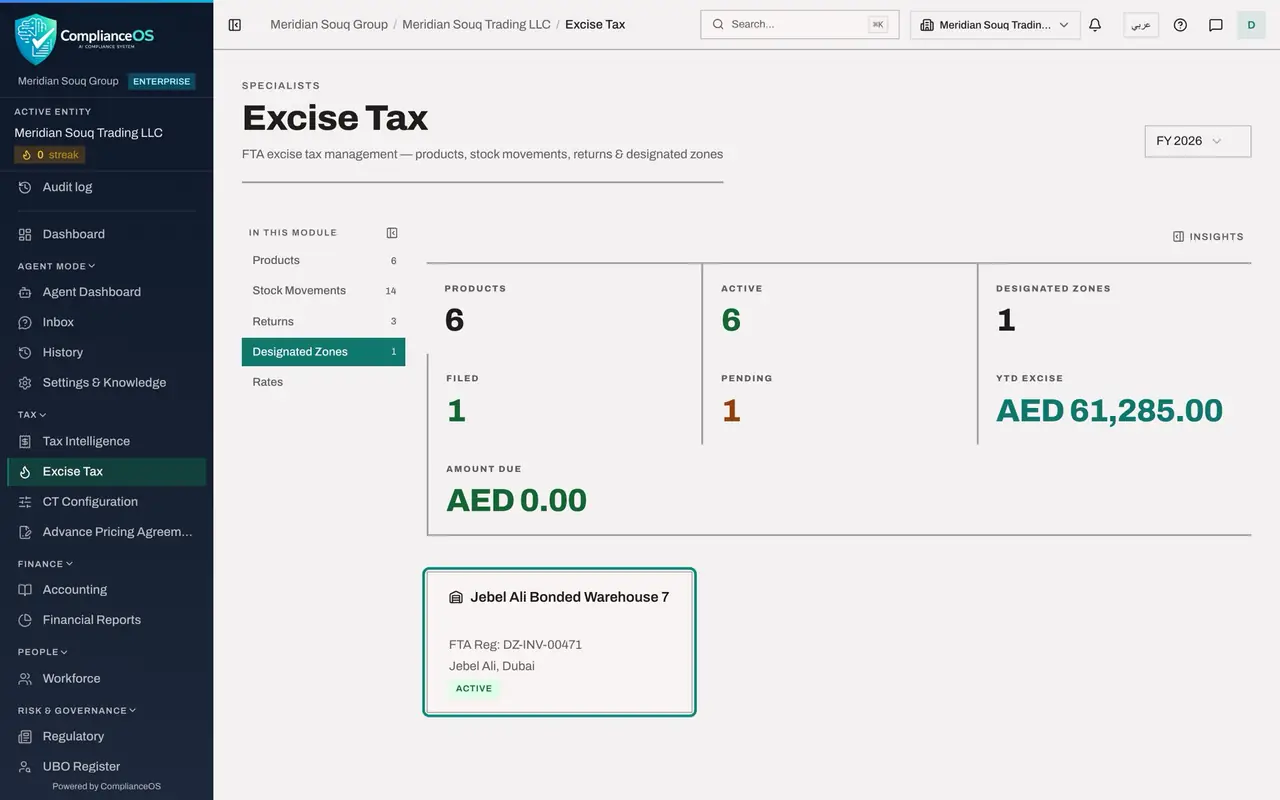
Select Designated Zones. The zone's card is there, but the button Add Zone is not: buttons that add or change a record are shown only to people who hold that permission. The same goes for Register Product, Record Movement, Compute Return, File and Amend.
- Select Designated Zones
- 5
Look for Government Portals
The auditor's left menu does not list Government Portals. If a colleague sends its address, the page says Module access required, and names the permission that is missing: Filing, View.
- 6
Open the address of the Trust Badge
The same happens with the address of the Trust Badge. The page says Module access required and names the permission Compliance tasks, View. The public page of the badge is different: anyone can open that without signing in.
- 7
Open the address of the Policy Engine
And with the Policy Engine: Module access required, naming the permission Policies, View. Select Back to overview to return to the entity dashboard. If your audit needs one of these pages, the message tells you whom to ask: an access administrator.
How to check it worked
As the auditor you can open Excise Tax, read every section and download the PDF of a return, and no button to add or change a record is offered. Government Portals is not in the left menu, and its address shows Module access required.
Common mistakes
- Thinking the page is broken because Register Product or Add Zone is missing. Those buttons appear only for people who may use them.
- Asking a colleague to make the change under your name. If you need to add records, ask an access administrator for a role that includes it.
- Looking for the filing receipts in Government Portals as an auditor. The built-in auditor role does not include that page. Ask the tax manager for the list, or ask the administrator for access.
Check your understanding
1. The auditor opens Designated Zones. What does she see?
- A.The zones and an Add Zone button that is refused on save
- B.The zones, with no Add Zone button
- C.Nothing
- D.Module access required
Show answer
Answer: B. The zones, with no Add Zone button
Reading is allowed, and a button that would change a record is shown only to people who hold that permission.
2. Which of these can the auditor do in Excise Tax?
- A.Register a product
- B.Download the PDF of a return
- C.File a return
- D.Record a movement
Show answer
Answer: B. Download the PDF of a return
Reading and exporting are allowed. Every action that adds or changes a record is refused.