Lesson 6 of 27
Add a designated zone
What you will be able to do
This lesson is for the accountant. A designated zone is a warehouse or area approved by the tax authority where excise goods can be held before the tax on them is due. A transfer of stock into or out of such a zone can only be recorded once the zone is on the list. You will add one zone and learn its three fields.
Before you start
- You are signed in as the accountant, Ahmed Saleh.
- You have the zone's details. Here it is an invented bonded warehouse: Jebel Ali Bonded Warehouse 7, with the invented registration number DZ-INV-00471, in Jebel Ali, Dubai.
Steps
- 1
Open Excise Tax and select Designated Zones
In the left menu select Excise Tax. Under In this module select Designated Zones. The section says No designated zones registered.
- Select Excise Tax
- Select Designated Zones
- 2
Select Add Zone
Select Add Zone. The Add Designated Zone form opens with three fields.
- Select Add Zone
- 3
Type the zone name
In Zone Name type the name of the warehouse as it appears on its approval, here Jebel Ali Bonded Warehouse 7. This is the only required field, and it is the name you will pick on a stock movement and write in an import file.
- Type Zone Name:
Jebel Ali Bonded Warehouse 7
- Type Zone Name:
- 4
Type the registration number
In FTA Registration Number type the number the Federal Tax Authority gave the zone, here the invented number DZ-INV-00471. It is optional, and it is shown on the zone's card.
- Type FTA Registration Number:
DZ-INV-00471
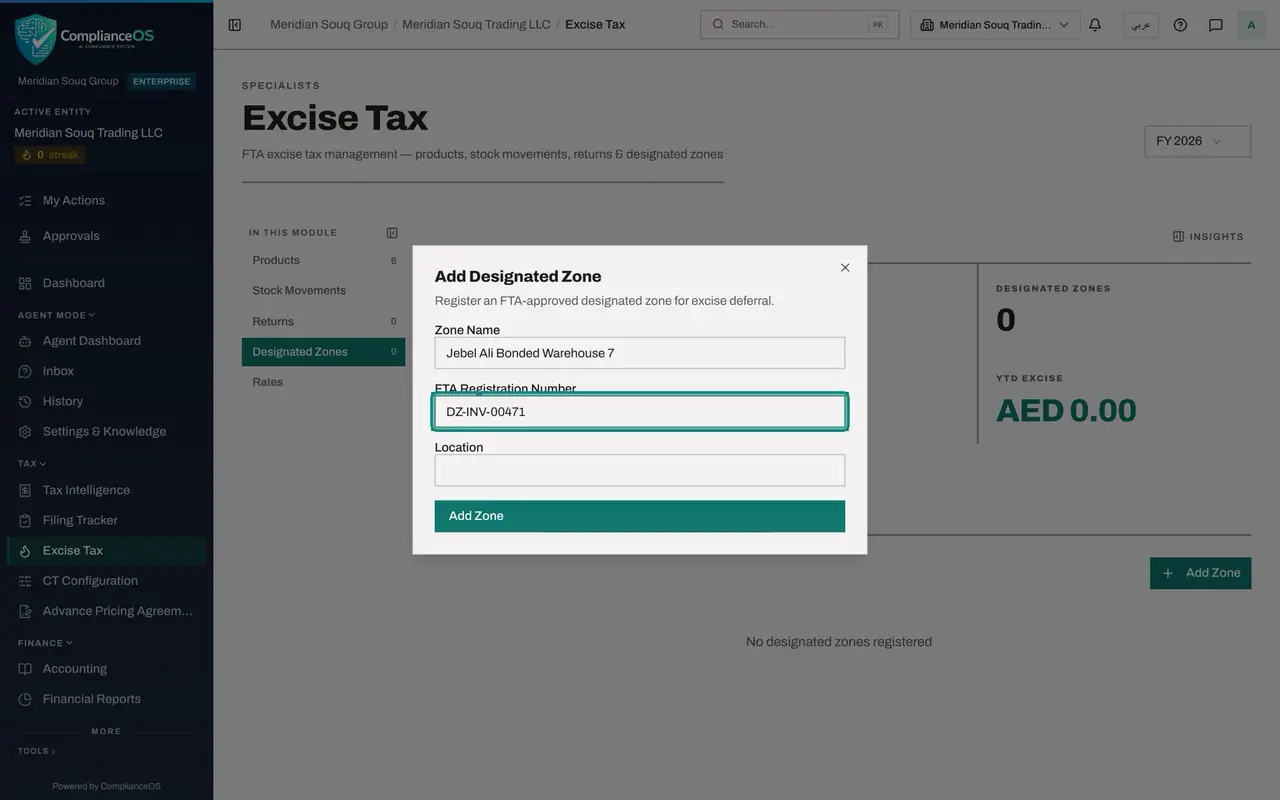
- Type FTA Registration Number:
- 5
Type the location
In Location type where the zone is, here Jebel Ali, Dubai. It is optional too.
- Type Location:
Jebel Ali, Dubai
- Type Location:
- 6
Select Add Zone
Select Add Zone at the bottom of the form. The form closes with the message Designated zone created.
- Select Add Zone
- 7
Read the zone's card
The zone appears as a card with its name, its registration number, its location and the status Active. The figure Designated Zones at the top of the page now reads 1.
How to check it worked
The Designated Zones section shows one card: Jebel Ali Bonded Warehouse 7, with its registration number, its location and the status Active. The Designated Zones figure at the top reads 1.
Common mistakes
- Recording a transfer first and adding the zone afterwards. The stock movement form offers only zones that are already on this list.
- Expecting to edit or remove a zone here. The card has no buttons: check the name and the number before you select Add Zone.
Check your understanding
1. Which field must be filled to add a designated zone?
- A.Zone Name
- B.FTA Registration Number
- C.Location
- D.All three
Show answer
Answer: A. Zone Name
Only Zone Name is required. The registration number and the location are optional, but they are what identify the zone to an auditor, so fill them in.
2. Why does the zone need to be on this list?
- A.To register a product
- B.To record a transfer to or from a designated zone
- C.To compute any return
- D.To export the product list
Show answer
Answer: B. To record a transfer to or from a designated zone
When the movement type is a transfer to or from a designated zone, the movement form asks which zone, and offers the zones on this list.