Lesson 15 of 27
Government Portals: add the portals you file on
What you will be able to do
This lesson is for the tax manager and anyone who files with an authority. Government Portals is a register of the authority websites your company files on, and of every filing made there. The app does not sign in to any portal and does not file for you. You will add two portals, one without and one with a stored sign-in name, learn every field of the form, and see what Check connection and Activity really do.
Before you start
- You are signed in as the tax manager, Fatima Noor.
- Never type a real password into the Credentials field in training. This lesson stores only an invented sign-in name. In real use, follow your company's rule on where passwords may be kept.
Steps
- 1
Open Government Portals
In the left menu, open the group Tools and select Government Portals. Read the blue note first: Filing is manual. The app has no access to EmaraTax, MOHRE or the other government portals, so it cannot submit filings or read their status. You file on the portal yourself, then record the submission and its receipt here.
- Select Tools
- Select Government Portals
- 2
Read the empty page
The page has two parts. Submissions and receipts will list each filing you record. Portals will show a card for each authority website. Both are empty, and the button Record submission is greyed out until a portal exists.
- 3
Select Add portal
Select Add portal at the top right. The Add government portal form opens. The note under the title says that credentials are optional, stored encrypted for your reference, and that the app does not sign in to the portal with them.
- Select Add portal
- 4
Choose the portal
Open Portal. Seven authorities are listed: EmaraTax of the Federal Tax Authority, MOHRE, which is the Ministry of Human Resources and Emiratisation, DIFC, ADGM, the Central Bank, the Ministry of Finance, and Customs. Choose EmaraTax, where tax returns are filed.
- Select Portal
- 5
Type a name
In Name type what your team calls this account, here EmaraTax main account. The name is required and needs at least two characters. If the company has more than one account on the same portal, the name is how you tell them apart.
- Type Name:
EmaraTax main account
- Type Name:
- 6
Leave the address and the credentials empty
Portal URL is optional: the web address of the portal's sign-in page, for colleagues who need to find it. Credentials JSON is optional too. Leave both empty for this portal, and select Add portal at the bottom.
- Select Add portal
- 7
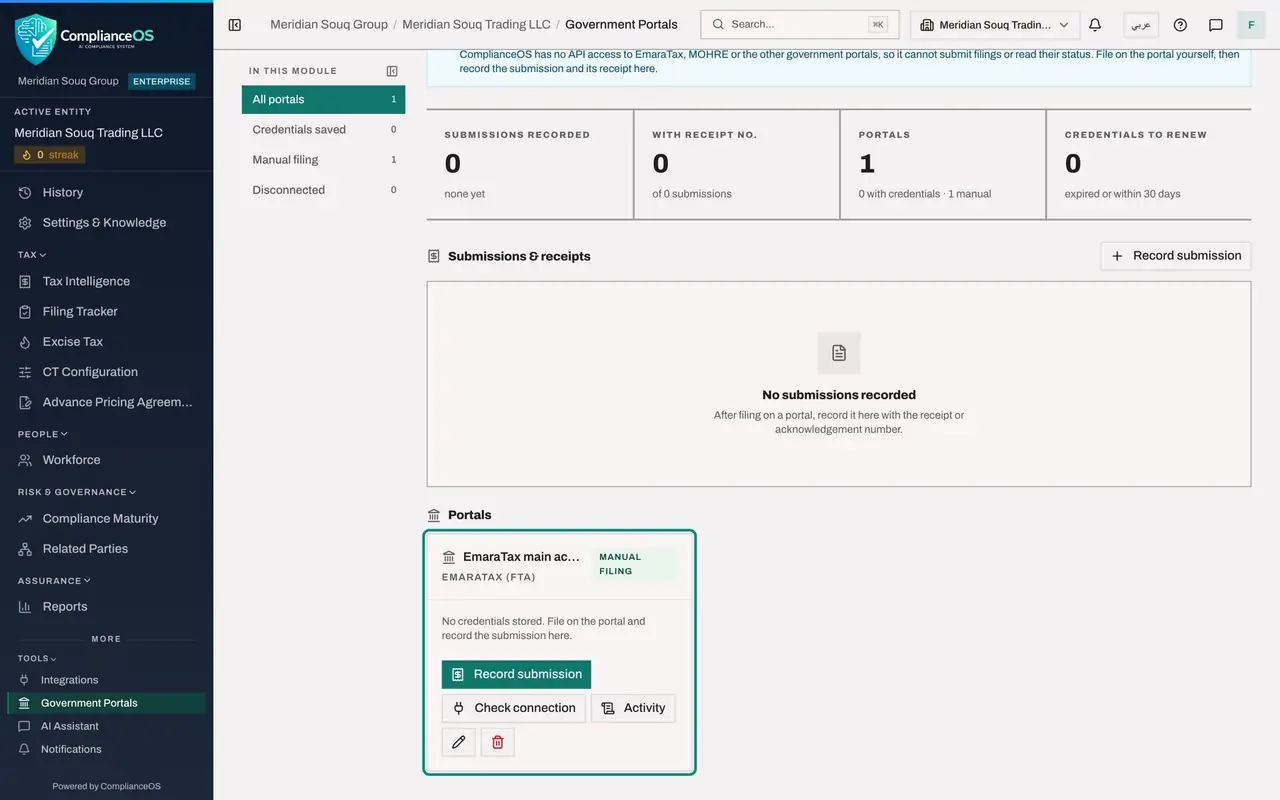
Read the portal's card
The portal appears as a card with its name, its authority and the label Manual filing: no credentials are stored, so you file on the portal and record the submission here. The card has the buttons Record submission, Check connection and Activity, a pencil to edit, and a button to remove credentials.
- 8
Add a second portal with a stored sign-in name
Select Add portal again. This time choose MOHRE and type the name MOHRE payroll account. In Portal URL type the invented address https://portal.example.com/labour.
- Select Add portal
- Select Portal
- Choose MOHRE
- Type Name:
MOHRE payroll account - Type Portal URL (optional):
https://portal.example.com/labour
- 9
Type the credentials the wrong way
Credentials JSON holds details such as the sign-in name of the account. First see what happens with plain words: type training user and select Add portal. A red message says Credentials must be valid JSON, and nothing is saved.
- Type Credentials JSON (optional):
training user - Select Add portal
- Type Credentials JSON (optional):
- 10
Type the credentials the right way
Replace the text with a JSON object: an opening curly bracket, the word username in double quotes, a colon, the invented sign-in name training.user in double quotes, and a closing curly bracket. Select Add portal. The help under the field says the content is encrypted before storage and never shown again.
- Type Credentials JSON (optional):
{"username": "training.user"} - Select Add portal
- Type Credentials JSON (optional):
- 11
Read the second card
The second card is labelled Credentials saved, not verified. The line under it explains that the credentials are stored encrypted for your reference and have not been checked against the portal. Beside Credentials it says No expiry set.
- 12
Select Check connection
Select Check connection on the second card. A message answers Not verifiable: ComplianceOS has no access to this portal, so nothing was contacted. The button does not test your sign-in.
- Select Check connection
- 13
Select Activity
Select Activity on the same card. The window lists the checks made for this portal: one line, with the time, the action Connection check and the result Not verifiable. Select a line to see its details, then close the window.
- Select Activity
- 14
Close the window and use the filter
Close the Activity window. On the left, under In this module, the counts read All portals 2, Credentials saved 1, Manual filing 1 and Disconnected 0. Select Credentials saved: only the MOHRE card is shown. All portals shows both again.
- Select Close
- Select Credentials saved
How to check it worked
The Portals section shows two cards. EmaraTax main account is marked Manual filing. MOHRE payroll account is marked Credentials saved, not verified. Under In this module, All portals reads 2, Credentials saved reads 1 and Manual filing reads 1. The Activity window of the second portal lists one connection check with the result Not verifiable.
Common mistakes
- Believing that Credentials saved means the app is connected to the portal. The card says not verified: the details are stored encrypted for your reference only, and nothing signs in with them.
- Typing the credentials as plain words. The field needs a small piece of structured text, called JSON, in curly brackets, such as the example in this lesson. Anything else is refused with the message Credentials must be valid JSON.
- Expecting Check connection to test the sign-in. It always answers Not verifiable, because the app has no access to the portal.
Check your understanding
1. What does ComplianceOS do with a government portal you add here?
- A.Signs in and files your returns
- B.Reads your filing status from the portal
- C.Keeps a record of the portal and of the filings you make on it
- D.Sends your documents to the authority
Show answer
Answer: C. Keeps a record of the portal and of the filings you make on it
The banner on the page says filing is manual: the app has no access to the portals. You file on the portal yourself, then record the submission and its receipt here.
2. You select Check connection on a portal. What is the result?
- A.Connected
- B.Sign-in failed
- C.Not verifiable, and nothing was contacted
- D.The portal opens in a new tab
Show answer
Answer: C. Not verifiable, and nothing was contacted
The message says the app has no access to this portal, so nothing was contacted. The check is written to the portal's Activity list with the result Not verifiable.