Lesson 22 of 27
Trust Badge: set up the public page
What you will be able to do
This lesson is for the compliance officer. The Trust Badge, which the page itself calls the Public Integrity Portal, is a public web page that shows a few facts about your company's compliance, taken from its records in ComplianceOS. Customers and partners can open it without signing in. You will choose the address and the heading of the page, decide which items it shows, create it, and read what is published.
Before you start
- You are signed in as the compliance officer, Mariam Aziz.
- Agree inside the company which items may be made public before you switch them on. Everything you switch on can be read by anyone who has the link.
Steps
- 1
Open Trust Badge
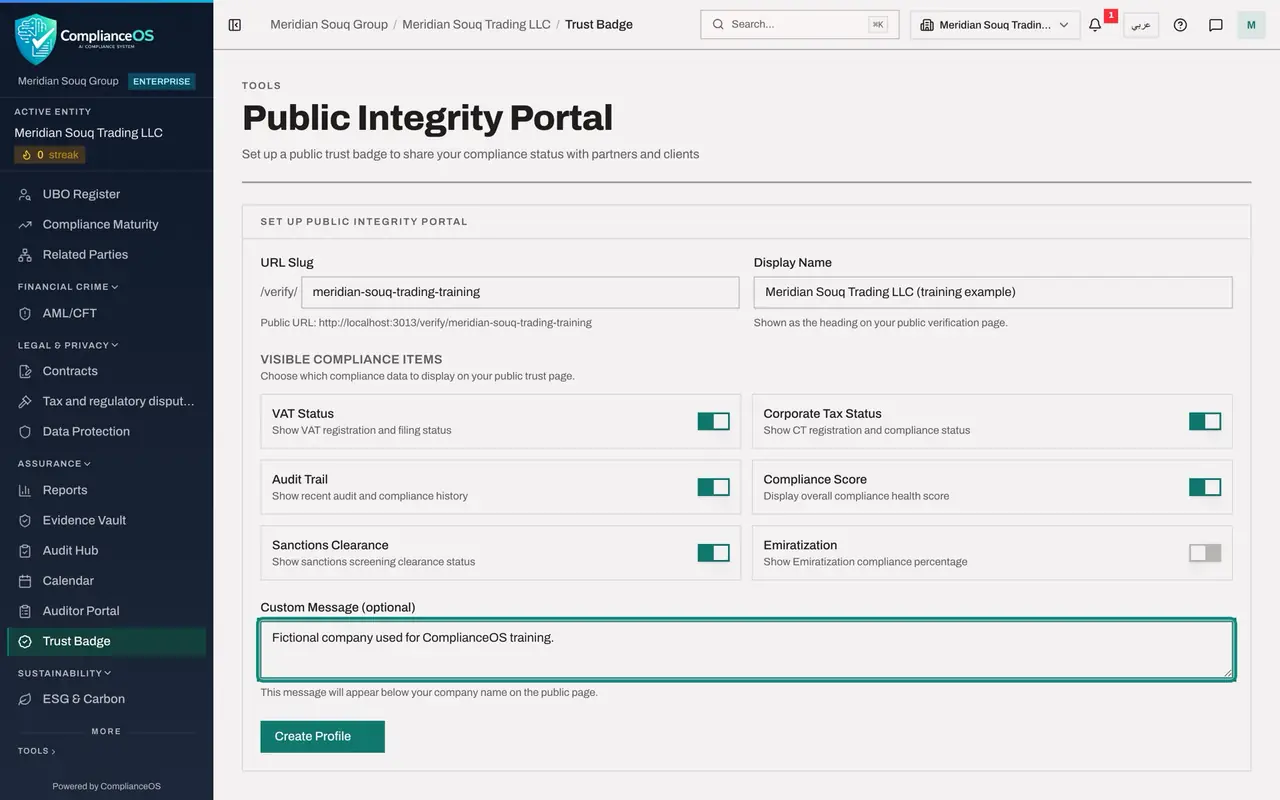
In the left menu, in the group Assurance, select Trust Badge. The page is headed Public Integrity Portal. Nothing is set up yet, so it shows the form Set up Public Integrity Portal.
- Select Trust Badge
- 2
Type the address
URL Slug is the last part of the public address, after verify and a slash. Type meridian-souq-trading-training. The full Public URL is shown under the field as you type. Use lower case letters, digits and hyphens only.
- Type URL Slug:
meridian-souq-trading-training
- Type URL Slug:
- 3
Type the display name
Display Name is the heading of the public page. Type the company's name as customers know it. Here it is Meridian Souq Trading LLC (training example), so that nobody mistakes this page for a real company's.
- Type Display Name:
Meridian Souq Trading LLC (training example)
- Type Display Name:
- 4
Read the six items
Under Visible Compliance Items are six switches, one for each fact the page can show: VAT Status, Corporate Tax Status, Audit Trail, Compliance Score, Sanctions Clearance and Emiratization. VAT is value added tax. Five are switched on to begin with, and Emiratization is off.
- 5
Leave Emiratization off
Leave the five items that are on as they are, and leave Emiratization off: this company has not decided to publish its workforce figures. An item that is off does not appear on the public page at all.
- 6
Type a message
Custom Message is optional. It appears under the company name on the public page. Type: Fictional company used for ComplianceOS training.
- Type Custom Message (optional):
Fictional company used for ComplianceOS training.
- Type Custom Message (optional):
- 7
Select Create Profile
Select Create Profile. The message Verification profile created appears, and the form is replaced by the page of your badge. The badge is published straight away.
- Select Create Profile
- 8
Read the figures and the address
Four figures head the page: the portal is Active, Total Views counts how often the public page has been opened, Visible shows 5 of 6 items, and Last Viewed says Never. Below, Public URL shows the full address, with a button to copy it and a button to open it. The switch Badge is published is on.
- 9
Read the preview with care
Public Page Preview shows the heading, then a label counting what could be checked: 2 of 5 published items verified. Below your message, only the verified items have a green tick. Audit Trail has a warning sign, and Corporate Tax and Compliance Score are marked not assessed.
- 10
Read the published items
The table Published items is what matters. For each item it gives the value that will be shown, where it comes from, and a status. VAT Status reads Registered, with only the last four digits of the tax registration number. Sanctions Screening reads All clear. Audit Trail reads 0.0 percent SHA-256 hashed, with the status Review: none of the tax transactions has a sealed record in the Evidence Vault. Corporate Tax and Compliance Score read Unavailable, because this company has no corporate tax return and no compliance report yet.
- 11
Read the current settings
At the foot of the page, Current Settings lists all six items with Visible or Hidden beside each, so you can see at a glance what is public and what is not.
How to check it worked
The page shows Public Integrity Portal, Active, and Visible 5 of 6. The Public URL ends in meridian-souq-trading-training. The table Published items lists five items, each with a value, the source it comes from and a status: Verified for VAT Status and Sanctions Screening, Review for Audit Trail, Unavailable for Corporate Tax and Compliance Score.
Common mistakes
- Publishing an item that is not verified without checking it. The headline counts only verified items, and anyone with the link sees an item marked Review or not assessed.
- Choosing an address in a hurry. The address is what you print and send to customers. Use lower case letters, digits and hyphens, and something a customer will recognise.
- Switching on an item the company is not ready to show. An item that reads Unavailable or Review on a public page raises questions. Switch it off until its source is in order.
Check your understanding
1. Where do the values on the public page come from?
- A.You type them in
- B.From the company's own records in ComplianceOS, such as its tax registration and its screening checks
- C.From the tax authority
- D.From the auditor
Show answer
Answer: B. From the company's own records in ComplianceOS, such as its tax registration and its screening checks
The table Published items names the source of each value: the entity's registration number on file, its corporate tax returns, its compliance reports and its sanctions screening checks.
2. An item is switched on but has no data behind it. What does the table show?
- A.A green tick
- B.Unavailable
- C.Zero
- D.The item is hidden automatically
Show answer
Answer: B. Unavailable
The app does not invent a value. Corporate Tax and Compliance Score read Unavailable here because no corporate tax return and no compliance report exist yet.