Lesson 22 of 25
See who can do what in Accounting
What you will be able to do
This lesson is for administrators, and for finance managers who need to know how rights are arranged. The Access section of Accounting shows who can view, create, edit and approve, for each kind of record, and through which role. You will read the table, look up who can approve journal entries, and see where access is granted.
Before you start
- You are signed in as an organisation administrator. Only people who administer access can see this section; everyone else sees a short message there.
Steps
- 1
Open Accounting and select Access
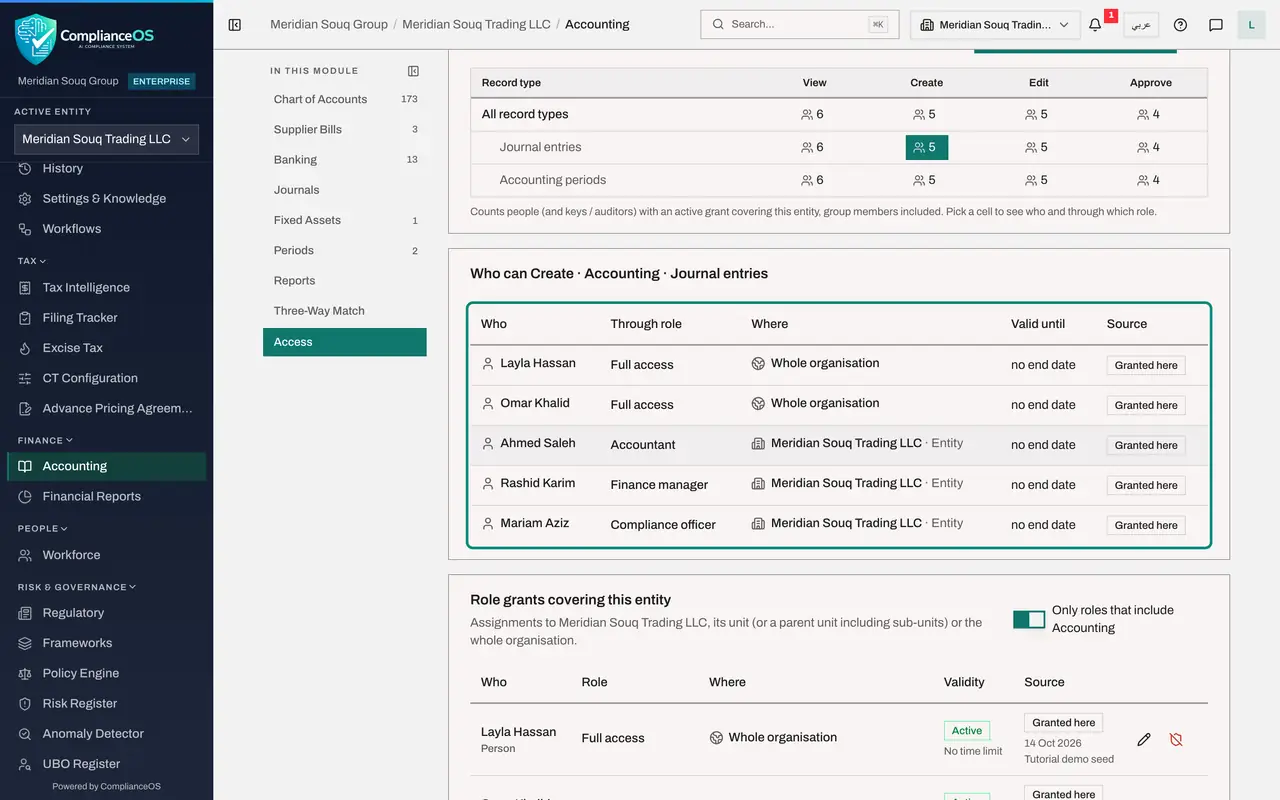
In the left menu select Accounting, then Access at the bottom of the section list. The heading names the module and the entity. The table has a row for each kind of record, All record types, Journal entries and Accounting periods, and a column for each right: View, Create, Edit and Approve.
- Select Accounting
- Select Access
- 2
Read the counts
Each cell is a count of the people, keys and auditors who hold that right for that kind of record in this entity, including rights that come from a group. A count is also a button: select it to see who is behind it.
- 3
See who can approve journal entries
Select the count under Approve on the Journal entries row. The list below changes to Who can Approve. It names each person, the role that gives them the right, where the role applies, and until when. Here the two administrators hold it through Full access, Rashid Karim through the Finance manager role and Mariam Aziz through the Compliance officer role. Ahmed Saleh, the accountant, is not in the list.
- Select 4 people can Approve: Journal entries
- 4
See who can create
Select the count under Create on the same row. The list now includes the accountant, through the Accountant role. This is the split that the journal lessons relied on: the accountant creates and submits, and the finance manager approves.
- Select 5 people can Create: Journal entries
- 5
Read the role grants
Further down, Role grants covering this entity lists every assignment of a role that includes Accounting: who holds it, where it applies, whether it has an end date, and where it was granted.
- 6
Read the approval policy
Below the grants, Approval policies shows the sign-off rule for this module's approvable action: Post, that is approve, a journal entry. By default one approver who holds the Approve right on journal entries is needed, with strict maker and checker, which means the person who prepared an entry cannot approve it. An administrator can add steps or approvers here.
- 7
Know where access is changed
At the top of the section are two controls. Grant access for this module assigns a role that covers Accounting to a person. Access control settings opens the organisation's full access settings. Both follow the same rules, which are covered in the course on administration.
How to check it worked
You can name the people who may approve journal entries in this entity and the role that gives each of them that right.
Common mistakes
- Giving the accountant the right to approve so that work moves faster. The person who prepares an entry should not be the one who approves it; keep preparing and approving with different people.
- Granting a right to a person directly when a role already fits. Assign the role: it carries the whole set of rights for the job and is easier to review.
- Expecting a change made here to differ from Access control in the settings. It is the same rule book; this section is a view of it for one module.
Check your understanding
1. An accountant opens the Access section of Accounting. What do they see?
- A.The full table of rights
- B.A message that only people who administer access can see who holds which rights
- C.An error page
- D.A form to grant themselves access
Show answer
Answer: B. A message that only people who administer access can see who holds which rights
Knowing who holds which rights is itself restricted. Other people are told to ask their security administrator.
2. Which right allows a person to post a submitted journal entry and to reverse a payment?
- A.View
- B.Create
- C.Edit
- D.Approve
Show answer
Answer: D. Approve
Approve is the control right. In this company the Finance manager role carries it for accounting, and the Accountant role does not.