Lesson 4 of 25
Record a supplier bill by hand and verify it
What you will be able to do
This lesson is for the accountant who handles purchases. A supplier bill is recorded in two steps. Saving the bill posts nothing. Verifying it confirms that it is correct and posts it to the ledger: the cost and the input VAT are debited and the amount owed to the supplier is credited. You will type in a bill, read the posting preview, verify it and open its journal entry.
Before you start
- The chart of accounts has been set up.
- You have the supplier's tax invoice in front of you, with their name, TRN, invoice number, dates and amounts.
- You are signed in with the Accountant role for the entity.
Steps
- 1
Open Accounting and select Supplier Bills
In the left menu select Accounting, then Supplier Bills, and select the Hide navigation icon at the top left so that the wide list fits. The tiles count all bills, those pending review, those verified and those not yet matched to a bank payment. Upload Document reads a bill from a file, which the next lesson covers. Select Manual Entry to type one in.
- Select Accounting
- Select Supplier Bills
- Select Hide navigation
- Select Manual Entry
- 2
Enter the supplier
In Supplier Name type the supplier's legal name as printed on their invoice. It is the only required field, but fill in the rest: in Supplier TRN type their 15-digit tax registration number, which you need in order to recover the VAT.
- Type Supplier Name *:
Gulf Carton & Packaging Supplies LLC - Type Supplier TRN:
100358274600003
- Type Supplier Name *:
- 3
Enter the invoice number and the dates
In the box labelled Invoice number type the number printed on the supplier's invoice. The same supplier and number cannot be entered twice. Set Invoice Date to the date on the invoice, 5 October 2026, and Due Date to the day payment falls due, 4 November 2026.
- Type Invoice #:
GCP-INV-26-0418 - Type Invoice Date:
2026-10-05 - Type Due Date:
2026-11-04
- Type Invoice #:
- 4
Enter the amounts
In Subtotal type the amount before VAT: 8400. In VAT Amount type the tax shown on the invoice: 420. The box called Total is worked out for you: 8,820. Compare it with the total printed on the supplier's invoice.
- Type Subtotal:
8400 - Type VAT Amount:
420
- Type Subtotal:
- 5
Choose the category
Open CT Category. The category decides which cost account the bill is posted to and how the cost is treated for corporate tax, for example entertainment, which is only half deductible. Cartons and tape for sending out orders are a cost of the goods sold, so choose Cost of Goods Sold.
- Select CT Category
- Choose Cost of Goods Sold
- 6
Choose the VAT treatment and describe the purchase
Open VAT Treatment and choose Standard Rated, because the supplier charged five percent. The other choices are Zero Rated, VAT Exempt and Outside VAT Scope. In Description say what was bought; the description is carried into the journal entry and into Tax.
- Select VAT Treatment
- Choose Standard Rated (5%)
- Type Description:
Corrugated shipping cartons and tape, October order
- 7
Select Add Bill
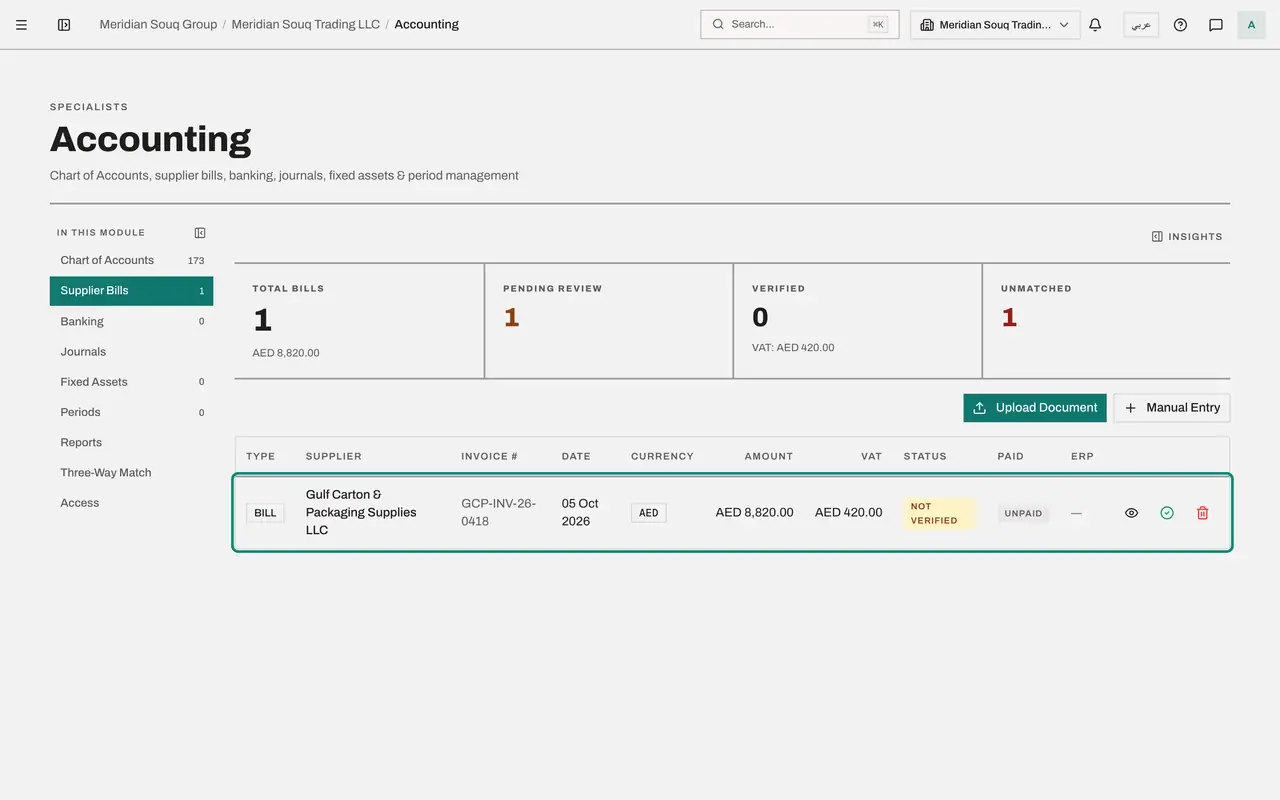
Read the note under the buttons: saving does not post anything. Select Add Bill. A message confirms that the bill is saved and that nothing is posted yet. The bill is listed with the status Not verified, and the tile Pending Review shows 1.
- Select Add Bill
- 8
Open the bill's details
At the end of the row are three icons: an eye, a green tick and a red bin. Select the eye, called View line items. A panel opens under the row with the description, the bill's lines, and Payments. Add Line Item lets you break the bill into lines. Payments says Verify the bill to record payments.
- Select View line items
- 9
Select Review posting and verify
Select Review posting and verify; the green tick on the row does the same. The window shows what will be posted to the ledger: Cost of Goods Sold debited 8,400, the input VAT account debited 420, and Accounts Payable, the amount owed to the supplier, credited 8,820. If the bill cannot be posted, it stays unverified.
- Select Review posting and verify
- 10
Select Verify and post
Check the accounts and the amounts, then select Verify and post. A message confirms that the bill was verified and gives the number of its journal entry. The status changes to Verified, with the journal entry number as a link beside it.
- Select Verify and post
- 11
Read the tiles and the sync notice
Scroll to the top. Verified now shows 1, with the VAT you can recover. A notice about ERP Sync has appeared: it counts verified bills that could be pushed to a connected accounting system, and says that pushing is switched off for this company. You can ignore it unless such a system is connected.
- 12
Open the journal entry from the bill
Select the journal entry number beside Verified. Accounting moves to Journals and opens that entry: the same three lines as the preview. This link is how you get from any bill to the entry behind it.
- Select JE-2026-0001
- 13
Close the entry
Select Close. In the Journals list the entry has the type AUTO_BILL, which means the system posted it from a bill, and the status Posted. The bill is now owed in the books and will appear in the trial balance and in the accounts payable aging report.
- Select Close
How to check it worked
Supplier Bills lists the bill from Gulf Carton and Packaging Supplies for 8,820 dirhams with the status Verified and a journal entry number beside it. The tile Verified shows 1.
Common mistakes
- Stopping after Add Bill. A saved bill shows Not verified and is in no report. Nothing is owed in the books until the bill is verified.
- Choosing the first category in the list. CT Category decides which cost account the bill is posted to and how it is treated for corporate tax, so choose the one that fits the purchase.
- Typing the total including VAT in Subtotal. Subtotal is the amount before VAT, VAT Amount is the tax, and the total is added up for you.
Check your understanding
1. When is a supplier bill posted to the ledger?
- A.When it is saved
- B.When it is verified
- C.When it is paid
- D.At month end
Show answer
Answer: B. When it is verified
The form says it under its buttons: saving does not post anything; the bill is posted to the ledger when it is verified.
2. What does verifying a standard-rated bill of 8,400 dirhams plus 420 VAT post?
- A.A debit of 8,820 to the cost account only
- B.Debits of 8,400 to the cost account and 420 to input VAT, and a credit of 8,820 to Accounts Payable
- C.A credit of 8,820 to the bank account
- D.Nothing until payment
Show answer
Answer: B. Debits of 8,400 to the cost account and 420 to input VAT, and a credit of 8,820 to Accounts Payable
The cost and the recoverable VAT are recorded separately, and the full amount is owed to the supplier until it is paid.