Lesson 17 of 25
Create accounting periods, then close, reopen and lock one
What you will be able to do
This lesson is for the finance manager. An accounting period is a span of dates, usually a month, that you finish and then close so that its figures stop changing. You will create two periods, close one, reopen it, close it again and lock it for good, and see what happens when someone then tries to post into it. Each of the three actions asks you to confirm, and locking asks you to type the period's name.
Before you start
- You are signed in with the Finance manager role for the entity.
- The month you are about to close is complete: the bank is reconciled, supplier bills are entered and verified, and no journal entry is waiting for approval.
Steps
- 1
Open Periods
In the left menu select Accounting, then Periods, and select the Hide navigation icon. No period has been defined yet. Until you define periods, entries can be posted on any date.
- Select Accounting
- Select Periods
- Select Hide navigation
- 2
Select New Period and describe September
Select New Period. In Period Name type a clear name, such as the month and year. Set Start Date to the first day of the month and End Date to the last. Notes is optional; use it for what was checked before the close.
- Select New Period
- Type e.g. Q1 2026:
September 2026 - Type Start Date *:
2026-09-01 - Type End Date *:
2026-09-30 - Type Notes:
No trading in September; opening month before the first sale
- 3
Select Create Period
Select Create Period. The period is listed with the status Open, which means entries dated in it can be posted, and a Close button at the end of its row.
- Select Create Period
- 4
Create the period for October
Create a second period in the same way for the current month: October 2026, from 1 October to 31 October. It stays Open while the month is being worked on.
- Select New Period
- Type e.g. Q1 2026:
October 2026 - Type Start Date *:
2026-10-01 - Type End Date *:
2026-10-31 - Type Notes:
Current month - Select Create Period
- 5
Select Close on September
September is complete. Select Close on its row. A window asks Close period September 2026? and explains that after closing, nothing can be posted to or changed in this period until it is reopened. It also shows what closing will post: nothing here, because the period does not end on the financial year-end. A period that ends on the year-end moves the year's profit or loss into retained earnings.
- Select Close
- 6
Select Close period
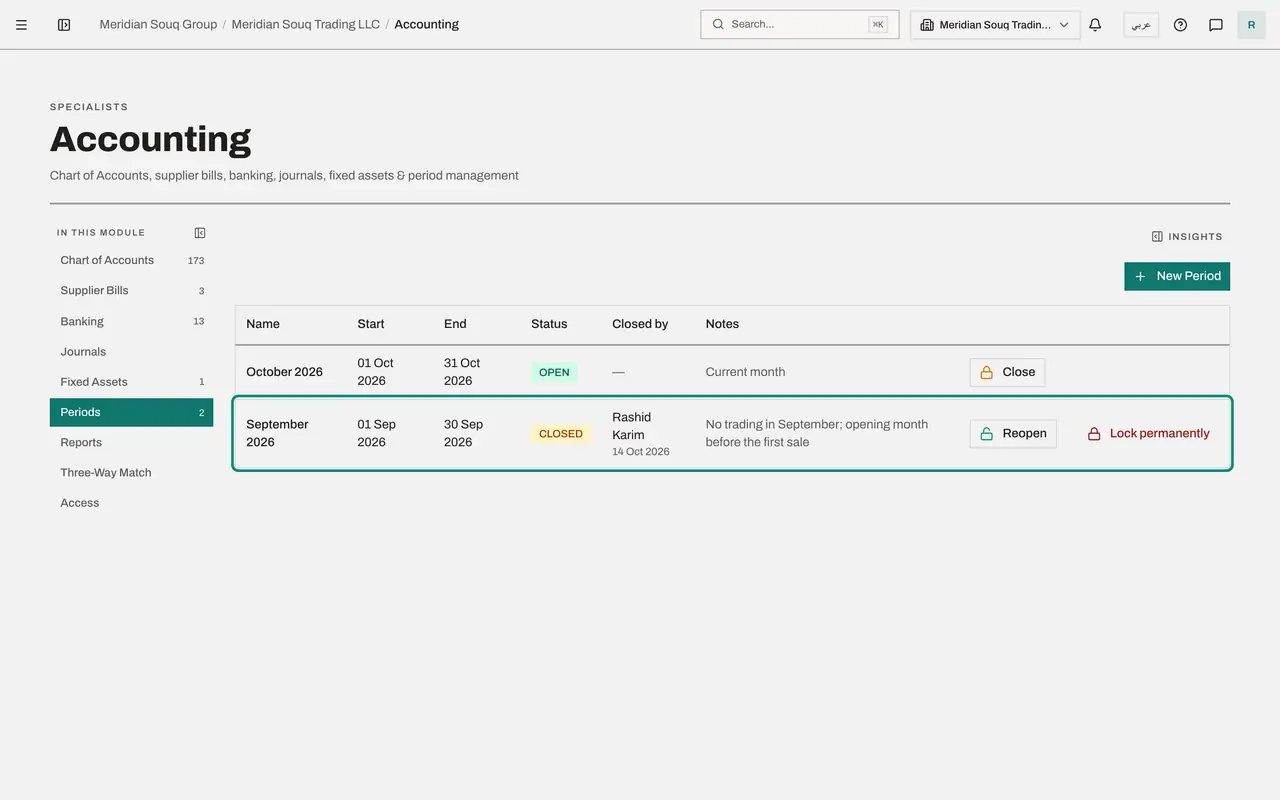
Select Close period. The status changes to Closed. Closed by shows your name and the date. The row now offers two buttons: Reopen and Lock permanently.
- Select Close period
- 7
Reopen the period for a late entry
If an entry for the month turns up after the close, select Reopen. The window explains that reopening allows postings and changes in this period again. Select Reopen period. The status returns to Open, and the row records who reopened it.
- Select Reopen
- Select Reopen period
- 8
Close it again
When the late entry has been posted, close the period again: select Close, then Close period.
- Select Close
- Select Close period
- 9
Select Lock permanently
Once the accounts for a period are final, for example after the audit or after the tax return is filed, lock it. Select Lock permanently. The warning is plain: locking cannot be undone; a locked period can never be reopened, and nothing in it can ever be posted or changed. The Lock permanently button in the window stays grey.
- Select Lock permanently
- 10
Type the period name and lock
To confirm, type the period's name exactly as shown: September 2026. Only then does the button become available. Select Lock permanently. The status changes to Locked and the row has no buttons left.
- Type Type the period name "September 2026" to confirm:
September 2026 - Select Lock permanently
- Type Type the period name "September 2026" to confirm:
- 11
Try to post into the locked period
See what the lock does. Select Journals, then New Entry. Set Date to 15 September 2026, type a description, debit account 6550, Printing and Stationery, with 100 and credit account 2100, Accrued Expenses, with 100.
- Select Journals
- Select New Entry
- Type Date *:
2026-09-15 - Type Description *:
Late stationery cost for September - Select Choose an account
- Type Search by code or name…:
6550 - Choose 6550 — Printing & Stationery
- Type Debit amount, line 1:
100 - Select Choose an account
- Type Search by code or name…:
2100 - Choose 2100 — Accrued Expenses
- Type Credit amount, line 2:
100
- 12
Select Create Entry and read the refusal
Select Create Entry. The entry is refused and nothing is saved. The message names the period and says that it is locked. Select Cancel. A late cost for a locked month has to be recorded in the current, open period instead.
- Select Create Entry
How to check it worked
Periods lists September 2026 with the status Locked and your name under Closed by, and October 2026 with the status Open. A journal entry dated in September is refused.
Common mistakes
- Locking a period to stop changes for now. Locking cannot be undone: a locked period can never be reopened. To stop changes for now, close the period; a closed period can be reopened.
- Closing a month while journal entries dated in it are still waiting for approval. They could no longer be posted. Clear the Approval Queue first.
- Making periods that overlap or leave gaps. Give each period a clear name, start it on the first day and end it on the last day of the month, quarter or year.
Check your understanding
1. What is the difference between closing and locking a period?
- A.There is none
- B.A closed period can be reopened; a locked period can never be reopened or changed
- C.Locking is for months and closing is for years
- D.Closing deletes the entries
Show answer
Answer: B. A closed period can be reopened; a locked period can never be reopened or changed
Close stops postings until the period is reopened. Lock is permanent, which is why it makes you type the period's name before it will go ahead.
2. Someone tries to post a journal entry dated in a closed or locked period. What happens?
- A.It is posted anyway
- B.It is refused, and nothing is saved
- C.It is moved to the next period without telling anyone
- D.The period reopens by itself
Show answer
Answer: B. It is refused, and nothing is saved
That is the point of closing: the figures for the period can no longer change. To add a late entry, the finance manager reopens the period, unless it is locked.